
E-Government
General Description The e-Government module enables the sending, receiving and tracking of e-documents (e-Invoice, e-Archive, e-Delivery Note, e-Producer) created within the ERP system in integration with the Revenue Administration (GİB) systems.
General Description
The e-Government module enables the sending, receiving and tracking of e-documents (e-Invoice, e-Archive, e-Delivery Note, e-Producer) created within the ERP system in integration with the Revenue Administration (GİB) systems.
New invoices are not created in this module.
All documents are managed through this module after being created on the relevant transaction screens.
Main Purpose of the Module:
- Transmitting e-documents created in ERP to Revenue Administration
- Receiving documents coming from the Revenue Administration into the system
- Following document status (sent, accepted, rejected, etc.)
- Archiving and printing documents
Working Logic:
- The invoice / document is created on the relevant screens in ERP
- The document type (e-Invoice / e-Archive / e-Delivery Note, etc.) is determined at the creation stage
- The created document falls into this module
Via this module:
- Sent to GIB
- Incoming documents are received
- Process status is monitored
MODULE SECTIONS
e-Invoice:
This is the area where electronic invoice processes between companies are managed.
- Send e-Invoice
This is the screen where e-Invoices created in ERP are transmitted to the Revenue Administration - Outgoing e-Invoices
This is the area where sent invoices are listed and their status is monitored - Incoming e-Invoices
This is the screen where e-Invoices from suppliers are displayed and processed
e-Archive:
This is the area where electronic invoices sent to recipients who are not e-Invoice taxpayers are managed.
- Send e-Archive
Screen where created e-Archive invoices are sent - Outgoing e-Archive
List of sent e-Archive invoices
e-Producer:
This is the area where producer receipts issued for agricultural and producer purchases are managed.
- Send e-Producer
Screen where documents are sent - Outgoing e-Producer
List of sent documents
e-Delivery Note:
This is the area where electronic delivery notes used in goods shipment processes are managed.
- Send e-Delivery Note
The screen where the created e-delivery note is sent - Outgoing e-Delivery Note
List of sent delivery notes - Incoming e-Delivery Note
Area where delivery notes coming from external companies are displayed
Important Note:
- This module is not a document creation screen
- Documents are not converted into e-documents here
- Document type is determined at creation
- This module is only transmission and management center
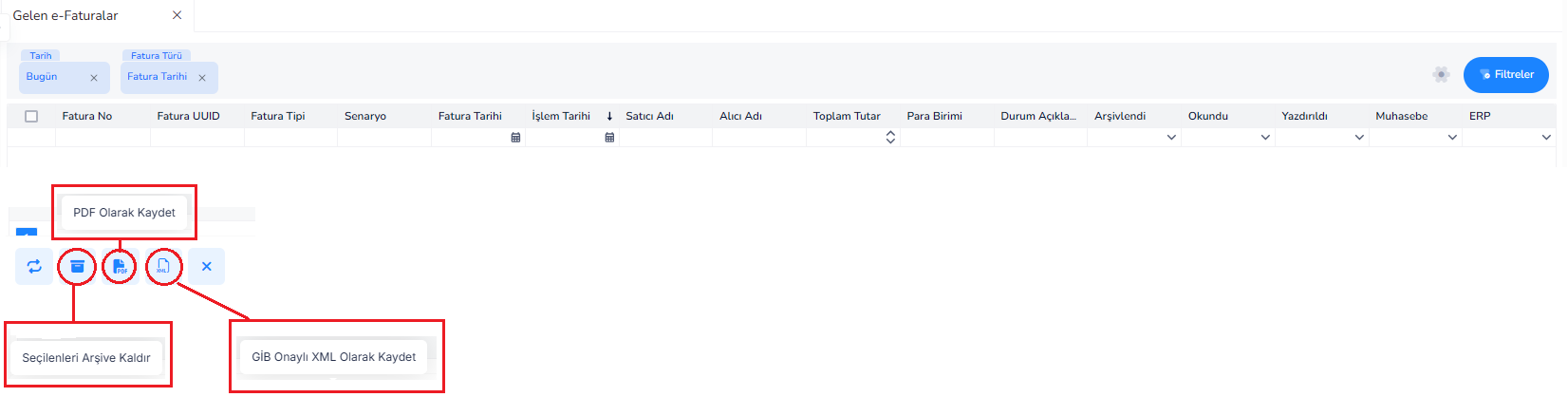
SEND E-INVOICE

What is it for?
This screen is the area where e-Invoices created in the ERP system are listed and sent in bulk before being sent to the Revenue Administration (GİB) system.
On this screen:
- No new invoice is created
- Only ready-made e-Invoices are sent
General Working Logic
- Invoice is created in ERP (Sales Invoice)
- Type is selected as e-Invoice
- Falls onto this screen
- Selected here and sent to GIB
Top Filter Fields
1st Date (Today): This is the date filter for the invoices to be displayed
2.Show All: Lists all invoices by removing the date filter
Tablespace:
Date 3: The date the invoice was created
4.Document Number:Invoice number in the ERP system
Type 5: Type of invoice (Sales, Return, etc.)
Scenario 6:e-Invoice scenario
7.Tax Number:Tax number of the buyer company
8.Recipient Name:Customer/company name from which the invoice was issued
9.Currency: The currency in which the invoice is issued (TRY, USD, etc.)
10.Goods and Services Amount:Total amount of product/service (excluding VAT)
11.Discount Amount:Total discount amount on the invoice
12.Tax Base:The amount on which the tax is calculated
13.Tax Amount:Calculated VAT amount
14.Amount to be paid:Total amount of the invoice (grand total)
15.Invoice Number:The e-Invoice number that will be generated / matched by the Revenue Administration
What to Do on This Screen?
- Invoices to be sent are listed
- Invoices to be sent are selected
- Sent to the Revenue Administration in bulk or individually
- After sending, invoices appear on the “Outgoing e-Invoices” screen
Note
- Invoices appearing on this screen = e-Invoices that have not been sent yet
- Remove from this list after submission
- Status information is generated depending on the sending success
OUTPUT E-INVOICES
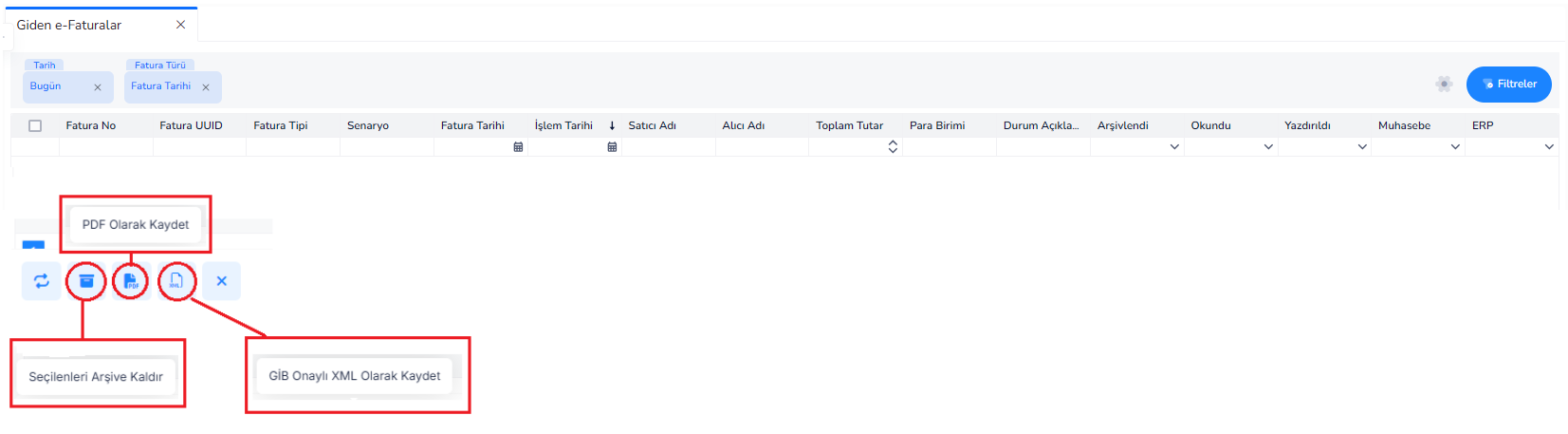
What is it for?
This screen is the area where the status of e-Invoices sent from the ERP system on the Revenue Administration (GİB) is monitored.
On this screen:
- Sent invoices are tracked
- Their status is checked (accepted / rejected / forwarded, etc.)
- Output and data downloading operations are performed
General Working Logic:
Upper Filter Fields:
1st Date (Today): This is the date filter for the invoices to be listed
2.Invoice Type / Invoice Date:Invoices are filtered by type or date
3.Filters Button: Opens advanced filtering options
Tablespace:
- Invoice Number:E-Invoice number created by the Revenue Administration
- Invoice UUID: The unique identification number of the invoice in the system
- Invoice Type: Invoice type (Sales, Return, etc.)
- Scenario:e-Invoice scenario (Basic / Commercial)
- Invoice Date: Date of the invoice
- Transaction Date: Date the invoice was sent
- Seller Name: The company that sent the invoice (your company)
- Recipient Name: Customer to whom the invoice was sent
- Total Amount:The grand total amount of the invoice
- Currency: Currency of the invoice
- Status Description: The status of the invoice on the Revenue Administration
(Ex: Sent, Accepted, Rejected, etc.) - Archived: Whether the invoice has been archived
- Read: Viewed status by recipient
- Printed: Whether the invoice has been printed or not
- Accounting: Transfer status to accounting
- ERP: In-ERP transaction status
Buttons and Their Functions:
1.Save as PDF:Downloads the visual printout of the selected invoice as PDF
2.Save as GİB Approved XML: Downloads the official data format (XML) of the invoice
3.Archive Selected Items:Removes the selected invoices from the active list and moves them to the archive
4.Refresh: Updates the list and brings current status
What to Do on This Screen?
Important Note
- In this screenno invoice is issued or sent
- This screen is only a tracking screen for sent invoices
- Status information works synchronously with the IOP system
Summary
This screen is the follow-up screen used to monitor the status, print and archive e-Invoices sent to the Revenue Administration.
SEND E-ARCHIVE

What is it for?
This screen is the area where e-Archive invoices created in the ERP system are listed and sent before being sent to the Revenue Administration (GİB) system.
e-Archive invoices:
- Issued to customers who are not e-Invoice taxpayers
- It is not sent to the Revenue Administration instantly, it is reported
- Usually delivered to the customer as PDF / e-mail
General Working Logic:
- Invoice is created in ERP
- The type is selected as e-Archive
- Falls onto this screen
- Sending is done from here
- Sent invoices are transferred to the Outgoing e-Archive screen
Upper Filter Fields:
Tablespace:
- Date: Invoice creation date
- Document Number:Invoice number in the ERP system
- Type: Invoice type (Sales, Returns, etc.)
- Scenario:e-Archive invoice scenario
- Tax Number: Buyer's tax number / T.R. ID number
- Recipient Name: Person/company to whom the invoice was issued
- Goods and Services Amount:Total amount of products or services (excluding VAT)
- Discount Amount:Discount amount on the invoice
- Tax Base: The amount on which the tax is calculated
- Tax Amount:Calculated VAT
- Amount to be paid:General total amount of the invoice
Buttons and Their Functions
1.Edit: Opens the selected invoice to the edit screen
2.Refresh: Updates the list
3.Delete: Removes the selected invoice from the list (if not sent yet)
4.Close (X): Turns off the screen
What to Do on This Screen?
- The e-Archive invoices to be sent are listed
- Invoices are checked
- Sending is done by selecting
- The list is updated after submission
Important Note
- This screen is only a sending screen
- Invoices are not created here
- Only e-Archive invoices that have not yet been sent are listed
- After sending, invoices are transferred to the “Outgoing e-Archive” screen
Difference with e-Invoice (Short)
- e-Invoice → It is transmitted from company to company via the Revenue Administration
- e-Archive → Reported to the end user (PDF / mail), Revenue Administration
Summary
This is the submission screen where e-Archive invoices created in ERP are checked before submission and transmitted to the system.
OUTPUT E-ARCHIVE SCREEN
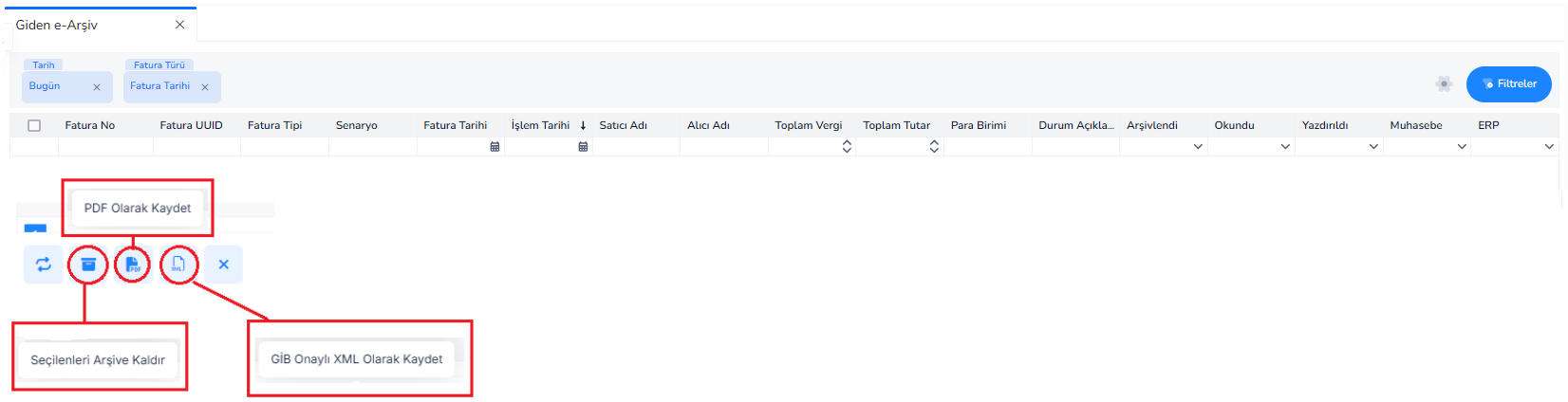
What is it for?
This screen is the area where e-Archive invoices sent from the ERP system are listed and their status is tracked.
On this screen:
- Sent e-Archive invoices are displayed
- Output (PDF) and data (XML) are downloaded
- Archiving and tracking operations are carried out
General Working Logic
- Invoice is created as e-Archive in ERP
- Sent from the Send e-Archive screen
- Sent invoices appear on this screen
- Process and status tracking is done here
Upper Filter Fields:
1st Date (Today): This is the date filter for the invoices to be listed
2.Invoice Type / Invoice Date:Allows you to filter invoices by type and date
3.Filters Button: Opens advanced filtering options
Tablespace:
- Invoice Number:e-Archive invoice number
- Invoice UUID: Unique system ID of the invoice
- Invoice Type: Invoice type (Sales, Return, etc.)
- Scenario:e-Archive scenario
- Invoice Date: Date of the invoice
- Transaction Date: Date the invoice was sent
- Seller Name: The company that sent the invoice
- Recipient Name: Customer to whom the invoice was issued
- Total Tax: Total tax amount on the invoice
- Total Amount:The grand total amount of the invoice
- Currency: Currency of the invoice
- Status Description: Transaction status of the invoice
- Archived: Whether the invoice has been archived
- Read: Invoice display status
- Printed: Whether PDF output was taken
- Accounting: Transfer status to accounting
- ERP:Transaction status in the ERP system
Buttons and Their Functions
- Save as PDF:Downloads the PDF printout of the selected invoice
- Save as Revenue Administration Approved XML:Downloads the official data format of the invoice
- Archive Selected: Removes selected invoices from the active list and moves them to archive
- Refresh: Updates the list
- Close (X): Turns off the screen
What to Do on This Screen?
- Sent e-Archive invoices are checked
- Invoice printouts (PDF/XML) are received
- Processed invoices are archived
- Process and record tracking is done
Important Note
- This screen is not a sending screen
- Invoices are not issued here
- Only sent e-Archive invoices are tracked
Summary
This screen is the management screen where sent e-Archive invoices are displayed, printed out and their processes are followed.
SEND E-PRODUCER

What is it for?
This screen is the area where e-Producer receipts created in the ERP system are listed and sent before being sent to the Revenue Administration (GİB) system.
e-Producer receipt:
- Used for purchases from farmers / producers
- It is a special document that replaces an invoice
General Working Logic:
- Producer receipt is created in ERP
- The document type is determined as e-Producer
- Falls onto this screen
- Selected here and sent to GIB
- The sent documents are transferred to the Outgoing e-Producer screen
Upper Filter Fields:
1st Date (Today): This is the date filter for the documents to be listed
2.Invoice Type / Show All: Used to list all e-Producer documents
3.Filters Button: Opens detailed filtering options
Tablespace:
- Date: Date of creation of the document
- Document Number:Receipt number in the ERP system
- Scenario:e-Producer document scenario
- Tax Number: T.R. of the seller (manufacturer). ID / tax number
- Recipient Name: Person to whom the receipt is issued (producer / farmer)
- Currency: Transaction currency
- Goods and Services Amount: Total of products/services (excluding tax)
- Discount Amount: Discount amount, if any
- Tax Base: The amount on which the tax is calculated
- Tax Amount: Calculated tax amount
- Amount to be paid: Total amount to be paid
Buttons and Their Functions:
- Edit: Opens the selected document to the editing screen
- Refresh: Updates the list
- Delete: Deletes the document that has not yet been sent
- Close (X): Turns off the screen
What to Do on This Screen?
- The e-Producer documents to be sent are listed
- Documents are checked
- Sending is done by selection
- Sent documents are tracked in the system
Important Note
- This screen is not a document creation screen
- Only e-Producer documents that have not yet been sent are listed
- After sending, the documents move to the "Outgoing e-Producer" screen
Summary
This is the submission screen where e-Producer receipts created in ERP are checked before submission and transmitted to the Revenue Administration system.
OUTPUT E-PRODUCER
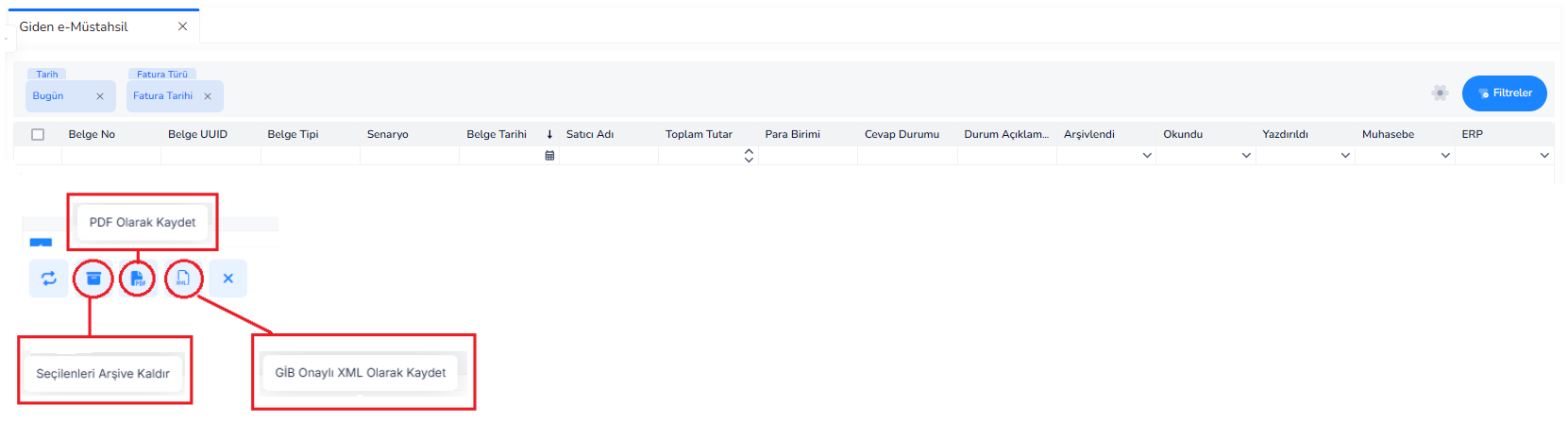
What Does It Do?
This screen is the area where e-Producer receipts sent from the ERP system are listed and their status is tracked.
On this screen:
- Sent e-Producer documents are displayed
- Their status is monitored
- PDF and XML outputs are taken
- Archiving operations are carried out
General Working Logic:
- Producer receipt is created in ERP
- It is sent to the Revenue Administration from the Send e-Producer screen
- Sent documents appear on this screen
- Process and status tracking is done here
Upper Filter Fields:
- Filters Button: Opens advanced filtering options
Tablespace:
- Document No:e-Producer receipt number
- Document UUID: Unique system ID of the document
- Document Type: Document type
- Scenario:e-Producer scenario
- Document Date:Date of the receipt
- Seller Name: Producer / farmer from whom the receipt is issued
- Total Amount:The grand total amount of the receipt
- Currency: Transaction currency
- Response Status: The status of the document by the recipient
- Status Description: System processing status of the document
- Archived:Whether the document has been archived
- Read: Document viewing status
- Printed: Whether PDF output was taken
- Accounting: Transfer status to accounting
- ERP: Transaction status in ERP
Buttons and Their Functions
- Save as PDF:Downloads the PDF output of the selected document
- Save as Revenue Administration Approved XML:Downloads the official data format of the document
- Archive Selected: Removes the selected documents from the active list and moves them to the archive
- Refresh: Updates the list
- Close (X): Turns off the screen
What to Do on This Screen?
- Sent e-Producer documents are checked
- Status information is tracked
- PDF / XML outputs are taken if necessary
- Processed documents are archived
Important Note
- This screen is not a sending screen
- Documents are not edited here
- Only sent documents are tracked
Summary
This screen is the management screen where sent e-Producer receipts are displayed, their printouts are taken and their processes are followed.
SEND E-DELIVERY

What Does It Do?
This screen is the area where e-Delivery Notes created in the ERP system are listed and sent before being sent to the Revenue Administration (GİB) system.
e-Delivery Note:
- It is the official document used in the shipment of goods
- The product is organized while it is in transit
- It does not replace an invoice, it is a shipping document
General Working Logic:
- Delivery note is created in ERP
- The document type is determined as e-Delivery Note
- Falls onto this screen
- Selected here and sent to GIB
- The sent documents are transferred to the Outgoing e-Delivery Note screen
Upper Filter Fields:
- Filters Button: Opens detailed filtering options
List Field (Columns)
- Date: Delivery note creation date
- Document Number:Delivery note number in the ERP system
- Scenario:e-Delivery Note scenario
- Tax Number: Tax number of the buyer company
- Recipient Name: Customer to whom the goods were sent
- Currency: Transaction currency
- Goods and Services Amount:Total amount of shipped products
- Carrier Type: Type of person/institution making the shipment
- Carrier Title: Name of the company performing the transportation
- Driver Name: The person driving the vehicle
- Driver Phone: Driver's contact information
- Plate:Plate of the transport vehicle
- Shipment Date: The date the goods were shipped
Buttons and Their Functions
- Edit: Opens the selected delivery note to the editing screen
- Refresh: Updates the list
- Delete: Deletes the delivery note that has not yet been sent
- Close (X): Turns off the screen
What to Do on This Screen?
- The e-Delivery Notes to be sent are listed
- Shipment information is checked
- Sending is done by selection
- Sent delivery notes are tracked in the system
Important Note
- This screen is not delivery note creation screen
- Only e-Delivery Notes that have not yet been sent are listed
- After sending, the documents move to the “Outgoing e-Delivery Note” screen
Summary
This screen is the sending screen where e-Delivery Notes created in ERP are checked before sending and transmitted to the Revenue Administration system.
OUTPUT E-DELIVERIES
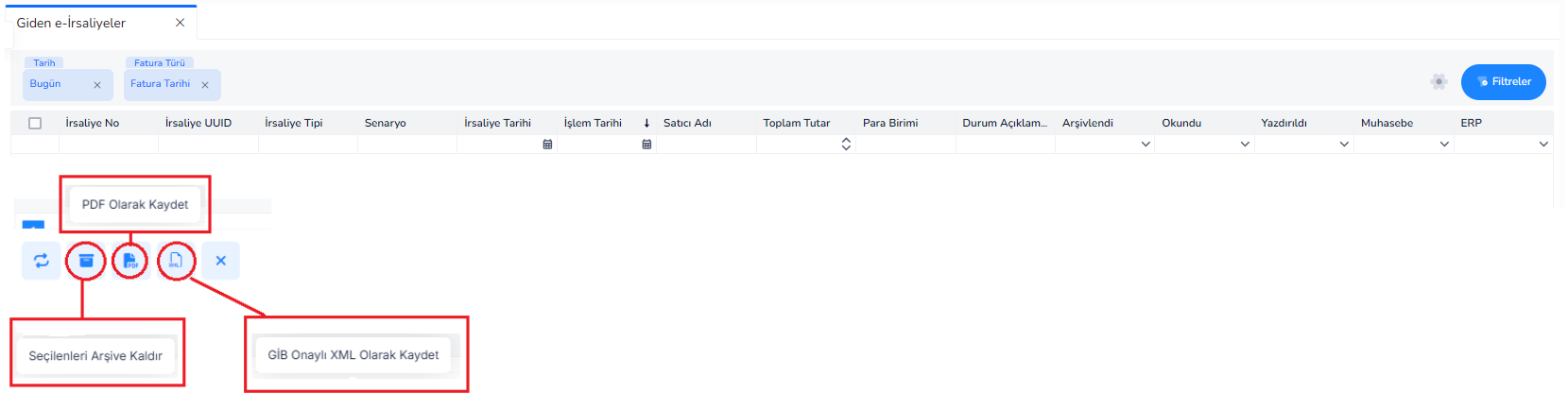
What Does It Do?
This screen is the area where e-Delivery Notes sent from the ERP system are listed and their status is tracked.
On this screen:
- Sent e-Delivery Notes are displayed
- Shipment processes are tracked
- PDF and XML outputs are taken
- Archiving operations are carried out
General Working Logic
- Delivery note is created in ERP
- It is sent to the Revenue Administration from the Send e-Delivery Note screen
- Sent delivery notes appear on this screen
- Process and status tracking is done here
Top Filter Fields
- Date (Today): This is the date filter for the delivery notes to be listed
- Invoice Type / Invoice Date:Allows filtering of delivery notes by type and date
- Filters Button: Opens advanced filtering options
List Field (Columns)
- Delivery Note No:e-Delivery Note document number
- Delivery note UUID: Unique system ID of the document
- Delivery Note Type: Delivery Note Type
- Scenario:e-Delivery Note scenario
- Delivery Note Date: Date of the document
- Transaction Date:The date the delivery note was sent
- Seller Name: The company that made the shipment (your company)
- Total Amount:Total amount of shipped products
- Currency: Transaction currency
- Status Description: Status of the delivery note in the system
- Archived:Whether the document has been archived
- Read: Viewed status by recipient
- Printed: Whether PDF output was taken
- Accounting:Accounting integration status
- ERP:Transaction status in the ERP system
Buttons and Their Functions
- Save as PDF:Downloads the PDF output of the selected delivery note
- Save as Revenue Administration Approved XML:Downloads the official data format of the delivery note
- Archive Selected Items: Removes selected delivery notes from the active list and moves them to archive
- Refresh: Updates the list
- Close (X): Turns off the screen
What to Do on This Screen?
- Sent e-Delivery Notes are checked
- Shipment information and status are tracked
- PDF / XML outputs are taken if necessary
- Processed delivery notes are archived
Important Note
- This screen is not a sending screen
- Delivery notes are not edited here
- Only sent e-Delivery Notes are tracked
Summary
This screen is the management screen where sent e-Delivery Notes are displayed, printed and shipment processes are followed.
INCOMING E-DELIVERIES
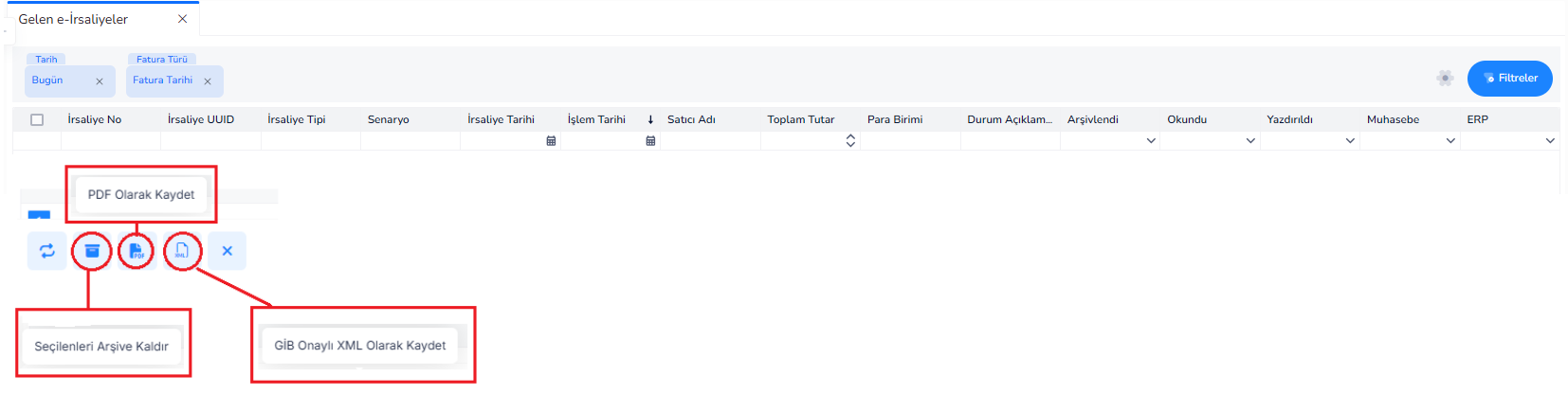
What is it for?
This screen is the area where e-delivery notes coming from suppliers are received from the Revenue Administration (GİB) and displayed and managed within the ERP system.
On this screen:
- Incoming e-Delivery Notes are listed
- Shipment information is checked
- Documents are processed into the ERP system
- PDF and XML outputs are taken
General Working Logic
Top Filter Fields
- Date (Today): This is the date filter for the delivery notes to be listed
- Invoice Type / Invoice Date:Allows filtering of delivery notes by type and date
- Filters Button: Opens detailed filtering options
List Field (Columns)
- Delivery Note Number:E-Delivery Note number issued by the Revenue Administration
- Delivery note UUID: Unique system ID of the document
- Delivery Note Type: Delivery Note Type
- Scenario:e-Delivery Note scenario
- Delivery Note Date: Date of the document
- Transaction Date: The date the document was entered into the system
- Seller Name: The company that sent the delivery note
- Total Amount:Total amount of shipped products
- Currency: Transaction currency
- Status Description: Transaction status of the document
- Archived:Whether the document has been archived
- Read: Document viewing status
- Printed: Whether PDF output was taken
- Accounting: Transfer status to accounting
- ERP: Processing status in the ERP system
Buttons and Their Functions
- Save as PDF:Downloads the PDF output of the selected delivery note
- Save as Revenue Administration Approved XML:Downloads the official data format of the document
- Archive Selected: Removes the processed documents from the active list and moves them to the archive
- Refresh: Re-pulls current data from the Revenue Administration
- Kapat (X)^: Ekranı kapatır
Bu Ekranda Ne Yapılır?
- Gelen e-İrsaliyeler kontrol edilir
- Sevkiyat bilgileri incelenir
- ERP sistemine işlenir
- Gerekirse PDF / XML çıktıları alınır
- İşlenen belgeler arşivlenir
Önemli Not
- Bu ekran irsaliye oluşturma ekranı değildir
- Gelen belgeler burada düzenlenmez
- Bu ekran bir karşılama ve kontrol ekranıdır
- Stok ve işlem kayıtları, belge ERP’ye işlendiğinde oluşur
Özet
Bu ekran, GİB üzerinden gelen e-İrsaliyelerin ERP sistemine alınması, kontrol edilmesi ve işlenmesi için kullanılan yönetim ekranıdır.
Bu doküman yardımcı oldu mu?
Eksik veya geliştirilmesi gereken bir bölüm varsa destek ekibimizle paylaşabilirsiniz.