
Sistem Parametreleri
Ne İşe Yarar? Bu ekran, işletmeye ait şubelerin tanımlandığı ve tüm operasyonların şube bazlı yönetilebilmesi için kullanılan sistem parametreleri ekranıdır.
ŞUBE TANIMLARI EKRANI
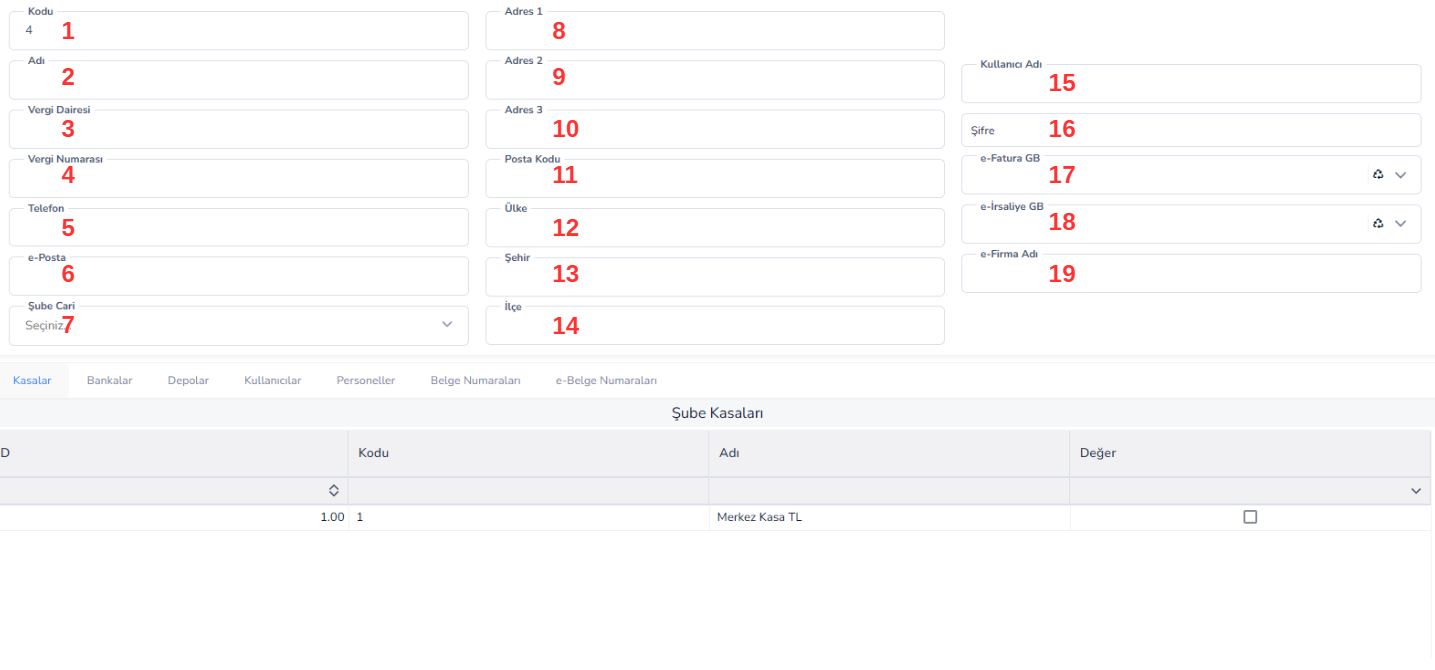
Ne İşe Yarar?
Bu ekran, işletmeye ait şubelerin tanımlandığı ve tüm operasyonların şube bazlı yönetilebilmesi için kullanılan sistem parametreleri ekranıdır.
Bu ekran sayesinde:
- Şubeler sisteme tanımlanır
- Şube bazlı işlem yapılabilir (fatura, stok, kasa vb.)
- Finans ve operasyon süreçleri şubelere göre ayrıştırılır
Genel Çalışma Mantığı:
- Yeni şube kaydı oluşturulur
- Şubeye ait temel bilgiler girilir
- e-Dönüşüm ve iletişim bilgileri tanımlanır
- Şubeye bağlı kasa, banka, depo vb. yapılar belirlenir
- Şube aktif olarak sistemde kullanılmaya başlanır
Üst Alanlar:
1.Kodu: Şubeye ait benzersiz kod
2.Adı: Şubenin adı
3.Vergi Dairesi: Şubenin bağlı olduğu vergi dairesi
4.Vergi Numarası: Şubenin vergi numarası
5.Telefon: Şubeye ait iletişim numarası
6.e-Posta: Şubenin e-posta adresi
7.Şube Cari: Şubenin bağlı olduğu cari hesap
8.Adres 1: Şubenin açık adresi (ana satır)
9.Adres 2: Ek adres bilgisi
10.Adres 3: Detay adres bilgisi
11.Posta Kodu: Adresin posta kodu
12.Ülke: Şubenin bulunduğu ülke
13.Şehir: Şubenin bulunduğu şehir
14.İlçe: Şubenin bulunduğu ilçe
15.Kullanıcı Adı: e-Fatura / e-İrsaliye entegrasyonu için kullanıcı adı
16.Şifre: Entegrasyon şifresi
17.e-Fatura GB: e-Fatura gönderim bilgisi / entegratör ayarı
18.e-İrsaliye GB: e-İrsaliye gönderim ayarı
19.e-Firma Adı: e-belgelerde görünecek firma adı
Alt Sekmeler:
- Kasalar: Şubeye bağlı kasa hesaplarının tanımlandığı alandır
- Bankalar: Şubeye ait banka hesaplarının tanımlandığı alandır
- Depolar: Şubeye bağlı depo ve stok alanlarının tanımlandığı alandır
- Kullanıcılar: Şubede işlem yapacak sistem kullanıcılarının tanımlandığı alandır
- Personeller: Şubeye bağlı çalışan personellerin tanımlandığı alandır
- Belge Numaraları: Şubeye özel belge seri ve numaralandırma ayarlarının yapıldığı alandır
- e-Belge Numaraları: e-Fatura, e-Arşiv, e-İrsaliye gibi elektronik belgelerin seri ve numara yapılarını belirler
Bu Ekranda Ne Yapılır?
- Yeni şube tanımı yapılır
- Şube bilgileri sisteme girilir
- e-Dönüşüm ayarları yapılır
- Şubeye bağlı finans ve depo yapıları tanımlanır
- Şube operasyonel kullanıma hazır hale getirilir
Önemli not
- Şube tanımı, sistemin tüm modüllerini etkiler
- Fatura, stok ve finans işlemleri şube bazlı çalışır
- Doğru tanımlama raporlamada kritik öneme sahiptir
Bu ekran, işletmeye ait şubelerin tüm operasyonel, finansal ve entegrasyon bilgileri ile tanımlandığı merkezi yapılandırma ekranıdır.
Belge Numaraları Sekmesi
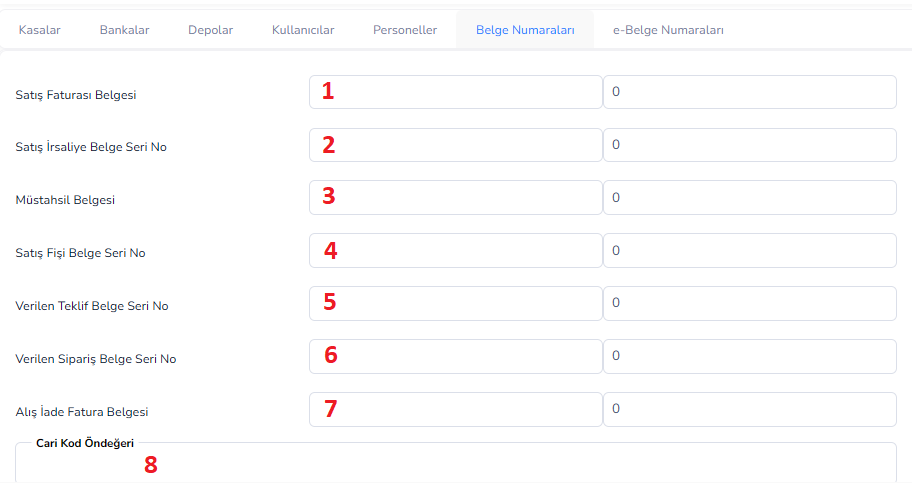
Ne İşe Yarar?
Bu sekme, sistemde oluşturulan belgelerin numara ve seri yapılarını belirlemek için kullanılır.
Bu sayede:
- Her belgeye otomatik numara verilir
- Belge karışıklığı önlenir
- Şube bazlı numaralandırma yapılabilir
Genel Çalışma Mantığı:
- Her belge türü için bir seri tanımlanır
- Başlangıç numarası belirlenir
- Sistem belge oluşturuldukça otomatik numara üretir
Alanlar:
1.Satış Faturası Belgesi: Satış faturaları için kullanılacak seri ve başlangıç numarası
2.Satış İrsaliye Belge Seri No: Satış irsaliyeleri için seri numarası tanımı
3.Müstahsil Belgesi: Müstahsil makbuzları için numaralandırma ayarı
4.Satış Fişi Belge Seri No: Satış fişleri için seri tanımı
5.Verilen Teklif Belge Seri No: Müşterilere verilen teklif belgeleri için seri numarası
6.Verilen Sipariş Belge Seri No: Satış siparişleri için seri numarası
7.Alış İade Fatura Belgesi: Alış iade faturaları için seri ve numara tanımı
8.Cari Kod Öndeğeri: Yeni oluşturulan cari hesaplar için otomatik kod başlangıcı
Bu Sekmede Ne Yapılır?
- Belge türlerine göre seri tanımlanır
- Başlangıç numaraları belirlenir
- Otomatik numaralandırma sistemi kurulmuş olur
- Belgeler düzenli ve sıralı hale getirilir
Önemli Not
- Bu ayarlar tüm modülleri etkiler
- Yanlış seri → belge karışıklığı oluşturur
- Şube bazlı farklı seri kullanımı mümkündür
Bu sekme, sistemde oluşturulan tüm belgeler için otomatik ve düzenli numaralandırma yapısını belirleyen parametre alanıdır.
E-Belge Numaraları Sekmesi
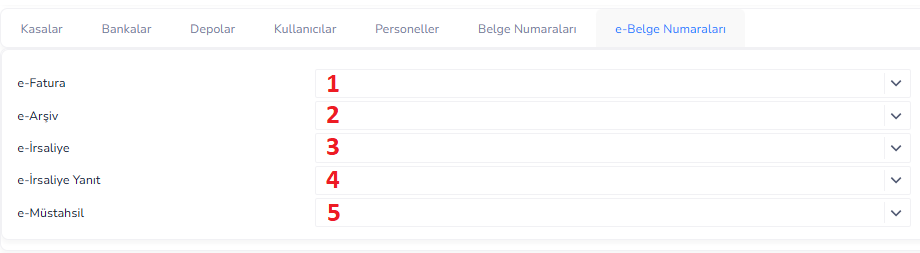
Ne İşe Yarar?
Bu sekme, elektronik belgeler (e-Fatura, e-Arşiv, e-İrsaliye vb.) için kullanılacak numara ve seri yapılarını belirlemek amacıyla kullanılır.
Bu sayede:
- e-Belgeler için özel numaralandırma yapılır
- GİB uyumlu belge numarası oluşturulur
- e-Dönüşüm süreçleri düzenli ilerler
Genel Çalışma Mantığı
- Her e-belge türü için seri seçilir
- Sistem bu seriye göre belge numarası üretir
- e-Belgeler GİB standartlarına uygun şekilde numaralandırılır
Alanlar:
1.e-Fatura: e-Faturalar için kullanılacak seri ve numara yapısı
2.e-Arşiv: e-Arşiv faturaları için seri tanımı
3.e-İrsaliye: e-İrsaliyeler için numaralandırma ayarı
4.e-İrsaliye Yanıt: e-İrsaliye yanıt belgeleri için seri tanımı
5.e-Müstahsil: e-Müstahsil makbuzları için seri numarası
Bu Sekmede Ne Yapılır?
- e-Belge türlerine göre seri seçilir
- Belge numaralandırma sistemi oluşturulur
- GİB uyumlu belge akışı sağlanır
- e-Dönüşüm süreçleri standart hale getirilir
Önemli Not
- e-Belgeler için numaralandırma GİB standartlarına uygun olmalıdır
- Her belge türü için ayrı seri kullanılması önerilir
- Bu ayarlar e-Fatura ve e-İrsaliye süreçlerini doğrudan etkiler
Bu sekme, e-Fatura, e-Arşiv ve diğer e-belgeler için GİB uyumlu numaralandırma yapısını belirleyen parametre alanıdır.
AJANDA (TAKVİM)
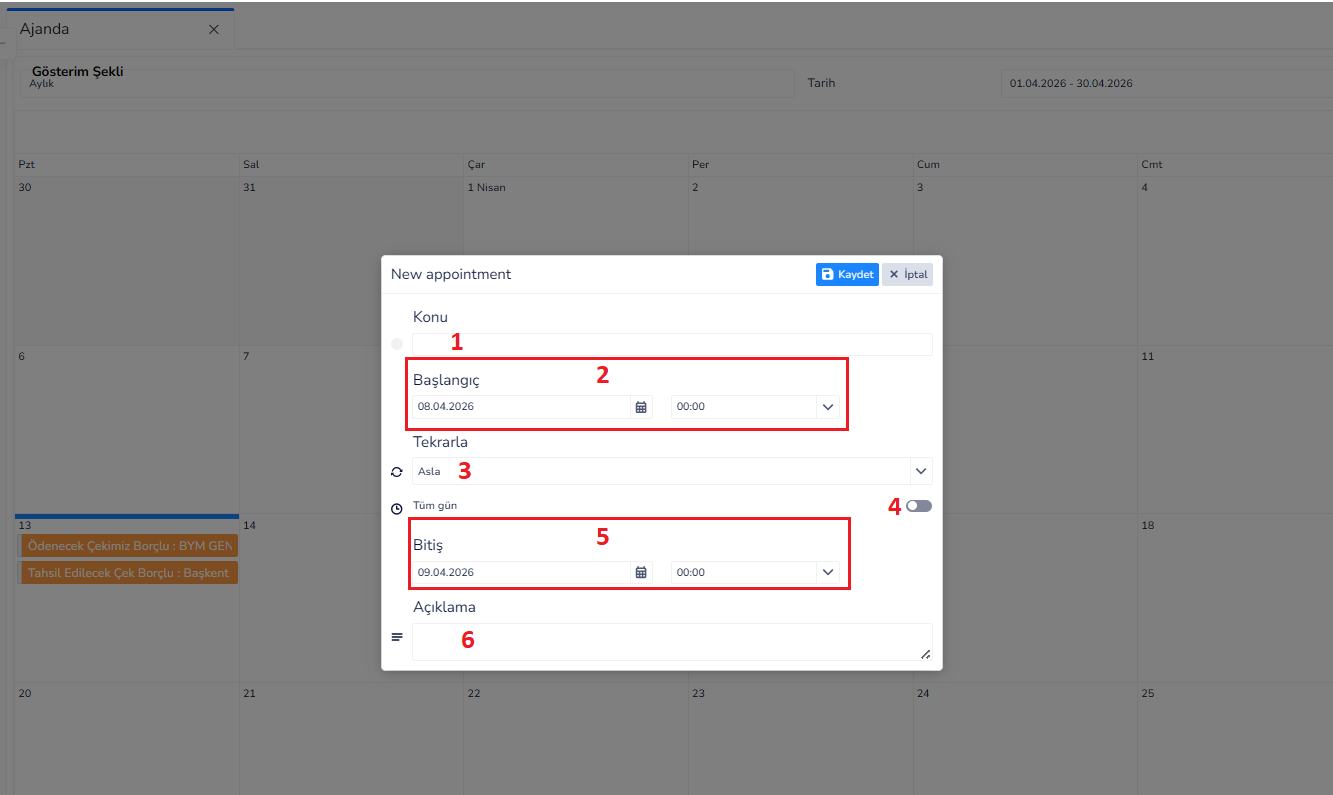
Ne İşe Yarar?
Bu ekran, ajanda (takvim) üzerinden seçilen bir gün için randevu, görev veya hatırlatma oluşturmak amacıyla kullanılır.
Bu ekran sayesinde:
- Günlük planlama yapılır
- Randevular kaydedilir
- Tekrarlayan görevler oluşturulur
Genel Çalışma Mantığı
- Ajanda ekranında ilgili güne tıklanır
- Kayıt (New appointment) penceresi açılır
- Gerekli bilgiler girilir
- Kayıt oluşturularak ajandaya eklenir
Alanlar:
1.Konu: Oluşturulacak kayıt başlığı
2.Başlangıç: Etkinliğin başlayacağı tarih ve saat
3.Tekrarla: Etkinliğin tekrar durumunu belirler
4.Tüm Gün: Etkinliğin tüm gün süreceğini belirtir
5.Bitiş: Etkinliğin biteceği tarih ve saat
6.Açıklama: Etkinlik ile ilgili detaylı bilgi
Bu Ekranda Ne Yapılır?
- Gün seçilir
- Etkinlik bilgileri girilir
- Tekrarlama ayarı yapılır
- Kayıt oluşturulur
- Ajanda üzerinde görüntülenir
Önemli Not
- Bu ekran planlama ve hatırlatma amaçlıdır
- ERP içindeki işlemlerle (çek, ödeme vb.) ilişkilendirilebilir
- Tekrarlayan görevler oluşturulabilir
Bu ekran, ajanda üzerinden seçilen gün için randevu ve görev oluşturulmasını sağlayan planlama ekranıdır.
OTOMATİK E-BELGE OLUŞTURUCU
Ne İşe Yarar?
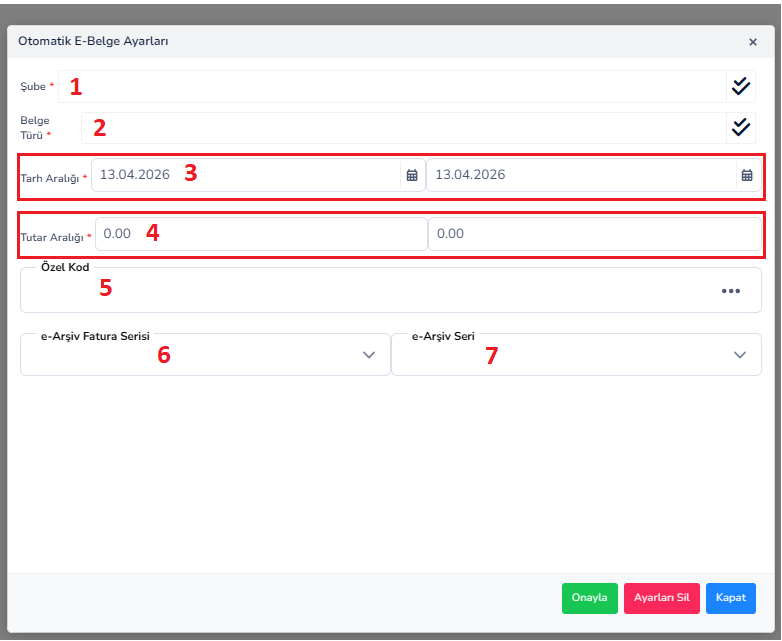
Bu ekran, belirli kriterlere göre sistemde oluşan işlemlerden otomatik olarak e-Belge (e-Fatura / e-Arşiv / e-İrsaliye vb.) oluşturulmasını sağlayan ayar ekranıdır.
Bu sayede:
- Manuel belge oluşturma ihtiyacı azalır
- Süreçler otomatikleşir
- Hatalı belge oluşturma riski düşer
Genel Çalışma Mantığı
- Şube ve belge türü seçilir
- Tarih ve tutar aralığı belirlenir
- Gerekirse özel filtreler eklenir
- Sistem bu kurallara uyan kayıtlar için otomatik e-belge oluşturur
Alanlar:
1.Şube: Otomatik belge oluşturulacak şube seçilir
2.Belge Türü: Oluşturulacak e-belge tipi belirlenir
3.Tarih Aralığı: Hangi tarih aralığındaki işlemler için belge oluşturulacağını belirler
4.Tutar Aralığı: Belirli tutar aralığındaki işlemleri filtrelemek için kullanılır
5.Özel Kod: Belirli özel kodlara sahip işlemler için filtreleme yapılmasını sağlar
6.e-Arşiv Fatura Serisi: Oluşturulacak e-Arşiv faturalar için kullanılacak seri
7.e-Arşiv Seri: e-Arşiv belgelerinin numaralandırma serisi
Bu Ekranda Ne Yapılır?
- Otomatik belge oluşturma kuralları belirlenir
- Filtreleme kriterleri girilir
- Sistem otomatik belge üretimi için yapılandırılır
- İş süreçleri hızlandırılır
Önemli Not
- Bu ekran otomasyon amaçlıdır
- Yanlış ayarlar hatalı belge üretimine neden olabilir
- e-Dönüşüm süreçleriyle doğrudan ilişkilidir
Bu ekran, belirlenen kriterlere göre işlemlerden otomatik e-belge oluşturulmasını sağlayarak süreçleri hızlandıran ve hataları azaltan otomasyon aracıdır.
FİRMA TANIMLARI EKRANI
Ne İşe Yarar?
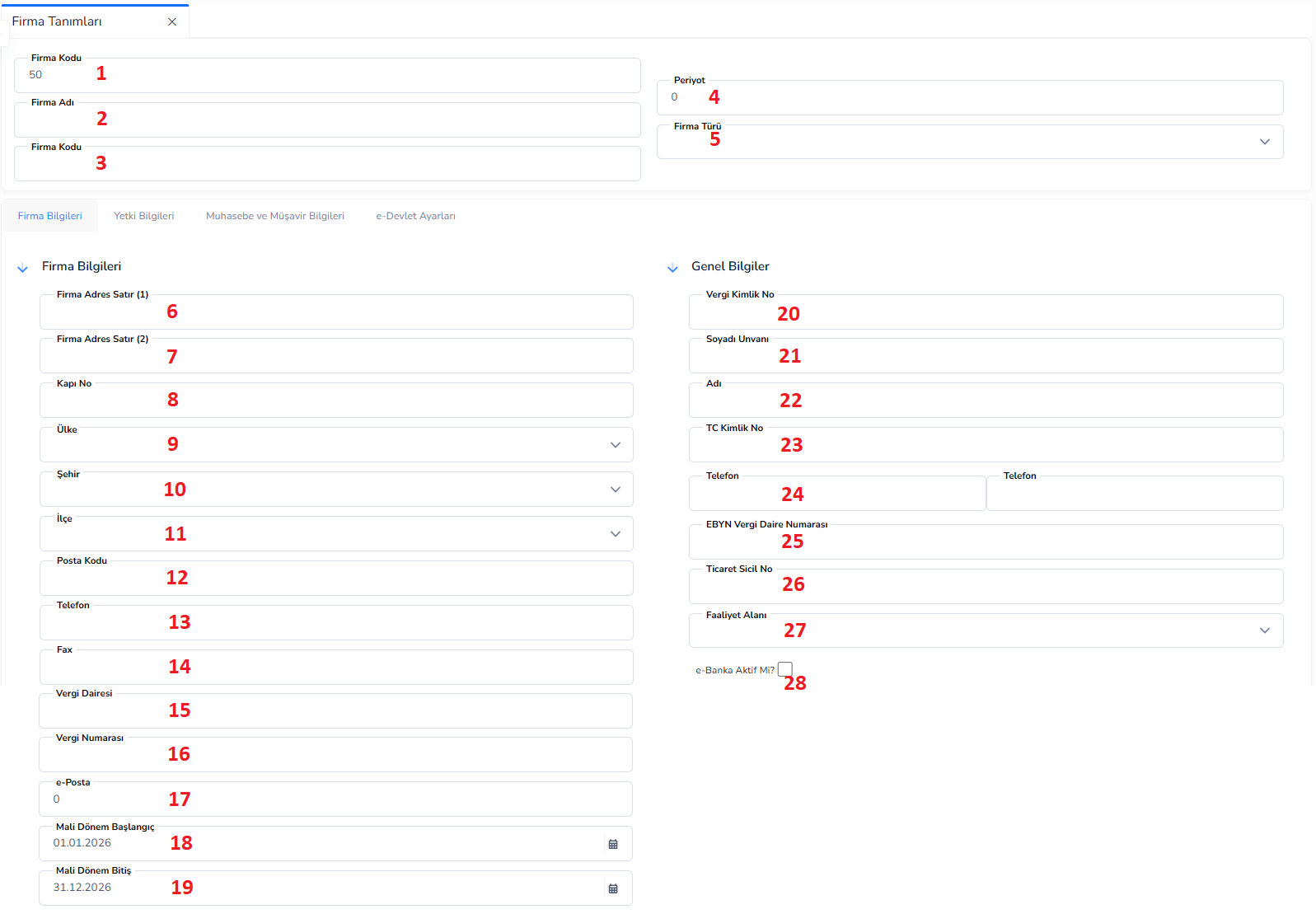
Bu ekran, ERP sisteminde işlem yapılacak firmanın temel, resmi ve finansal bilgilerinin tanımlandığı ana yapılandırma ekranıdır.
Bu ekran sayesinde:
- Firma bilgileri sisteme tanımlanır
- e-Dönüşüm ve muhasebe süreçleri yapılandırılır
- Sistem firma bazlı çalışacak şekilde hazırlanır
Genel Çalışma Mantığı:
- Firma temel bilgileri girilir
- Adres ve iletişim bilgileri tanımlanır
- Vergi ve resmi bilgiler eklenir
- Muhasebe ve e-Devlet ayarları yapılır
- Sistem firma bazlı kullanıma hazır hale gelir
Üst Alanlar:
1.Firma Kodu: Firmaya ait benzersiz sistem kodu
2.Firma Adı: Firmanın resmi adı
3.Firma Kodu (Tekrar Alan): Alternatif veya ek kod bilgisi
4.Periyot: Muhasebe veya işlem periyodu
5.Firma Türü: Firmanın türünü belirler
Firma Bilgileri:
6.Firma Adres Satır (1): Ana adres bilgisi
7.Firma Adres Satır (2): Ek adres bilgisi
8.Kapı No: Adres kapı numarası
9.Ülke: Firmanın bulunduğu ülke
10.Şehir: Firmanın bulunduğu şehir
11.İlçe: Firmanın bulunduğu ilçe
12.Posta Kodu: Adres posta kodu
13.Telefon: Firma telefon numarası
14.Fax: Firma faks numarası
15.Vergi Dairesi: Firmanın bağlı olduğu vergi dairesi
16.Vergi Numarası: Firmanın vergi numarası
17.e-Posta: Firma e-posta adresi
18.Mali Dönem Başlangıç: Muhasebe döneminin başlangıç tarihi
19.Mali Dönem Bitiş: Muhasebe döneminin bitiş tarihi
20.Vergi Kimlik No: Firmanın vergi kimlik numarası
21.Soyadı Unvanı: Firma yetkilisinin soyadı / unvanı
22.Adı: Firma yetkilisinin adı
23.TC Kimlik No: Yetkili kişinin T.C. kimlik numarası
24.Telefon (Yetkili): Yetkiliye ait iletişim numarası
25.EBYN Vergi Daire Numarası: Elektronik belge süreçlerinde kullanılan vergi bilgisi
26.Ticaret Sicil No: Firmanın ticaret sicil numarası
27.Faaliyet Alanı: Firmanın faaliyet gösterdiği sektör
28.e-Banka Aktif Mi?: e-Banka entegrasyonunun aktif olup olmadığını belirler
Diğer Sekmeler:
29.Yetki Bilgileri: Kullanıcı ve erişim yetkileri
30.Muhasebe ve Müşavir Bilgileri: Muhasebe entegrasyon ve müşavir bilgileri
31.e-Devlet Ayarları: e-Fatura, e-İrsaliye vb. entegrasyon ayarları
Bu Ekranda Ne Yapılır?
- Firma temel bilgileri tanımlanır
- Resmi ve vergi bilgileri girilir
- İletişim ve adres bilgileri eklenir
- Muhasebe ve e-Devlet ayarları yapılır
- Sistem firma bazlı kullanıma hazır hale getirilir
Önemli Not
- Bu ekran sistemin en kritik yapılandırma alanlarından biridir
- Tüm modüller firma bilgilerine bağlı çalışır
- Yanlış bilgi → e-Fatura ve muhasebe hatalarına neden olabilir
Bu ekran, ERP sisteminde kullanılacak firmanın tüm resmi, finansal ve operasyonel bilgilerinin tanımlandığı ana yapılandırma ekranıdır.
KULLANICI TANIMLARI
Ne İşe Yarar?
Bu ekran, ERP sistemini kullanacak kullanıcıların tanımlandığı, yetkilendirildiği ve varsayılan çalışma ayarlarının belirlendiği yönetim ekranıdır.
Bu ekran sayesinde:
- Kullanıcı hesapları oluşturulur
- Yetki ve erişimler belirlenir
- Kullanıcıya özel çalışma ayarları tanımlanır
Genel Çalışma Mantığı:
- Kullanıcı bilgileri girilir
- Firma ve şube yetkileri belirlenir
- Varsayılan işlem alanları tanımlanır
- Kullanıcı sisteme erişim için hazır hale getirilir
Alanlar:
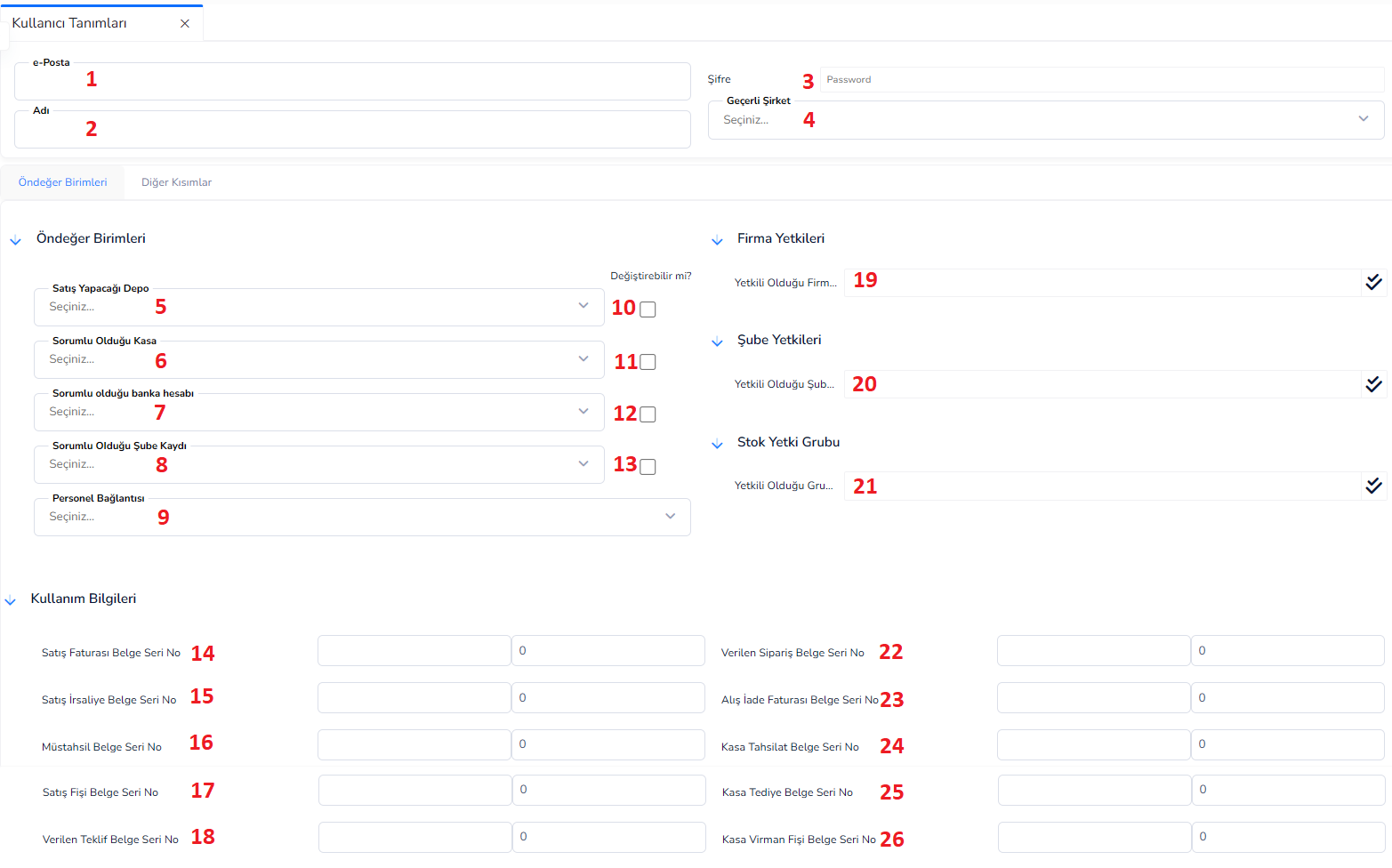
1.e-Posta: Kullanıcının giriş yapacağı e-posta adresi
2.Adı: Kullanıcının adı
3.Şifre: Sisteme giriş için kullanılacak şifre
4.Geçerli Şirket: Kullanıcının varsayılan olarak çalışacağı firma
5.Satış Yapacağı Depo: Kullanıcının satış işlemlerinde kullanacağı varsayılan depo
6.Sorumlu Olduğu Kasa: Kullanıcının işlem yapacağı kasa
7.Sorumlu Olduğu Banka Hesabı: Varsayılan banka hesabı
8.Sorumlu Olduğu Şube Kaydı: Kullanıcının bağlı olduğu şube
9.Personel Bağlantısı: Kullanıcının sistemdeki personel kaydı ile eşleştirilmesi
10.Değiştirilebilir mi?: Varsayılan değerlerin kullanıcı tarafından değiştirilebilir olup olmadığını belirler
11.Yetkili Olduğu Firma: Kullanıcının erişebileceği firmalar
12.Yetkili Olduğu Şube: Kullanıcının işlem yapabileceği şubeler
13.Yetkili Olduğu Grup: Kullanıcının erişebileceği stok grupları
14.Satış Faturası Belge Seri No: Kullanıcının oluşturacağı satış faturaları için seri
15.Satış İrsaliye Belge Seri No: Satış irsaliyeleri için seri
16.Müstahsil Belge Seri No: Müstahsil belgeleri için seri
17.Satış Fişi Belge Seri No: Satış fişleri için seri
18.Verilen Teklif Belge Seri No: Teklif belgeleri için seri
19.Yetkili Olduğu Firma: Kullanıcının erişebileceği firma veya firmalar belirlenir
20.Yetkili Olduğu Şube: Kullanıcının işlem yapabileceği şubeler belirlenir
21.Yetkili Olduğu Grup: Kullanıcının erişebileceği stok grupları belirlenir
22..Verilen Sipariş Belge Seri No: Sipariş belgeleri için seri
23.Alış İade Faturası Belge Seri No: Alış iade faturaları için seri
24.Kasa Tahsilat Belge Seri No: Kasa tahsilat işlemleri için seri
25.Kasa Tediye Belge Seri No: Kasa ödeme işlemleri için seri
26.Kasa Virman Fişi Belge Seri No: Kasa transfer işlemleri için seri
Önemli Not
- Kullanıcı yetkileri sistem güvenliği açısından kritiktir
- Yanlış yetki → veri hatası veya güvenlik riski oluşturur
- Her kullanıcıya rolüne uygun yetki verilmelidir
Bu doküman yardımcı oldu mu?
Eksik veya geliştirilmesi gereken bir bölüm varsa destek ekibimizle paylaşabilirsiniz.