
Production Reports
The production lines report screen is a report screen that allows detailed line-by-line analysis of raw materials, finished goods and process items occurring in production processes. Thanks to this screen, all items used and produced in production can be examined in detail.
PRODUCTION LINES REPORT SCREEN
The production lines report screen is a report screen that allows detailed line-by-line analysis of raw materials, finished goods and process items occurring in the production processes. Thanks to this screen, all items used and produced in production can be examined in detail.
Top Area (Report Settings):
1.Output Type: Determines the format in which the report will be received (eg: PDF).
2.Output Language: Determines the language of the report (eg: Turkish).
3.Customized Report: Allows selection from default or custom report designs.
4.Use the Dimensions in the Design: Enables the report to be created according to the dimensions specified in the design.
5.Use Printer Dimensions: Automatically resizes according to the printer.
6.Fit to Page: Reduces the report to fit the page size.
7.Open in Browser: Allows the report to be viewed through the browser.
8.Close the window after starting: Automatically closes the screen after the report is created.
9.Date Separator: Determines the separator character to be used in the date format.
Filter Fields:
10.Start/End Date:The start and end date of the report.
12th Branch: Determines which branch the report will belong to.
Operation Logic:
- A specific date range is selected
- The relevant branch is filtered
- All line records created during the production process are listed
- Raw materials, finished goods and process items are analyzed in detail
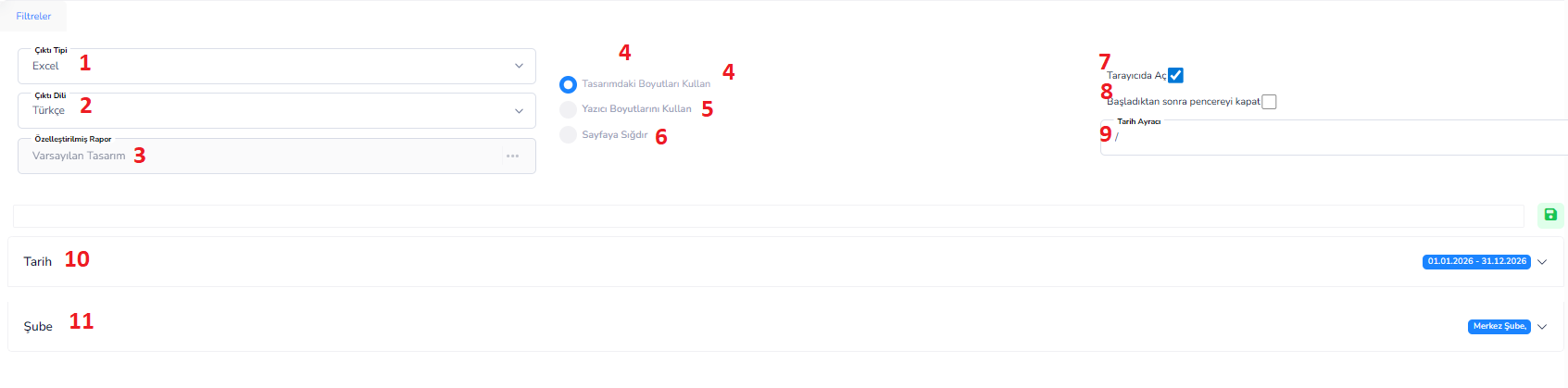
STAFF PERFORMANCE REPORT SCREEN
This screen is the report screen where the production and operation based performances of the personnel working within a certain date range are analyzed. The work done by the personnel, their efficiency and contribution to production are evaluated through this report.
Top Area (Report Settings):
1.Output Type: Determines the format in which the report will be received (eg: Excel).
2.Output Language: Determines the language of the report (eg: Turkish).
3.Customized Report: Allows selection from default or custom report designs.
4.Use Design Dimensions: Enables the report to be created according to design dimensions.
5.Use Printer Dimensions: Enables printing suitable for the printer.
6.Fit to Page: Reduces the report according to the page size.
7.Open in Browser: Allows the report to be viewed through the browser.
8.Close the window after starting: Automatically closes the screen after the report is created.
9.Date Separator: Determines the separator character to be used in the date format.
Filter Fields:
10.Starting Date: The date when performance analysis will begin.
11.End Date: The date when the performance analysis will end.
12th Branch: Determines which branch personnel will be reported to.
Operation Logic:
- A specific date range is selected
- The relevant branch is determined
- The system collects personnel-based production and operation data
- The work done by the personnel, their duration and efficiency are analyzed
- A performance report is created and displayed in detail
Thanks to this report, personnel performance can be measured with objective data, productivity analyzes can be made, and areas requiring improvement can be easily identified.
RECIPE COST REPORT SCREEN
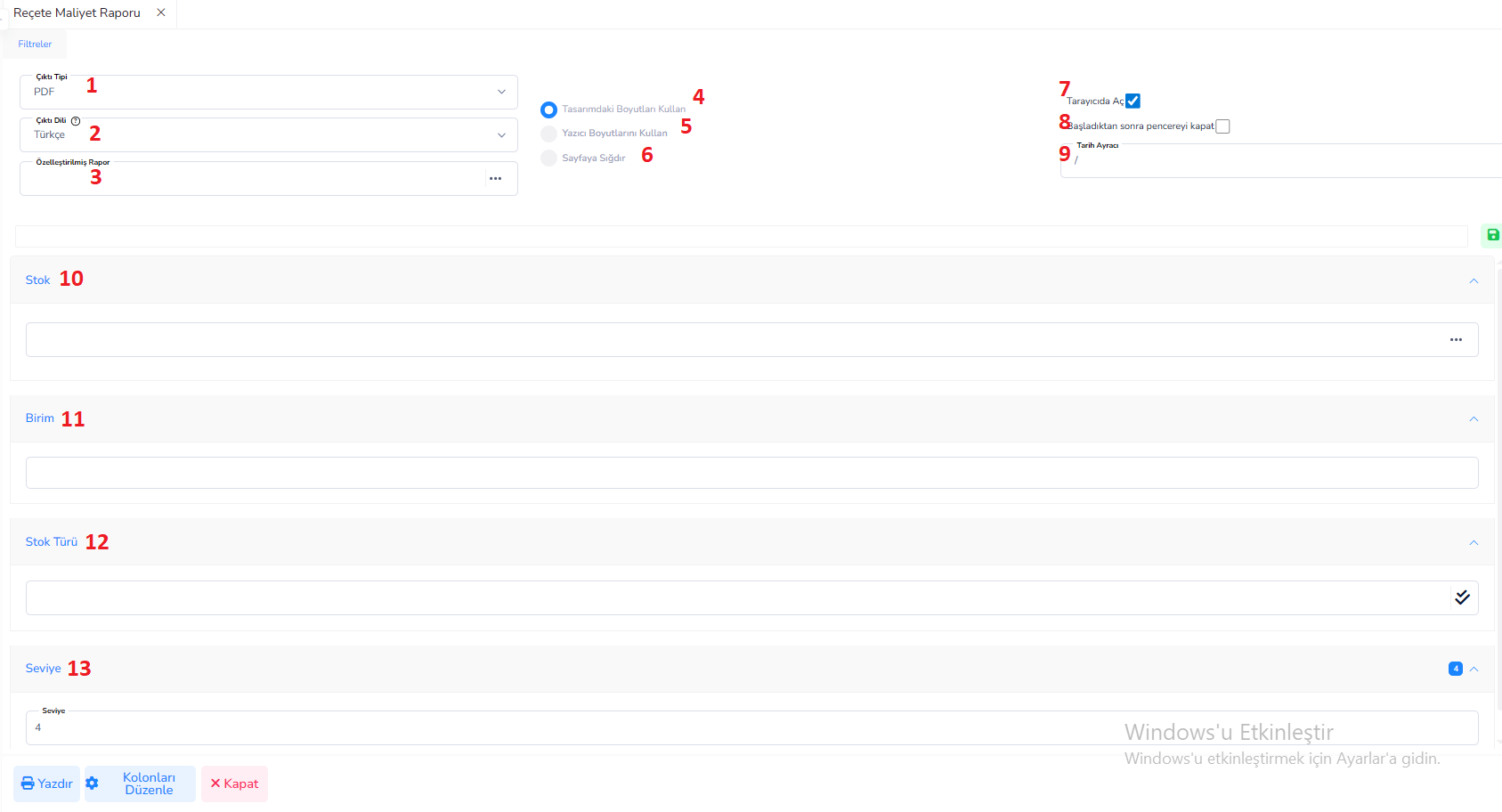
This screen is the report screen where the costs incurred according to the recipe (BOM) used in the production of a product are analyzed. The impact of raw materials, semi-finished products and other expenses on the total cost is examined in detail through this report.
Top Area (Report Settings):
1.Output Type: Determines the format in which the report will be received (eg: PDF).
2.Output Language: Determines the language of the report (eg: Turkish).
3.Customized Report: Allows selection from different report designs.
4.Use Design Dimensions: Enables the report to be created according to design dimensions.
5.Use Printer Dimensions: Enables printing suitable for the printer.
6.Fit to Page: Reduces the report according to the page size.
7.Open in Browser: Allows the report to be viewed through the browser.
8.Close the window after starting: Automatically closes the screen after the report is created.
9.Date Separator: Determines the separator character to be used in the date format.
Filter Fields:
10.Stock:Determines the product (finished product) whose cost will be calculated.
11.Unit: Determines the unit in which the cost will be calculated (eg: Piece, Kg).
12.Stock Type:Determines the type of product (Finished Goods / Semi-finished Goods / Raw Materials).
Level 13: Determines the recipe depth
1 → Main product only
2 → Sub-components
3-4 → All sub-breakdowns
Operation Logic:
- The product is selected
- The relevant recipe (BOM) opens
- All subcomponents in the recipe are calculated one by one
- Raw materials, semi-finished products and other cost items are collected
- Total production cost is created
Thanks to this report, product-based cost analyzes can be made, it can be seen which component affects the cost and how much, and strategic decisions can be made to reduce production costs.
FINISHED GOODS CONDITION REPORT SCREEN
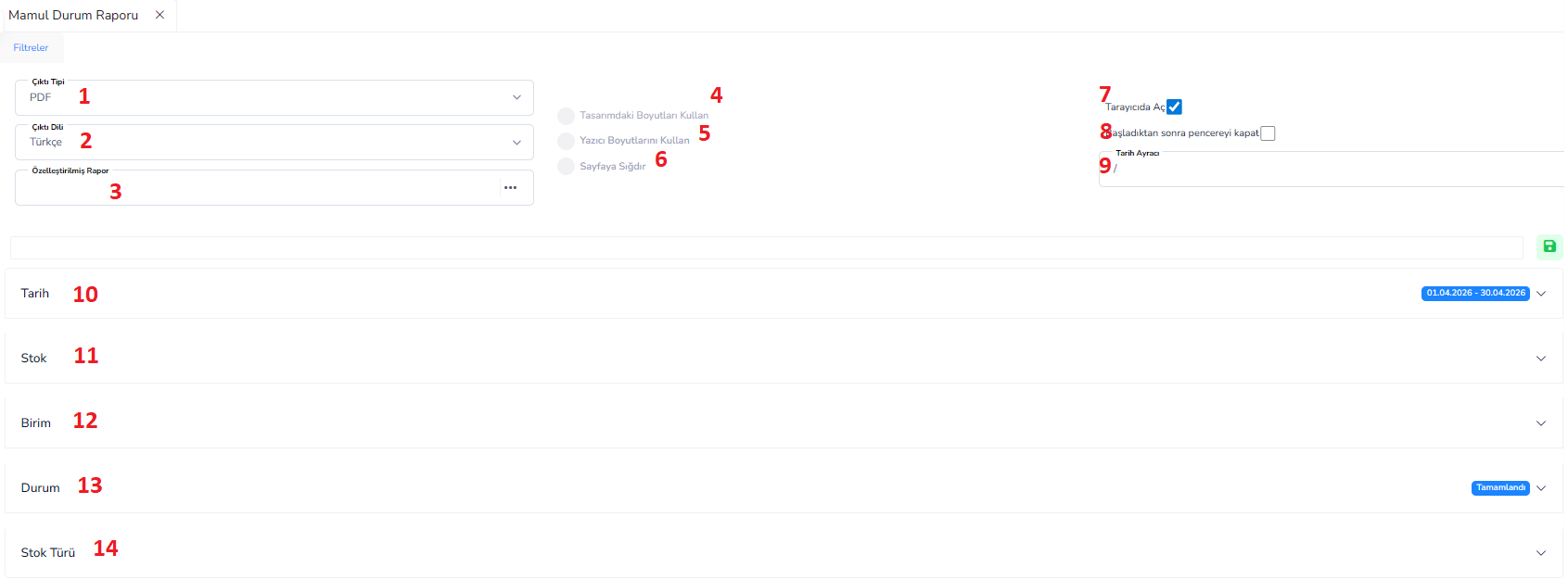
The product status report screen is the report screen used to analyze the current status of the products produced. On this screen, the status of the products in the production process can be monitored and completed, ongoing or pending productions can be easily displayed. Thus, production planning and shipping processes can be managed more effectively.
Top Area (Report Settings):
1.Output Type: Determines the format in which the report will be received (eg: PDF).
2.Output Language: Determines the language of the report (eg: Turkish).
3.Customized Report: Allows selection from default or custom report designs.
4.Use Design Dimensions: Enables the report to be created according to design dimensions.
5.Use Printer Dimensions: Enables printing suitable for the printer.
6.Fit to Page: Reduces the report according to the page size.
7.Open in Browser: Allows the report to be viewed through the browser.
8.Close the window after starting: Automatically closes the screen after the report is created.
9.Date Separator: Determines the separator character to be used in the date format.
Filter Fields:
10.Start/End Date: Analysis start/end date.
11.Stock:Determines which product will be reported.
12.Unit: Determines the unit of measurement of the product (eg: Piece, Kg).
13.Status: Determines the production status of the product (Completed, In Progress, Pending).
14.Stock Type: Determines the product type (Finished Goods / Semi-Finished Products / Raw Materials).
Operation Logic:
- A specific date range is selected
- The relevant product (finished product) is filtered
- Production status is selected
- The system lists the current status of the products
- Completed, ongoing and pending productions are analyzed
Thanks to this report, the current status of the products in the production process can be clearly seen, and planning and shipping decisions can be made more accurately and quickly.
Bu doküman yardımcı oldu mu?
Eksik veya geliştirilmesi gereken bir bölüm varsa destek ekibimizle paylaşabilirsiniz.