
Satış Dağıtım
Bu ekran, müşterilere sunulacak satış tekliflerinin oluşturulduğu ve yönetildiği alandır. Teklif sürecinde; cari seçimi, ürün ekleme, fiyatlandırma, iskonto ve vergi hesaplamaları bu ekran üzerinden yapılır. Aynı zamanda teklifin toplam tutarı, KDV bilgileri ve genel iskonto gibi finansal detaylar da buradan takip edilir.
VERİLEN TEKLİFLER
Genel Açıklama
Bu ekran, müşterilere sunulacak satış tekliflerinin oluşturulduğu ve yönetildiği alandır. Teklif sürecinde; cari seçimi, ürün ekleme, fiyatlandırma, iskonto ve vergi hesaplamaları bu ekran üzerinden yapılır. Aynı zamanda teklifin toplam tutarı, KDV bilgileri ve genel iskonto gibi finansal detaylar da buradan takip edilir.
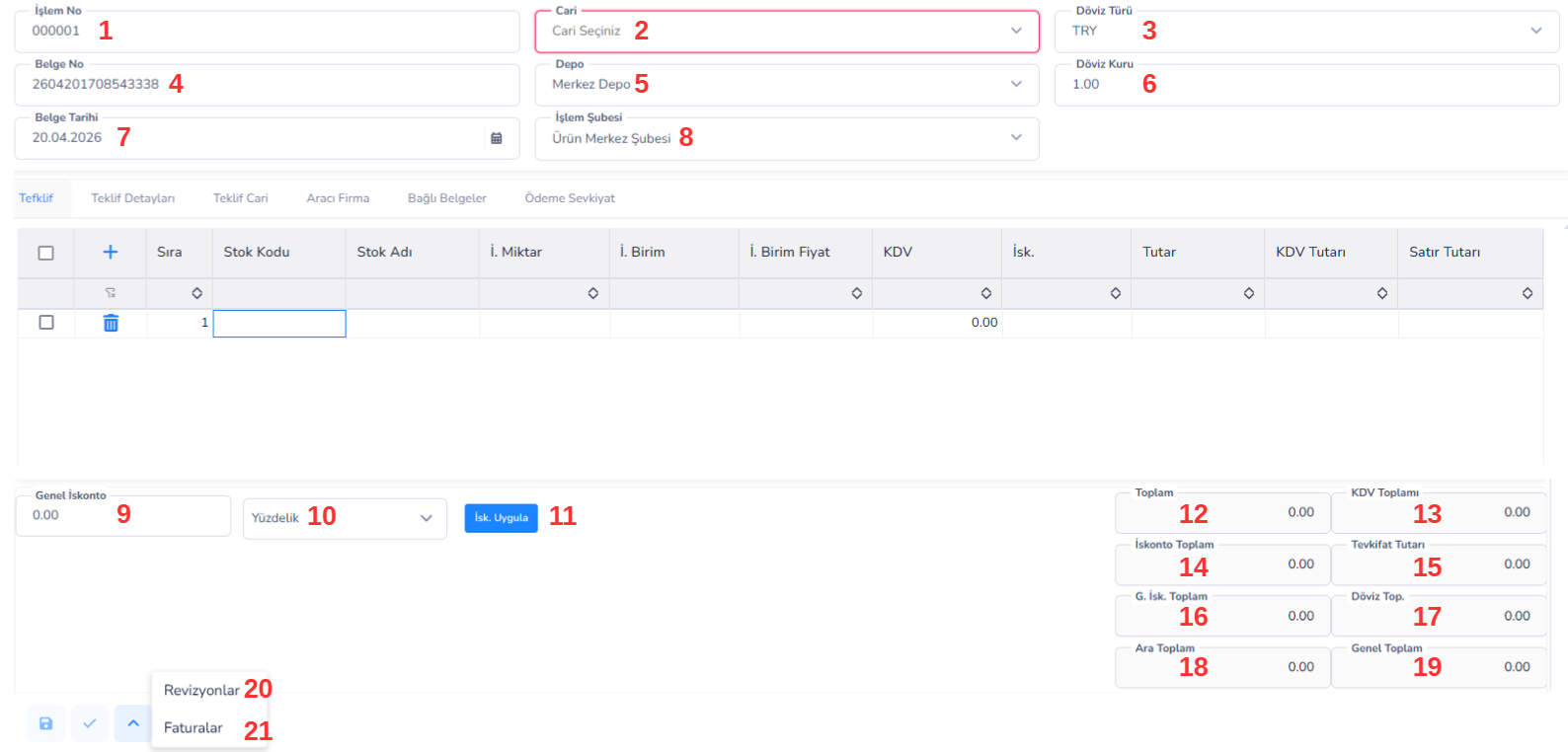
Üst Bilgi Alanları:
1.İşlem No: Sistem tarafından otomatik verilen, işlemin benzersiz numarasıdır.
2.Cari: Teklifin verileceği müşteri seçilir. (Zorunlu alandır)
3.Döviz Türü: İşlemin hangi para birimi ile yapılacağını belirler (örn: TRY, USD).
4.Belge No: Teklif belgesine ait numaradır. Manuel veya otomatik oluşturulabilir.
5.Depo: Ürünlerin çıkacağı depo seçilir.
6.Döviz Kuru: Seçilen döviz türüne göre sistem tarafından gelen kur bilgisidir.
7.Belge Tarihi: Teklifin oluşturulduğu tarihtir.
8.İşlem Şubesi: İşlemin hangi şube üzerinden yapıldığını gösterir.
Sekme Alanları:
- Teklif: Ürünlerin eklendiği ve teklif detaylarının girildiği ana sekmedir.
- Teklif Detayları: Teklife ait ek açıklamalar veya özel bilgiler girilir.
- Teklif Cari: Seçilen cari ile ilgili detay bilgilerin görüntülendiği alandır.
- Aracı Firma: İşleme dahil olan aracı firma bilgileri girilir.
- Bağlı Belgeler: Teklif ile ilişkili diğer belgeler görüntülenir veya bağlanır.
- Ödeme Sevkiyat: Ödeme ve sevkiyat şartlarının belirtildiği alandır.
Ürün / Satır Giriş Alanı:
- (Ekle Butonu): Yeni ürün satırı eklemek için kullanılır.
- Sıra: Ürünlerin listede sıralama numarasıdır.
- Stok Kodu: Ürünün sistemdeki stok kodu seçilir.
- Stok Adı: Seçilen stok koduna ait ürün adı otomatik gelir.
- İ. Miktar: Üründen kaç adet/sayı girileceği belirlenir.
- İ. Birim: Ürünün ölçü birimi (adet, kg vb.).
- İ. Birim Fiyat: Ürünün birim satış fiyatıdır.
- KDV: Ürüne uygulanacak KDV oranı.
- İsk.: Satır bazlı iskonto oranı veya tutarı.
- Tutar: İskonto ve KDV hariç ara tutar.
- KDV Tutarı: Hesaplanan KDV miktarı.
- Satır Tutarı: KDV dahil toplam satır tutarıdır.
İskonto Alanı:
9.Genel İskonto: Tüm teklif için uygulanacak iskonto oranı veya tutarı girilir.
10.Yüzdelik / Tutar Seçimi: İskontonun yüzde mi yoksa sabit tutar mı olacağını belirler.
11.İsk. Uygula Butonu: Girilen iskonto değerini tüm satırlara uygular.
Toplam Bilgileri (Sağ Alt):
12.Toplam: KDV hariç genel toplam tutar.
13.KDV Toplamı: Tüm satırlardaki KDV tutarlarının toplamı.
14.İskonto Toplam: Uygulanan toplam iskonto miktarı.
15.Tevkifat Tutarı: Varsa uygulanan tevkifat tutarı.
16.G. İsk. Toplam: Genel iskonto toplamı.
17.Döviz Toplamı: İşlemin döviz bazlı toplam tutarı.
18.Ara Toplam: İskonto öncesi toplam tutar.
19.Genel Toplam: Tüm hesaplamalar dahil nihai ödenecek tutar.
Alt Buton / Ek İşlemler:
20.Revizyonlar: Oluşturulan teklif üzerinde yapılan değişikliklerin (revizyonların) geçmişini görüntülemek için kullanılır. Bu sayede teklifin önceki versiyonlarına erişilebilir ve yapılan değişiklikler takip edilebilir.
21.Faturalar: Tekliften oluşturulan faturaların görüntülenmesini sağlar. Teklif ile ilişkili satış faturalarına buradan hızlı erişim yapılabilir ve süreç takibi sağlanır.
Teklif Detayları Sekmesi
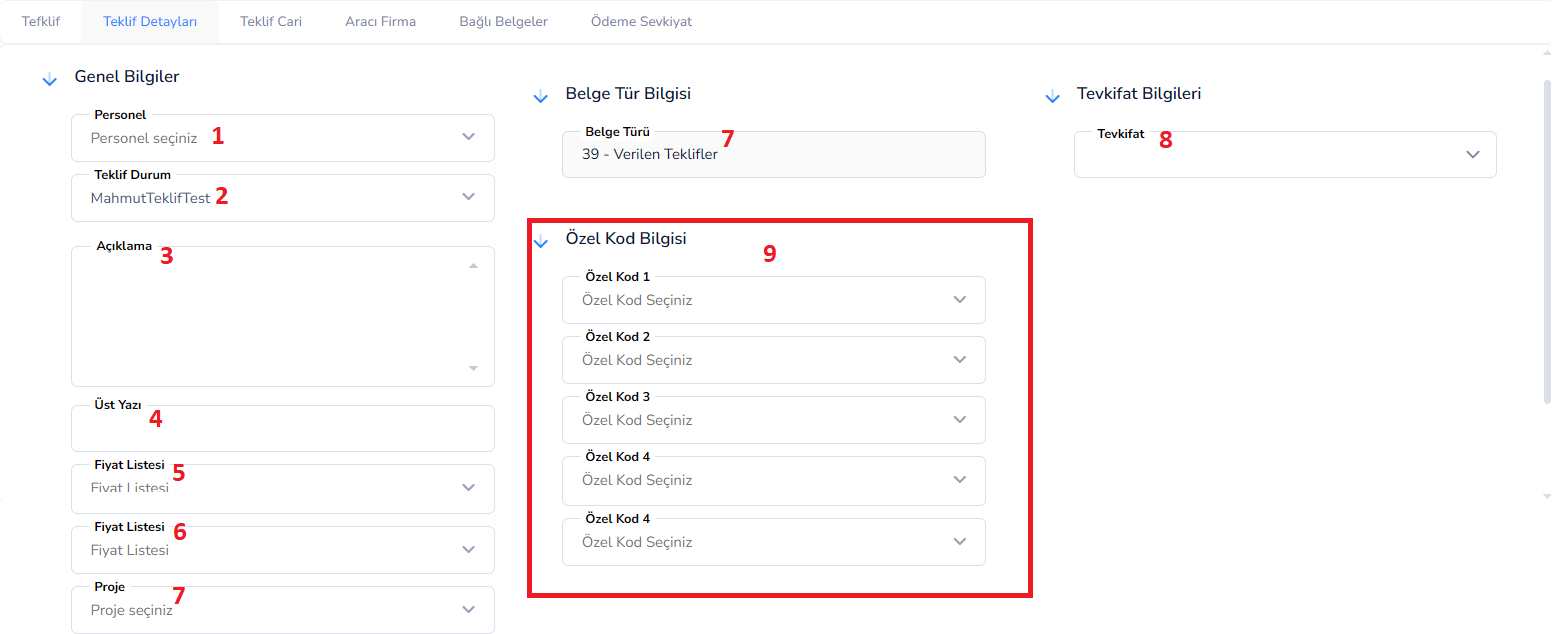
1.Personel: Teklifi hazırlayan veya sorumlu olan personel seçilir.
2.Teklif Durum: Teklifin mevcut durumunu belirtir (örn: Beklemede, Onaylandı, Reddedildi).
3.Açıklama: Teklif ile ilgili genel notlar ve açıklamalar yazılır.
4.Üst Yazı: Teklif çıktısında yer alabilecek resmi veya bilgilendirici metin girilir.
5.Fiyat Listesi: Teklifte kullanılacak fiyat listesini belirler.
6.Proje: Teklifin bağlı olduğu proje seçilir (varsa).
7.Belge Türü: Oluşturulan belgenin sistemdeki türünü gösterir. (Örn: “Verilen Teklifler” gibi)
8.Tevkifat: İşleme uygulanacak tevkifat türü seçilir. (Genellikle KDV tevkifatı gereken işlemler için kullanılır)
9.Özel Kodlar: Teklifin sınıflandırılması için kullanılan özel koddur.
Teklif Cari Sekmesi
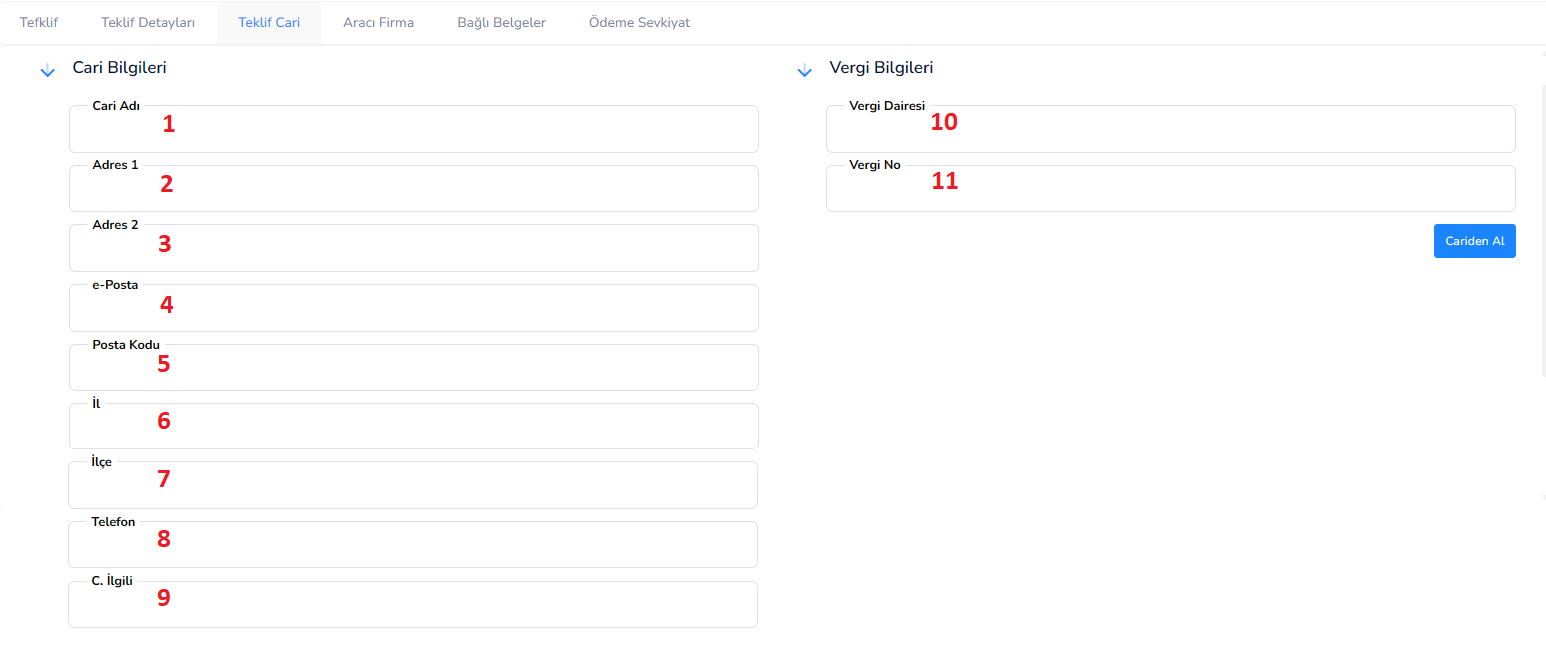
Cari Bilgileri Alanı:
1.Cari Adı: Teklifin ait olduğu müşteri veya firmanın adı.
2.Adres 1: Müşterinin ana adres bilgisi.
3.Adres 2: Ek adres bilgisi (varsa detay adres için kullanılır).
4.E-Posta: Müşterinin e-posta adresi.
5.Posta Kodu: Adrese ait posta kodu bilgisi.
6.İl: Müşterinin bulunduğu il bilgisi.
7.İlçe: Müşterinin bulunduğu ilçe bilgisi.
8.Telefon: Müşteriye ait iletişim numarası.
9.C. İlgili: Firma içerisindeki ilgili kişi (yetkili kişi).
Vergi Bilgileri Alanı:
10.Vergi Dairesi: Müşterinin bağlı olduğu vergi dairesi.
11.Vergi No: Müşterinin vergi numarası veya TCKN bilgisi.
12.Cari’den Al Butonu: Cari kartta kayıtlı bilgileri otomatik olarak bu alana getirir.
(Manuel veri girişini azaltır ve hata riskini düşürür)
Aracı Firma Sekmesi
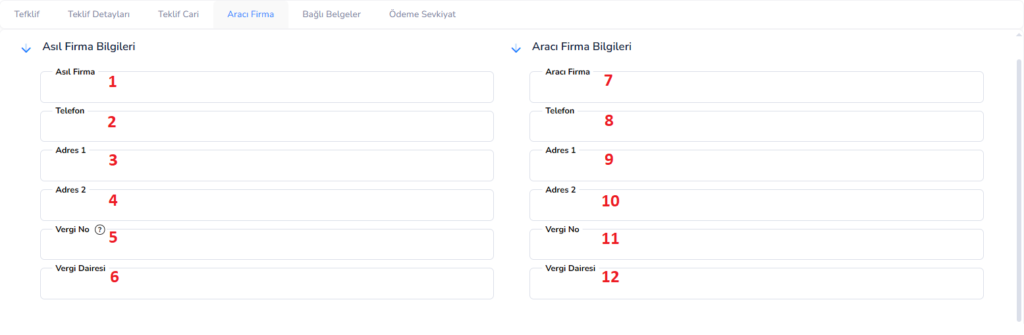
Asıl Firma Bilgileri:
1.Asıl Firma: Teklifin ait olduğu ana firma bilgisi girilir.
2.Telefon: Asıl firmanın iletişim numarası.
3.Adres 1: Firmanın ana adres bilgisi.
4.Adres 2: Ek adres bilgisi (detay adres için kullanılır).
5.Vergi No: Firmanın vergi numarası.
6.Vergi Dairesi: Firmanın bağlı olduğu vergi dairesi.
Aracı Firma Bilgileri:
7.Aracı Firma: İşleme dahil olan aracı firma (bayi, temsilci vb.) bilgisi girilir.
8.Telefon: Aracı firmanın iletişim numarası.
9.Adres 1: Aracı firmanın ana adres bilgisi.
10.Adres 2: Ek adres bilgisi.
11.Vergi No: Aracı firmanın vergi numarası.
12.Vergi Dairesi: Aracı firmanın bağlı olduğu vergi dairesi.
Bağlı Bilgiler Sekmesi
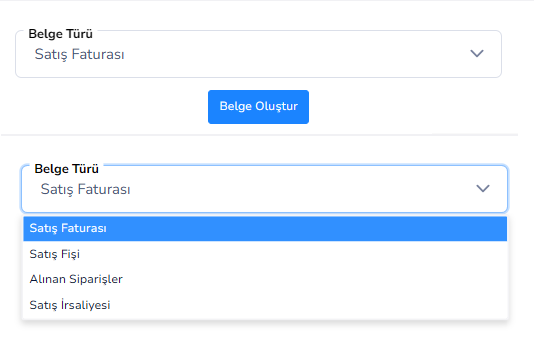
- Belge Türü: Tekliften hangi tür satış belgesinin oluşturulacağını seçmenizi sağlar.
(Satış Faturası, Satış Fişi, Alınan Siparişler, Satış İrsaliyesi) - Belge Oluştur Butonu: Seçilen belge türüne göre, teklif bilgilerini kullanarak yeni belge oluşturur.
- Satış Faturası: Teklifin kesinleşmesi sonrası müşteriye kesilen resmi satış belgesidir. Muhasebesel kayıt oluşturur.
- Satış Fişi: Daha hızlı ve pratik satış işlemleri için kullanılan belge türüdür. Genellikle perakende işlemlerde tercih edilir.
- Alınan Siparişler: Müşteriden gelen siparişin sisteme kaydedilmesini sağlar. Sürecin başlangıç belgesidir.
- Satış İrsaliyesi: Ürünlerin sevk edildiğini gösteren belgedir. Fatura öncesi sevkiyat işlemlerinde kullanılır.
Ödeme Sevkiyat Sekmesi
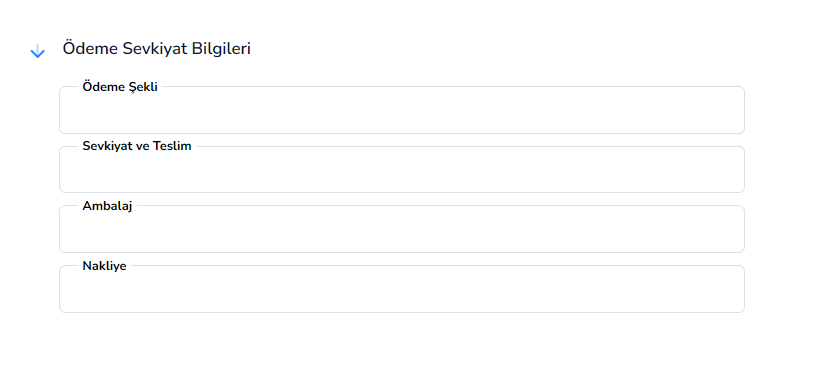
- Ödeme Şekli: Ödemenin nasıl yapılacağını belirtir.
(Örn: Nakit, Kredi Kartı, Havale/EFT, Vadeli vb.) - Sevkiyat ve Teslim: Ürünlerin nasıl ve ne şekilde teslim edileceği bilgisi girilir.
(Örn: Adrese teslim, depodan teslim, kargo ile gönderim vb.) - Ambalaj: Ürünlerin paketleme şekli veya ambalaj bilgileri belirtilir.
- Nakliye: Taşıma süreci ile ilgili detaylar girilir.
(Nakliyeyi kimin karşılayacağı, özel taşıma şartları vb.)
ALINAN SİPARİŞLER EKRANI
Genel Açıklama
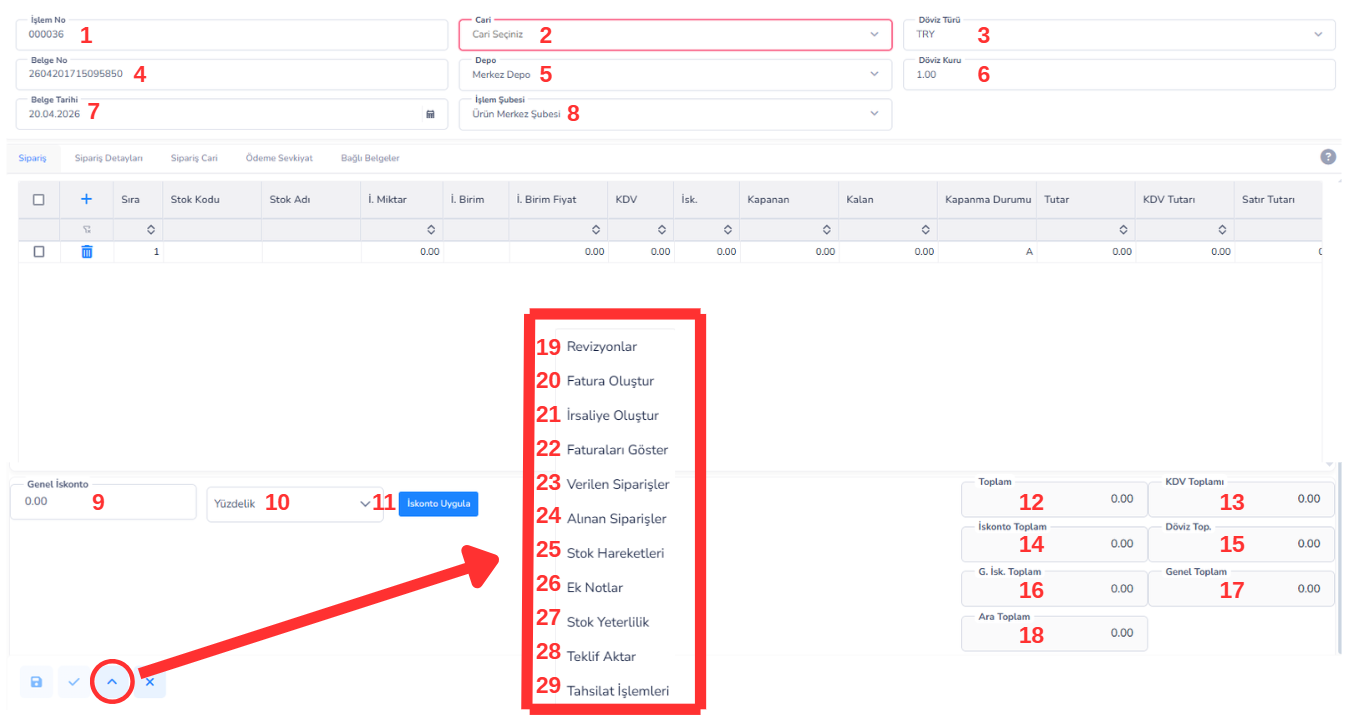
Bu ekran, müşterilerden alınan siparişlerin sisteme girildiği ve yönetildiği alandır. Satış sürecinin başlangıç noktasıdır. Sipariş üzerinden ürün girişleri yapılır, fiyatlandırma belirlenir ve süreç daha sonra irsaliye ve fatura aşamasına ilerler. Tekliften farklı olarak burada siparişin kapanma durumu ve kalan miktar gibi takip alanları da bulunur.
Üst Bilgi Alanları:
1.İşlem No: Sistem tarafından otomatik verilen sipariş numarasıdır.
2.Cari: Siparişi veren müşteri seçilir.
3.Döviz Türü: İşlemin yapılacağı para birimi.
4.Belge No: Sipariş belgesine ait numara.
5.Depo:
Ürünlerin çıkacağı depo bilgisi.
6.Döviz Kuru:
Dövizli işlemlerde kullanılan kur bilgisi.
7.Belge Tarihi:
Siparişin oluşturulduğu tarih.
8.İşlem Şubesi:
İşlemin yapıldığı şube bilgisi.
Sekme Alanları:
- Sipariş: Ürün girişlerinin yapıldığı ana sekmedir.
- Sipariş Detayları: Siparişe ait açıklama ve ek bilgiler girilir.
- Sipariş Cari: Müşteri iletişim ve adres bilgileri yer alır.
- Ödeme Sevkiyat: Ödeme ve teslim şartları belirlenir.
- Bağlı Belgeler: Siparişten irsaliye veya fatura oluşturulur.
Ürün / Satır Giriş Alanı:
- (Ekle Butonu): Yeni ürün satırı ekler.
- Sıra: Satır sıralama numarası.
- Stok Kodu: Ürünün stok kodu seçilir.
- Stok Adı: Ürün adı otomatik gelir.
- İ. Miktar: Sipariş edilen miktar.
- İ. Birim: Ürün birimi (adet, kg vb.).
- İ. Birim Fiyat: Ürünün satış fiyatı.
- KDV: Uygulanan KDV oranı.
- İsk.: Satır bazlı iskonto.
- Kapanan: Siparişten karşılanan (teslim edilen/faturalanan) miktar.
- Kalan: Henüz karşılanmamış sipariş miktarı.
- Kapanma Durumu: Siparişin tamamlanıp tamamlanmadığını gösterir.
- Tutar: KDV hariç tutar.
- KDV Tutarı: Hesaplanan KDV.
- Satır Tutarı: KDV dahil toplam satır tutarı.
İskonto Alanı:
9.Genel İskonto: Tüm siparişe uygulanacak iskonto.
10.Yüzdelik / Tutar: İskonto tipi seçimi.
11.İskonto Uygula: İskontoyu tüm satırlara uygular.
Toplam Bilgileri:
12.Toplam: KDV hariç toplam tutar.
13.KDV Toplamı: Toplam KDV.
14.İskonto Toplam: Toplam iskonto.
15.Döviz Toplamı: Döviz bazlı toplam.
16.G. İsk. Toplam: Genel iskonto toplamı.
17.Genel Toplam: Nihai tutar.
18.Ara Toplam: İskonto öncesi toplam.
Önemli Fark (Teklif vs Sipariş)
- Teklif: Sadece öneri niteliğindedir ve bağlayıcı değildir.
- Sipariş: Müşteri tarafından onaylanmış ve bağlayıcı olan işlemdir.
- Süreç Takibi: Siparişte yer alan kapanan ve kalan alanları sayesinde işlem süreci detaylı şekilde takip edilir.
Ek İşlem Menüsü (Alt Ok Butonu):
19.Revizyonlar: Sipariş üzerinde yapılan değişikliklerin (revizyonların) görüntülenmesini sağlar. Önceki versiyonlara erişilerek değişiklik geçmişi takip edilebilir.
20.Fatura Oluştur: Siparişten doğrudan satış faturası oluşturulmasını sağlar. Sürecin faturalama aşamasına geçişi bu seçenek ile yapılır.
21.İrsaliye Oluştur: Siparişe bağlı olarak sevk irsaliyesi oluşturur. Ürünlerin sevkiyat süreci bu belge ile başlatılır.
22.Faturaları Göster: Siparişten oluşturulmuş faturaları listeler. Fatura sürecinin takibi ve kontrolü buradan yapılır.
23.Verilen Siparişler: Bu sipariş ile ilişkili verilen sipariş kayıtlarını görüntüler. (Alt süreç bağlantıları için kullanılır)
24.Alınan Siparişler: İlgili sipariş kayıtlarına hızlı erişim sağlar. Siparişler arası geçiş ve kontrol için kullanılır.
25.Stok Hareketleri: Siparişe bağlı olarak oluşan stok giriş/çıkış hareketlerini gösterir. Envanter etkisi buradan izlenebilir.
26.Ek Notlar: Sipariş ile ilgili ek açıklama ve notların görüntülenmesini veya girilmesini sağlar.
27.Stok Yeterlilik: Siparişteki ürünlerin stokta yeterli olup olmadığını kontrol eder. Eksik stok durumları buradan analiz edilir.
28.Teklif Aktar: Siparişi tekrar teklif sürecine aktarmak veya teklif ile ilişkilendirmek için kullanılır.
29.Tahsilat İşlemleri: Siparişe bağlı ödeme ve tahsilat kayıtlarına erişim sağlar. Finansal süreç buradan takip edilir.
Sipariş Detayları Sekmesi
Genel Bilgiler
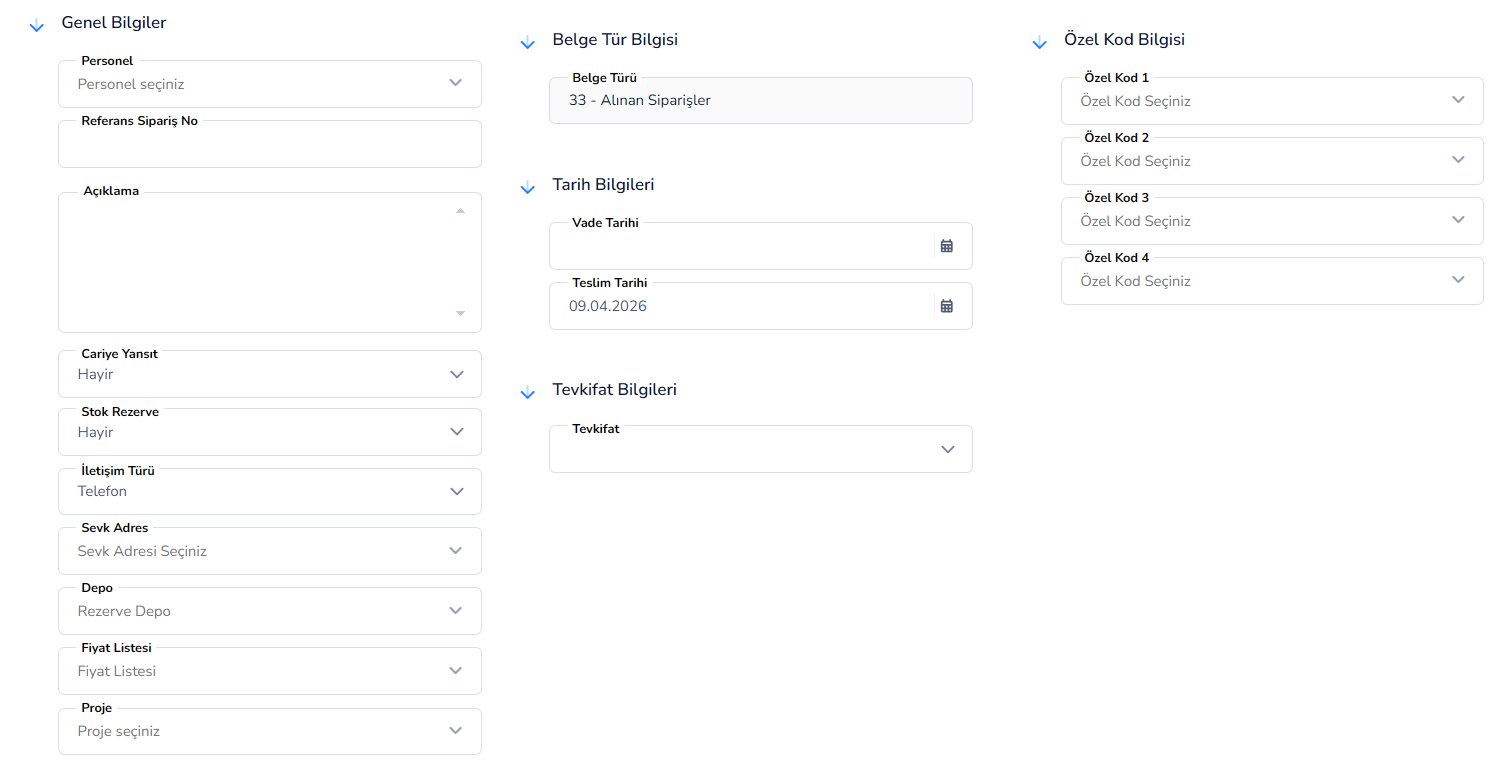
1.Personel: Siparişi oluşturan veya sorumlu personel seçilir.
2.Referans Sipariş No: Dış sistemden gelen veya müşteri tarafından verilen referans numarası girilir.
3.Açıklama: Sipariş ile ilgili detaylı notlar yazılır.
4.Cariye Yansıt: Yapılan işlemin cari hesaba yansıtılıp yansıtılmayacağını belirler.(Evet/Hayır)
5.Stok Rezerve: Sipariş girildiğinde stokların rezerve edilip edilmeyeceğini belirler.
6.Belge Türü: İşlemin sistemdeki türünü gösterir. (Örn: Alınan Siparişler)
7.Vade Tarihi: Ödeme için belirlenen son tarih.
8.Teslim Tarihi: Ürünlerin müşteriye teslim edilmesi planlanan tarih.
9.Tevkifat: İşleme uygulanacak tevkifat türü seçilir.
10.Özel Kodlar: Siparişi sınıflandırmak için kullanılır.
Diğer Bilgiler:
11.İletişim Türü: Müşteri ile iletişim şekli seçilir.(Telefon, e-posta vb.)
12.Sevk Adres: Ürünlerin gönderileceği adres seçilir.
13.Depo (Rezerve Depo): Ürünlerin rezerve edileceği depo seçilir.
14.Fiyat Listesi: Siparişte kullanılacak fiyat listesi belirlenir.
15.Proje: Siparişin bağlı olduğu proje bilgisi girilir.
Sipariş Cari Sekmesi
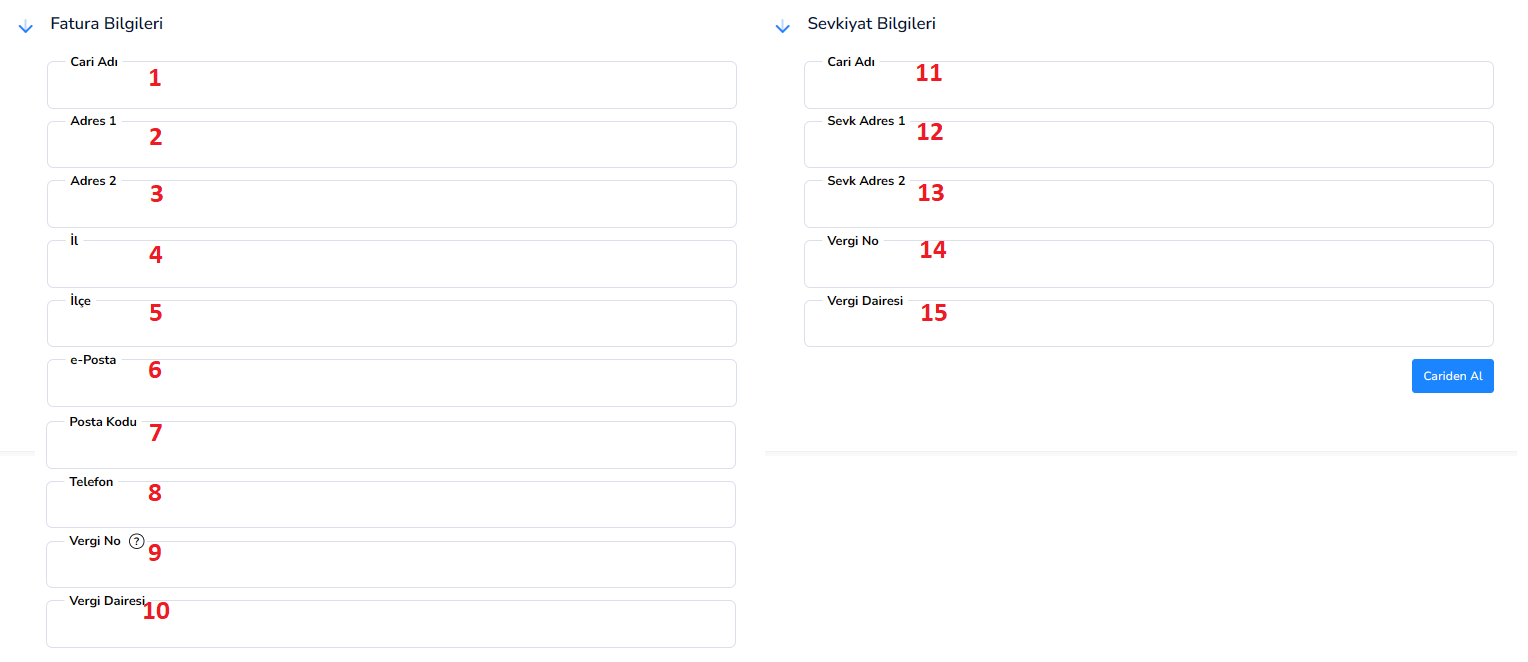
Fatura Bilgileri:
1.Cari Adı: Fatura kesilecek müşteri veya firma adı.
2.Adres 1: Fatura için kullanılacak ana adres.
3.Adres 2: Ek adres bilgisi.
4.İl: Fatura adresine ait il bilgisi.
5.İlçe: Fatura adresine ait ilçe bilgisi.
6.E-Posta: Fatura gönderimi için kullanılacak e-posta adresi.
7.Posta Kodu: Fatura adresine ait posta kodu.
8.Telefon: Fatura iletişim numarası.
9.Vergi No: Faturaya ait vergi numarası.
10.Vergi Dairesi: Faturaya ait vergi dairesi.
Sevkiyat Bilgileri:
11.Cari Adı: Ürünlerin gönderileceği alıcı firma/kişi adı.
12.Sevk Adres 1: Ürünlerin teslim edileceği ana adres.
13.Sevk Adres 2: Ek sevk adres bilgisi.
14.Vergi No: Sevkiyat yapılacak firmanın vergi numarası.
15.Vergi Dairesi: Sevkiyat yapılacak firmanın vergi dairesi.
16.Cari’den Al Butonu: Cari kartta kayıtlı bilgileri otomatik olarak bu alanlara aktarır.
Ödeme Sevkiyat Sekmesi
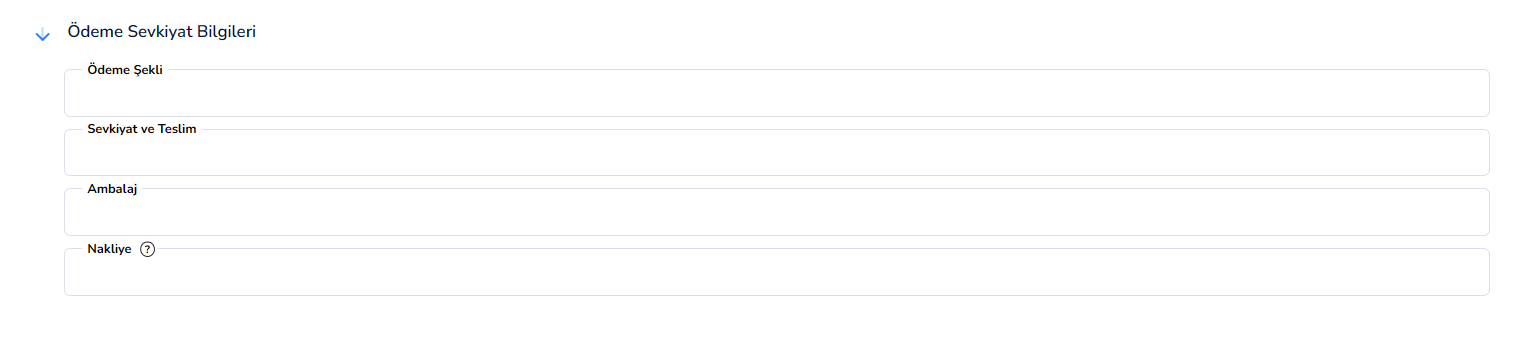
Ödeme ve Sevkiyat Bilgileri:
1.Ödeme Şekli: Siparişin hangi yöntemle ödeneceğini belirtir.
(Örn: Nakit, Kredi Kartı, Havale/EFT, Vadeli satış vb.)
2.Sevkiyat ve Teslim: Ürünlerin müşteriye nasıl ulaştırılacağı bilgisi girilir.
(Örn: Kargo ile gönderim, adrese teslim, depodan teslim vb.)
3.Ambalaj: Ürünlerin paketleme ve ambalaj şekli belirtilir.
(Örn: Koli, palet, özel ambalaj vb.)
4.Nakliye: Taşıma sürecine ait detaylar girilir.
(Nakliyeyi kimin karşılayacağı, özel taşıma şartları vb.)
SİPARİŞ → BAĞLI BELGELER SEKMESİ (LİSTE EKRANI)
Genel Açıklama
Bu ekran, oluşturulan siparişe bağlı olan diğer belgelerin (irsaliye, fatura vb.) listelendiği ve takip edildiği alandır. Siparişten türeyen tüm işlemler burada görüntülenir ve süreç takibi yapılır.
Alanlar:
- Stok Adı: İlgili belgeye konu olan ürünün adını gösterir.
- İşlem No: Bağlı belgenin sistem tarafından verilen işlem numarasıdır.
- Belge No: Oluşturulan belgenin resmi belge numarasıdır.
- Evrak Adı: Belgenin türünü belirtir.(Örn: Satış İrsaliyesi, Satış Faturası vb.)
- Miktar: Belgeye yansıyan toplam işlem miktarını gösterir.
- Kalan Miktar: Siparişten henüz karşılanmamış (teslim edilmemiş / faturalanmamış) miktarı gösterir.
Satış İade Siparişi (Özet)
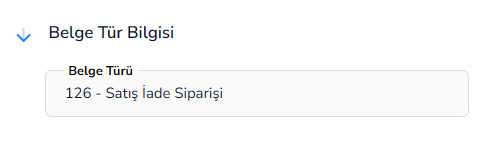
- Satış İade Siparişi ekranında kullanılan alanlar, standart Alınan Sipariş ekranı ile aynı yapıdadır.
- Üst bilgi, ürün satırları, iskonto ve toplam alanlarının çalışma mantığında herhangi bir fark bulunmaz.
- Bu ekranda temel fark, işlem yönünün iade olmasıdır; yani daha önce satışı yapılan ürünlerin geri alınması süreci yönetilir.
- Belge Türü alanı, kullanıcı seçim yapmadan sistem tarafından otomatik olarak “Satış İade Siparişi” şeklinde atanır.
- İade işlemi nedeniyle stok hareketleri giriş yönlü, cari hareketler ise alacak azaltıcı şekilde çalışır.
Bu doküman yardımcı oldu mu?
Eksik veya geliştirilmesi gereken bir bölüm varsa destek ekibimizle paylaşabilirsiniz.