
Sales Invoice
This screen is the area where sales transactions are officially invoiced. The accounting record of the sales made is created on this screen. When the invoice is issued, both an income record is created and the stock issue is finalized. ERP is the last and most critical stage of the sales process.
SALES INVOICE SCREEN
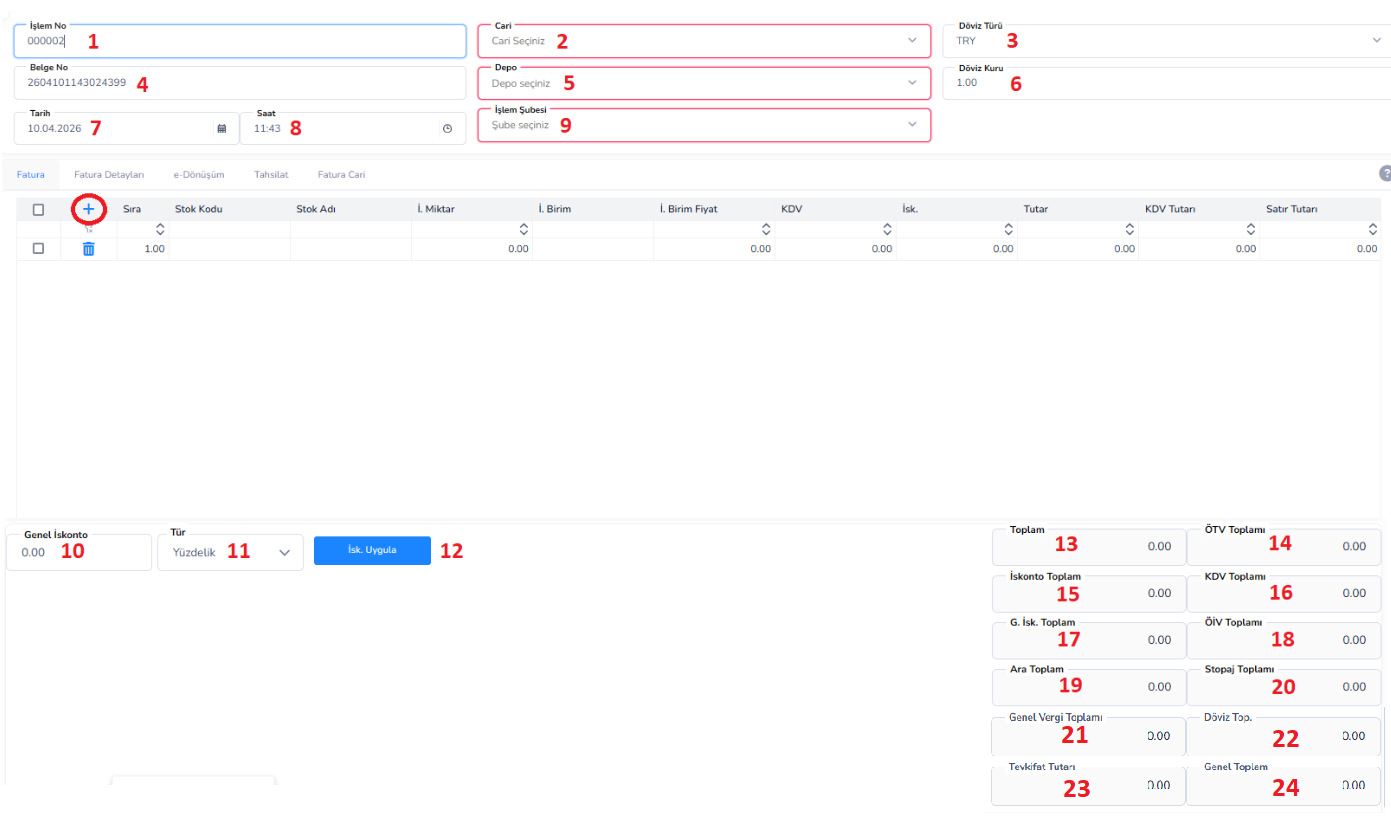
This screen is the area where sales transactions are officially invoiced. The accounting record of the sales made is created on this screen. When the invoice is issued, both an income record is created and the stock issue is finalized. ERP is the last and most critical stage of the sales process.
Header Information Fields:
1.Transaction Number:It is the unique transaction number given by the system.
2.Client: The customer to whom the invoice will be issued is selected.
3.Currency Type: The currency of the transaction.
4.Document Number:This is the invoice number.
5.Warehouse: Information about the warehouse where the products will be released.
6.Exchange Rate: The exchange rate used in foreign currency transactions
Date 7: Invoice date.
8th Hour: The time the invoice was created.
9. Transaction Branch: The branch where the transaction was made.
Tab Structure:
- Invoice:This is the main tab where product entries are made.
- Invoice Details: Description, special code and additional information are entered.
- e-Transformation: Used for e-Invoice transactions
- Collection: Payment/collection information is entered.
- Current Invoice: Contains customer address and contact information.
Product / Line Entry Fields:
- (Add Button):Adds a new product line.
- Sequence:Row order.
- Stock Code:Product code is selected.
- Stock Name:The product name appears automatically.
- I. Quantity:Amount of items sold.
- I. Unit:Unit of measurement.
- I. Unit Price:Product sales price.
- VAT:Applicable VAT rate.
- Discount:Line based discount.
- Amount:Excludes VAT.
- VAT Amount:Tax amount.
- Line Amount:Total amount including VAT.
Discount Area:
10.General Discount: Discount to be applied to the entire invoice.
11.Type (Percentage / Amount): Discount type is selected.
12.Isk. Apply: Applies the discount to all lines.
Total Information:
13.Total: Total amount excluding VAT.
14.SCT Total:SCT amount.
15.Discount Total: Total discount.
16.VAT Total: Total VAT.
17.G. Isk. Total:General discount total.
18.SCT Total: Special communication tax.
19.Subtotal: Amount before discount.
20.Withholding Total: Withholding tax deduction.
21.General Tax Total: The total of all taxes.
22. Total Foreign Currency: Total based on foreign currency.
23.Withholding Amount: Withholding amount.
24.Grand Total: Final amount to be paid.
Bottom Buttons (Additional Operations Menu):
25.Delivery Notes Linked to Invoice:Allows to view the delivery notes connected to this invoice.
The Invoice → Delivery Note link is checked and it is tracked which shipments are included in this invoice.
26.Additional Notes:Allows entry of additional explanations and notes regarding the invoice.
Operational information, special explanations or user-specific notes can be stored in this area.
INVOICE DETAILS TAB
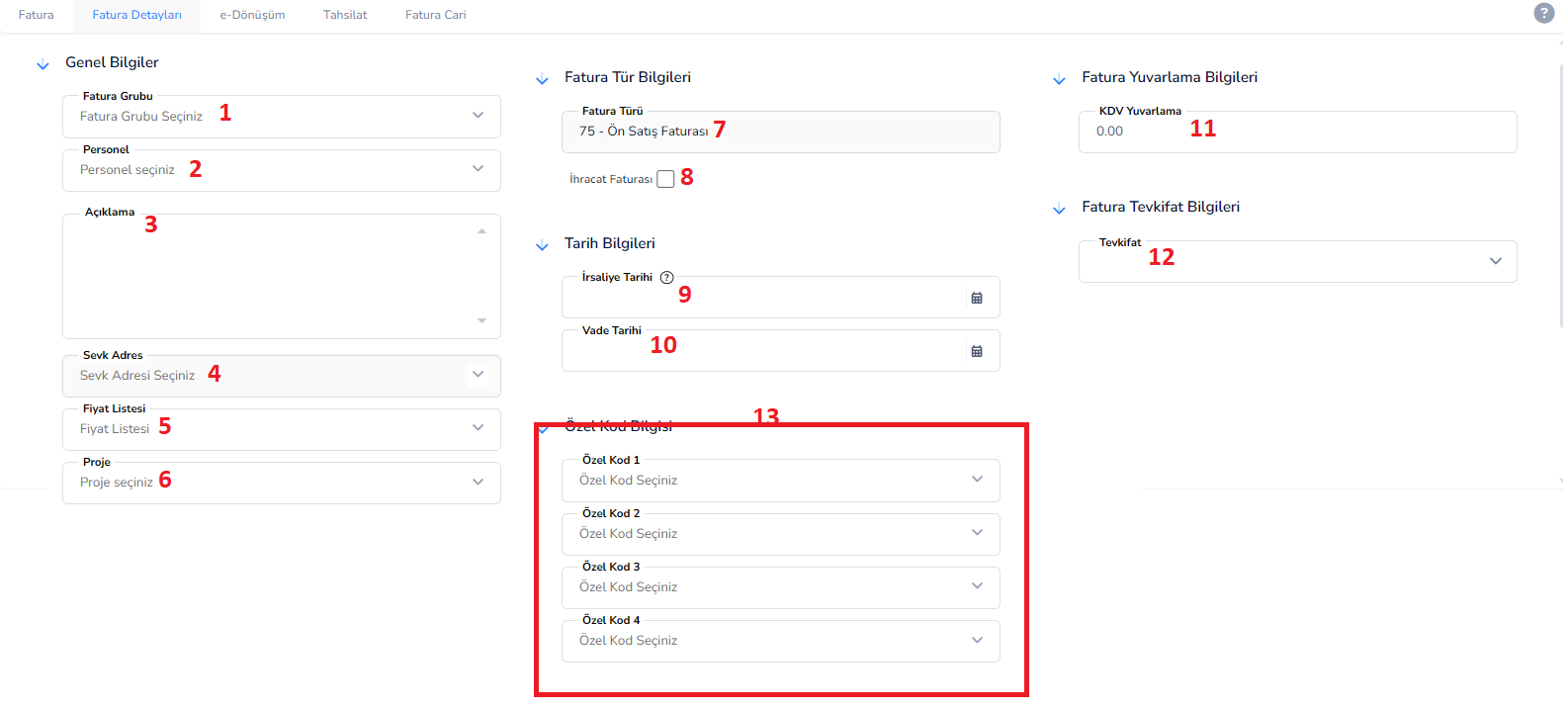
This tab is the area where detailed information, dates, classifications and additional financial settings of the sales invoice are entered. By determining the type of invoice, shipping address, maturity information, withholding tax and special codes here, both accounting and reporting processes are managed correctly.
General Information:
1st Invoice Group: The group the invoice is included in is selected. (Used for reporting and category-based discrimination)
2nd Personnel: The personnel responsible for the operation is selected.
3.Explanation: Explanation or notes about the invoice are entered.
4.Shipment Address: The address to which the products will be sent is selected.
5.Price List: The price list to be used in the invoice is determined.
6.Project: The project information to which the invoice is linked is entered.
Invoice Type Information:
7.Invoice Type: Indicates the type of invoice. (Ex: Retail Sales Invoice, Pre-Sales Invoice, etc.)
8.Export Invoice: If checked, it is stated that the invoice is within the scope of export.
Date Information:
9.Delivery Note Date:This is the date information of the delivery note attached to the invoice. (Referenced in invoices created from delivery note)
10.Maturity Date: The deadline for payment.
Invoice Rounding Information:
11.VAT Rounding:Enables rounding of penny differences occurring in VAT calculation.
Invoice Withholding Information:
12.Withholding: The type of withholding to be applied to the invoice is selected.
Special Code Information:
13.Special Codes: Used to classify the invoice.
INVOICE E-CONVERSION TAB
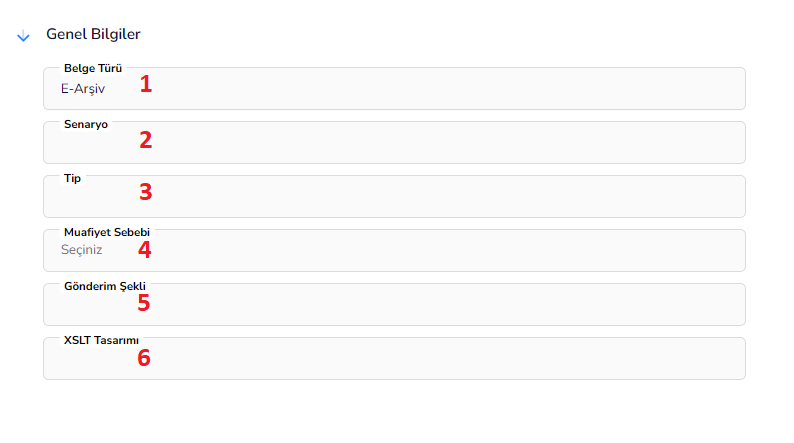
This tab is the area where the necessary settings are made to create and send the invoice electronically (e-Invoice / e-Archive). Within the scope of Revenue Administration (GİB) integration, the scenario, type and method of sending of the invoice are determined here. It is a critical tab for electronic document processes to proceed correctly and smoothly.
General Information:
1.Document Type: Specifies the type of electronic document to be created.
(Ex: E-Archive, E-Invoice)
Scenario 2: Determines the sending scenario of the invoice.
(Options such as Basic Invoice, Commercial Invoice are used)
Type 3: Determines the subcategory of the invoice according to the transaction type.
(Transaction types such as sale, return, exception, etc. can be selected)
4. Exemption Reason: The exemption reason is selected for tax-exempt transactions.
(Example: VAT exemption, export transactions, etc.)
5.Sending Method: Determines the method by which the invoice will be delivered to the customer.
(E-Mail, integrator system, automatic sending, etc.)
6.XSLT Design: Determines the visual output template of the invoice.
(The design that will be presented to the customer in PDF or image format is selected here)
Note:
The selections made in this field directly affect the way the invoice is sent to the Revenue Administration system and the format of reaching the customer. Incorrect selections may result in document rejection or incorrect submission.
COLLECTION TAB

This tab is the area where collection records for the issued invoice are listed and managed. Payments received from the customer are tracked in this area by associating them with the invoice. In this way, both the payment process and the current account status can be checked in detail.
Collection List Screen:
1.(Add Button): Used to add a new collection record.
2nd Sequence Number: The sequence number of the collection records in the system.
3. Document Name: Shows the document name of the collection transaction.
(Ex: Cash Collection, Bank Collection, etc.)
4.Date: The date the collection was made.
5.Withdrawal Type: Specifies the payment method.
(Cash, debit, credit card, etc.)
6.Withdrawal Installment: If the payment is made in installments, the installment information is shown here.
7. Document Description: Explanation or note information regarding the collection transaction.
8.Amount: Shows the collected payment amount.
9.Invoice Type: The type information of the invoice to which the collection is linked.
10.Invoice ID:It is the unique identification number of the invoice in the system.
11. Document ID: The unique ID number of the collection record in the system.
12.Document Type: Indicates the type of document to which the collection belongs.
INVOICE CURRENT TAB
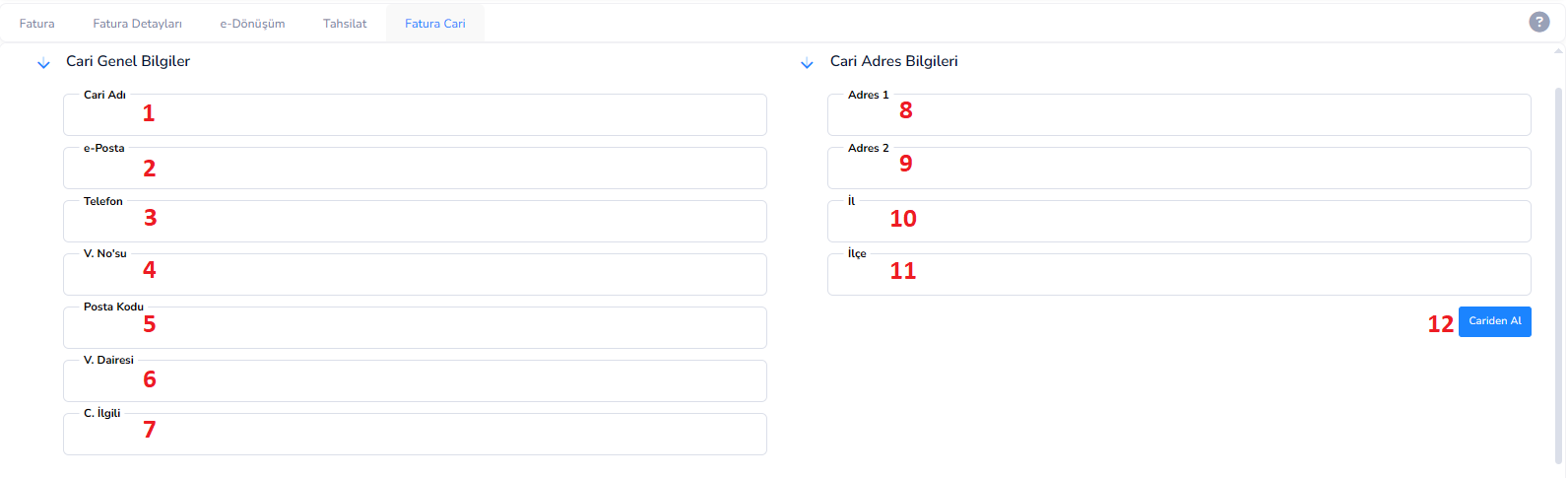
This tab is the area where customer (current) information of the issued invoice is displayed and can be edited when necessary. All contact, address and tax information necessary to issue the invoice to the correct address and in the name of the correct person or company is included here. This information is used directly in invoice printouts and e-document processes.
Current General Information:
1.Client Name:This is the name of the customer or company to whom the invoice will be issued.
2.e-Mail:This is the e-mail address to which the invoice will be sent.
(Used for e-archive or informational sending)
3rd Phone: This is the customer's contact number.
4.V. Number (Tax Number):Customer's tax number or T.R. is the identification number.
5.Zip Code: The postal code information of the address.
6.V. Office (Tax Office): The tax office to which the customer is affiliated.
7.C. Relevant: Indicates the relevant or authorized person within the company.
Current Address Information:
8.Address 1:This is the main address information to be used for invoice.
9.Address 2:Additional address or detailed address information.
10th City:This is the city information where the customer is located.
11th District:This is the district information where the customer is located.
12. Retrieve from Client Button: Automatically transfers the information recorded on the client card to this field.
(Reduces manual data entry and prevents incorrect entries)
SALES INVOICE TYPES – GENERAL STRUCTURE
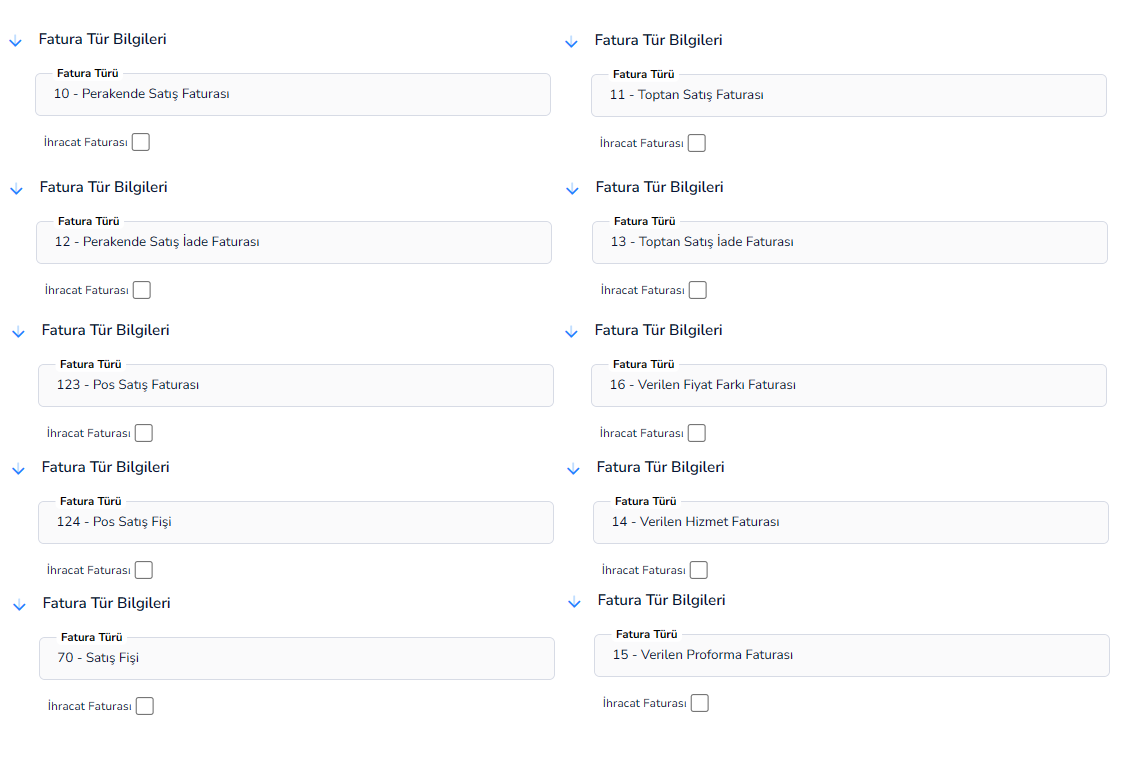
The general usage structure is the same in sales invoice screens. Headers, product entry fields, discount and total calculation fields work the same for all invoice types.
The difference only occurs in the “Invoice Type Information” field. Depending on the selected invoice type, the document type is automatically determined by the system and the transaction scenario changes accordingly.
Difference by Invoice Type:
• Invoice Type: Automatically filled by the system according to the selected category.
(Ex: Retail Sales Invoice, Wholesale Sales Invoice, etc.)
This field determines the type of sale made and:
-
- How to create accounting records
- How to process stock movement
- It directly affects
how it will appear in reports
Main Invoice Types:
• Retail Sales Invoice: Used for sales made to the end user.
• Wholesale Invoice: Used in bulk sales transactions to companies or dealers.
• Retail Sales Return Invoice:It is used for products returned after retail sales.
(Stock is entered back)
• Wholesale Return Invoice: Used when wholesale sales are returned.
• POS Sales Invoice: Used to invoice sales made through the POS device.
• POS Sales Receipt: This is the type of receipt used in fast sales transactions
• Sales Receipt: It is the type of document used for practical and fast sales transactions.
• Service Provided Invoice: It is used in cases where services are sold, not products.
• Price Difference Invoice: It is used to invoice the differences arising from price changes.
• Proforma Invoice Issued: This is an unofficial, preliminary information invoice in the form of an offer.
Bu doküman yardımcı oldu mu?
Eksik veya geliştirilmesi gereken bir bölüm varsa destek ekibimizle paylaşabilirsiniz.