
Satış İrsaliye
1.Konsinye Mal: Malların müşteriye gönderilip, satış gerçekleştiğinde faturalandırıldığı sistemdir. (Satılmadan fatura kesilmez, stok müşteride bekler)
KATEGORİLER VE AÇIKLAMALARI
1.Konsinye Mal: Malların müşteriye gönderilip, satış gerçekleştiğinde faturalandırıldığı sistemdir.
(Satılmadan fatura kesilmez, stok müşteride bekler)
2.Ön Satış: Henüz teslim edilmemiş ancak satışı yapılmış ürünler için kullanılır.
(Sipariş alındı → ileride sevk edilecek)
3.Perakende Satış İade: Perakende satış sonrası müşteriden geri alınan ürünler için kullanılır.
(Stok geri giriş yapar)
4.Perakende Satış: Son kullanıcıya yapılan hızlı satış işlemleridir.
(Genellikle fiş/fatura ile birlikte ilerler)
5.Toptan Satış İade: Toptan satış yapılan ürünlerin müşteriden geri alınması durumudur.
(Büyük miktarlı iade işlemleri)
6.Toptan Satış: Bayi veya firmalara yapılan toplu satış işlemleridir.
(Genellikle sipariş → irsaliye → fatura süreciyle ilerler)
SATIŞ İRSALİYESİ EKRANI
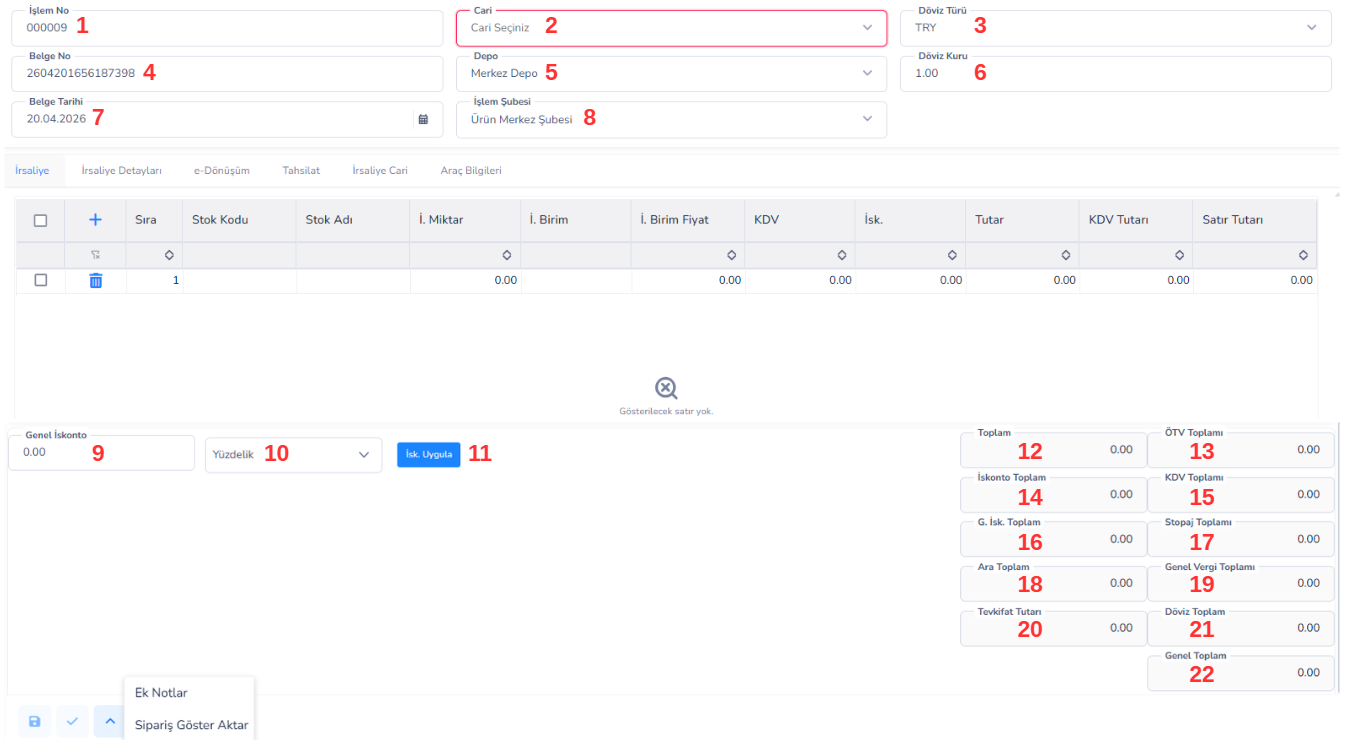
Bu ekran, satışı yapılan ürünlerin müşteriye sevk edilmesini sağlayan resmi belgenin oluşturulduğu alandır. İrsaliye, ürünlerin fiziksel olarak teslim edildiğini gösterir ve fatura öncesi süreçte kullanılır. Stok çıkışı bu ekran üzerinden gerçekleşir ve lojistik süreç başlatılır.
Üst Bilgi Alanları:
1.İşlem No: Sistem tarafından verilen benzersiz işlem numarasıdır.
2.Cari: Ürünlerin gönderileceği müşteri seçilir.
3.Döviz Türü: İşlemin para birimi.
4.Belge No: İrsaliye numarasıdır.
5.Depo: Ürünlerin çıkacağı depo seçilir.
6.Döviz Kuru: Dövizli işlemlerde kullanılan kur bilgisi.
7.Belge Tarihi: İrsaliyenin oluşturulduğu tarih.
8.İşlem Şubesi: İşlemin yapıldığı şube bilgisi.
Sekme (Tab) Yapısı:
- İrsaliye: Ürünlerin eklendiği ana sekmedir.
- İrsaliye Detayları: Açıklama, özel kod ve ek bilgiler girilir.
- e-Dönüşüm: E-irsaliye süreçleri için kullanılan alandır.
- Tahsilat: İrsaliye ile bağlantılı ödeme/tahsilat bilgileri girilir.
- İrsaliye Cari: Müşteri adres ve iletişim bilgileri yer alır.
- Araç Bilgileri: Sevkiyatın hangi araç ile yapılacağı bilgisi girilir.
Ürün / Satır Giriş Alanı:
- (Ekle Butonu): Yeni ürün satırı ekler.
- Sıra: Satır sırası.
- Stok Kodu: Ürün kodu seçilir.
- Stok Adı: Ürün adı otomatik gelir.
- İ. Miktar: Sevk edilen ürün miktarı.
- İ. Birim: Ölçü birimi.
- İ. Birim Fiyat: Ürün fiyatı (bilgi amaçlı olabilir).
- KDV: Vergi oranı.
- İsk.: Satır indirimi.
- Tutar: KDV hariç tutar.
- KDV Tutarı: Vergi tutarı.
- Satır Tutarı: Toplam satır tutarı.
İskonto Alanı:
9.Genel İskonto: Tüm irsaliyeye uygulanacak indirim.
10.Yüzdelik / Tutar: İskonto tipi seçimi.
11.İsk. Uygula: İskontoyu satırlara uygular.
Toplam Bilgileri:
12.Toplam: KDV hariç toplam tutar.
13.ÖTV Toplamı: ÖTV tutarı.
14.İskonto Toplam: Toplam iskonto.
15.KDV Toplamı: Toplam KDV.
16.G. İsk. Toplam: Genel iskonto toplamı.
17.Stopaj Toplamı: Stopaj kesintisi.
18.Ara Toplam: İskonto öncesi tutar.
19.Genel Vergi Toplamı: Tüm vergilerin toplamı.
20.Tevkifat Tutarı: Tevkifat miktarı.
21.Döviz Toplamı: Döviz bazlı toplam.
22.Genel Toplam: Nihai tutar.
Alt Butonlar (Ek İşlemler Menusu):
- Sipariş Göster:
İrsaliyeye bağlı olan sipariş kayıtlarını görüntülemeyi sağlar.
Bu sayede sevk edilen ürünlerin hangi siparişten geldiği takip edilir ve sipariş → irsaliye bağlantısı kontrol edilir. - Ek Notlar:
İrsaliye ile ilgili ek açıklama ve notların girilmesini sağlar.
Bu alan, operasyonel bilgi, teslimat notu veya kullanıcıya özel açıklamaların kaydedilmesi için kullanılır.
İRSALİYE DETAYLARI SEKMESİ
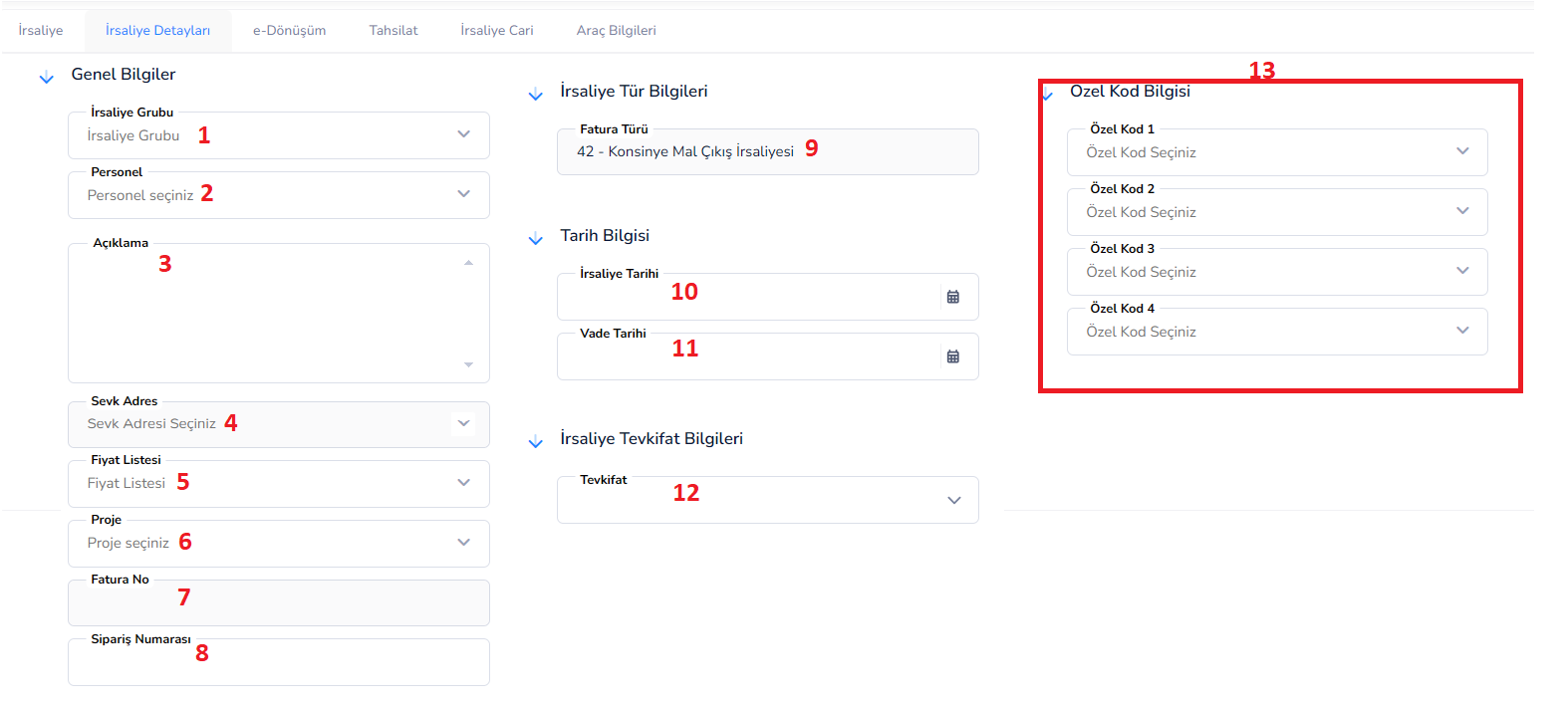
Genel Bilgiler:
1.İrsaliye Grubu: İrsaliyenin dahil olduğu grup seçilir.(Raporlama ve sınıflandırma için kullanılır)
2.Personel: İşlemden sorumlu personel seçilir.
3.Açıklama: İrsaliye ile ilgili açıklama veya notlar girilir.
4.Sevk Adresi: Ürünlerin teslim edileceği adres seçilir.
5.Fiyat Listesi: İşlemde kullanılacak fiyat listesi belirlenir.
6.Proje: İrsaliyenin bağlı olduğu proje bilgisi girilir.
7.Fatura No: İrsaliyeye bağlı fatura numarası (varsa) girilebilir.
8.Sipariş Numarası: İrsaliyeye bağlı sipariş numarası girilir veya referans olarak kullanılır.
İrsaliye Tür Bilgileri:
9.Fatura Türü: İrsaliyenin sistemdeki türünü belirtir.(Seçilen kategoriye göre otomatik gelir)
Tarih Bilgileri:
10.İrsaliye Tarihi: Belgenin oluşturulduğu tarih.
11.Vade Tarihi: Ödeme için belirlenen son tarih.
İrsaliye Tevkifat Bilgileri:
12.Tevkifat: İşleme uygulanacak tevkifat türü seçilir.
Özel Kod Bilgileri:
13.Özel Kodlar: Sınıflandırma için kullanılır.
E-DÖNÜŞÜM SEKMESİ
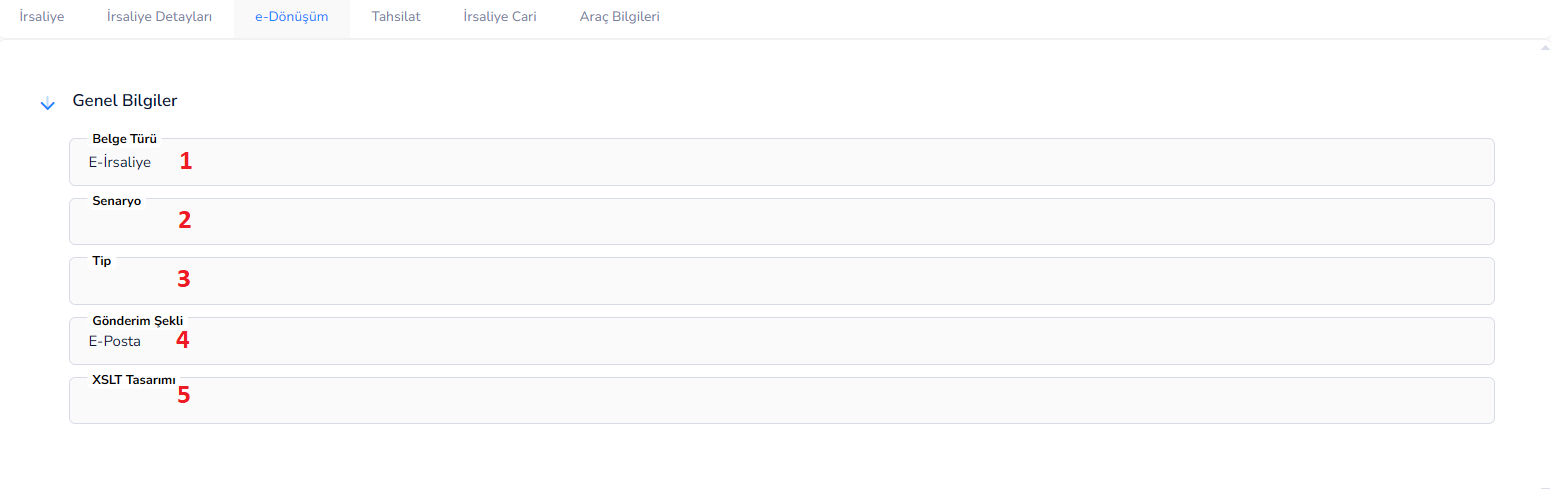
Bu sekme, irsaliyenin elektronik ortamda (e-İrsaliye) oluşturulması ve gönderilmesi ile ilgili ayarların yapıldığı alandır. Gelir İdaresi Başkanlığı (GİB) entegrasyonu kapsamında, belgenin elektronik olarak hazırlanması, senaryo seçimi ve gönderim şekli bu bölümden yönetilir.
Genel Bilgiler
1.Belge Türü: Oluşturulacak elektronik belgenin türünü belirtir.
(Örn: E-İrsaliye)
2.Senaryo: E-belgenin gönderim senaryosu seçilir.
(Temel / Ticari senaryo vb.)
3.Tip: Belgenin işlem tipine göre alt kategori seçimi yapılır.
4.Gönderim Şekli: Belgenin nasıl iletileceğini belirler.
(Örn: E-Posta, entegratör üzerinden gönderim vb.)
5.XSLT Tasarımı: Belgenin görsel tasarım şablonu seçilir.
(PDF çıktısının görünümünü belirler)
TAHSİLAT SEKMESİ

Bu sekme, satış irsaliyesine bağlı olarak yapılan tahsilat işlemlerinin girildiği ve takip edildiği alandır. Müşteriden alınan ödemeler, çek/senet bilgileri veya diğer tahsilat türleri burada kaydedilir. Bu sayede satış ile ödeme süreci ilişkilendirilmiş olur.
Tahsilat Liste Alanı:
- (Ekle Butonu): Yeni tahsilat kaydı eklemek için kullanılır.
- Sıra No: Tahsilat kayıtlarının sıralama numarasıdır.
- Evrak Adı: Tahsilat türünü gösterir. (Örn: Nakit Tahsilat, Çek, Senet vb.)
- Belge No: Tahsilata ait belge numarasıdır.
- Kodu: Tahsilat işlemine ait kod bilgisidir.
- Adı: Tahsilatın açıklaması veya adı bilgisidir.
- Tarih: Tahsilatın yapıldığı tarihi gösterir.
- Çekim Türü: Ödeme türünü belirtir. (Nakit, banka, çek vb.)
- Çekim Taksit: Ödeme taksitli ise taksit bilgisi girilir.
Kullanım Amacı:
- Satışa bağlı ödeme kayıtlarını tutmak
- Müşteri tahsilatlarını takip etmek
- Nakit ve banka hareketlerini ilişkilendirmek
- Çek/senet gibi işlemleri kayıt altına almak
İRSALİYE CARİ SEKMESİ
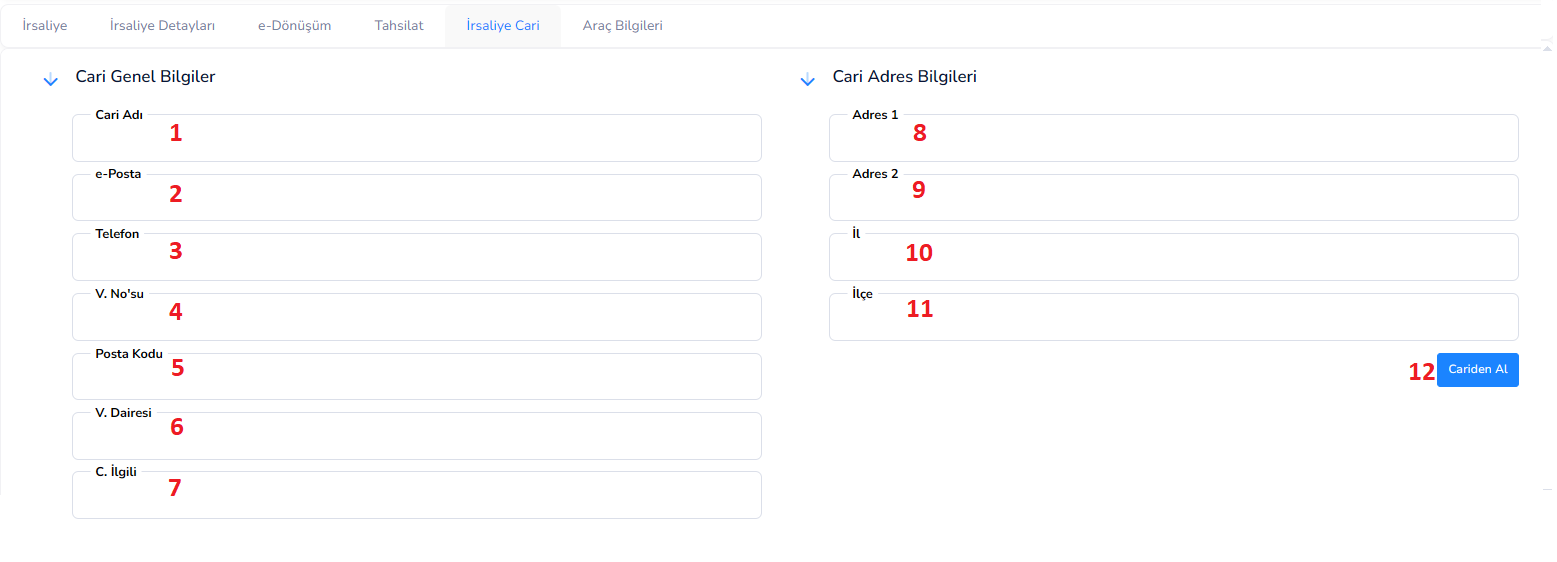
Bu sekme, satış irsaliyesine ait müşteri (cari) bilgilerinin görüntülendiği ve gerektiğinde düzenlenebildiği alandır. İrsaliyenin doğru kişiye ve doğru adrese gönderilmesi için gerekli tüm iletişim ve adres bilgileri burada yer alır. Bu bilgiler, irsaliye çıktılarında da kullanılır.
Cari Genel Bilgiler:
1.Cari Adı: İrsaliyenin ait olduğu müşteri veya firma adı.
2.E-Posta: Müşterinin e-posta adresi.
3.Telefon: Müşteriye ait iletişim numarası.
4.V. No’su (Vergi No): Müşterinin vergi numarası veya TCKN bilgisi.
5.Posta Kodu: Adrese ait posta kodu.
6.V. Dairesi (Vergi Dairesi): Müşterinin bağlı olduğu vergi dairesi.
7.C. İlgili: Firma içerisindeki ilgili kişi (yetkili kişi).
Cari Adres Bilgileri:
8.Adres 1: Ana adres bilgisi.
9.Adres 2: Ek adres bilgisi.
10.İl: Müşterinin bulunduğu şehir.
11.İlçe: Müşterinin bulunduğu ilçe.
12.Cari’den Al: Cari kartta kayıtlı bilgileri otomatik olarak bu alana aktarır.
ARAÇ BİLGİLERİ SEKMESİ
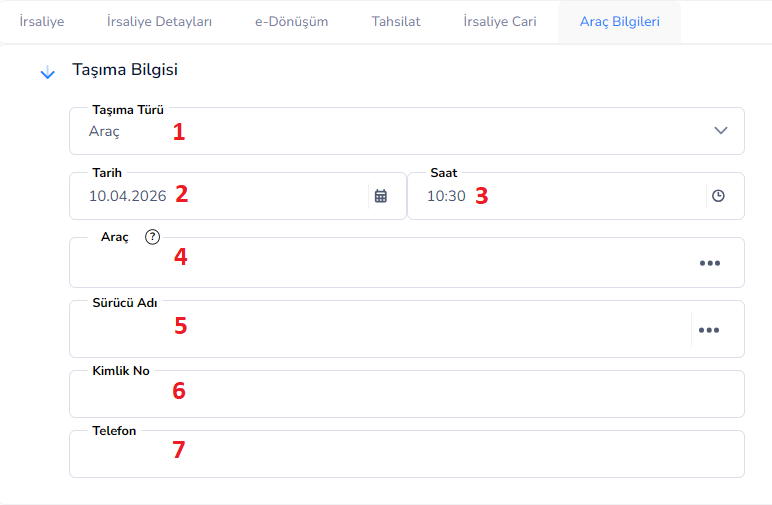
Bu sekme, satış irsaliyesine konu olan sevkiyatın hangi araç ve sürücü ile gerçekleştirileceğini belirlemek için kullanılır. Özellikle e-irsaliye süreçlerinde zorunlu olabilen bu bilgiler, taşıma sürecinin takibi ve resmi kayıtlar açısından büyük önem taşır.
Taşıma Bilgileri:
1.Taşıma Türü: Sevkiyatın nasıl yapılacağını belirtir.(Örn: Araç, kargo, lojistik firma vb.)
2.Tarih: Sevkiyatın yapılacağı tarih.
3.Saat: Sevkiyatın yapılacağı saat bilgisi.
4.Araç: Taşıma işlemini gerçekleştirecek araç bilgisi girilir veya seçilir.
5.Sürücü Adı: Aracı kullanan kişinin adı ve soyadı.
6.Kimlik No: Sürücüye ait T.C. kimlik numarası.
7.Telefon: Sürücünün iletişim numarası.
İRSALİYE TÜRLERİ – GENEL MANTIK
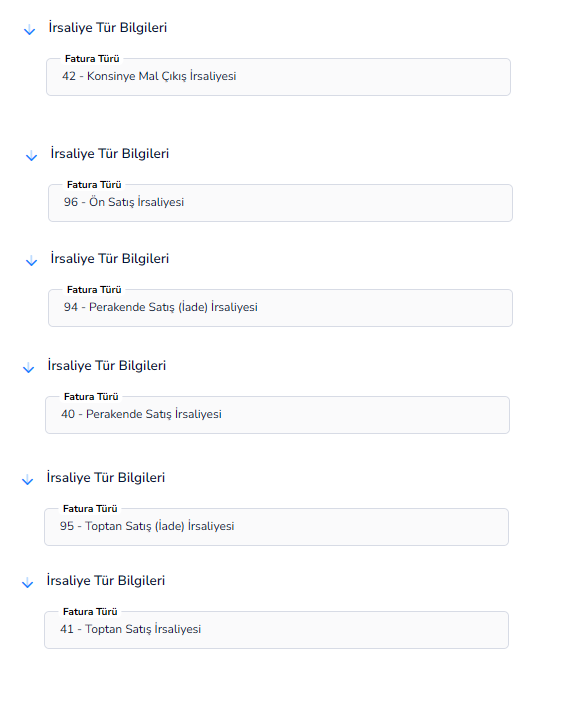
İrsaliye ekranları genel yapı olarak aynıdır. Üst bilgi alanları, satır girişleri, sekmeler ve toplam hesaplama alanları tüm irsaliye türlerinde ortak şekilde çalışır.
Farklı olan kısım, seçilen irsaliye türüne göre sistemin otomatik olarak belge türünü ve işleyiş mantığını değiştirmesidir.
Genel Kullanım Mantığı:
1.İrsaliye türü seçildiğinde, “İrsaliye Tür Bilgileri (Fatura Türü)” alanı otomatik olarak doldurulur
2.Seçilen türe göre:
- Stok hareketinin yönü (çıkış / iade)
- İşlem senaryosu (perakende, toptan, konsinye vb.)
- Süreç akışı (sipariş → irsaliye → fatura)
sistem tarafından otomatik belirlenir
3.Kullanıcı ekran üzerinde manuel bir değişiklik yapmaz, sadece doğru irsaliye türünü seçmesi yeterlidir
Örnek İrsaliye Türleri:
- Konsinye Mal Çıkış İrsaliyesi: Mal müşteriye gönderilir ancak satış gerçekleşmeden fatura kesilmez
- Ön Satış İrsaliyesi: Siparişi alınmış ancak henüz teslim sürecinde olan satışlar için kullanılır
- Perakende Satış İrsaliyesi: Son kullanıcıya yapılan hızlı satış işlemlerinde kullanılır
- Perakende Satış (İade) İrsaliyesi: Perakende satış sonrası ürün iadesi durumunda kullanılır
- Toptan Satış İrsaliyesi: Bayi veya firmalara yapılan toplu satışlarda kullanılır
- Toptan Satış (İade) İrsaliyesi: Toptan satışların iade edilmesi durumunda kullanılır
Önemli Not:
Tüm irsaliye türlerinde ekran aynı kalır, sadece arka planda çalışan işlem mantığı değişir
Bu nedenle doğru irsaliye türünün seçilmesi, stok ve muhasebe kayıtlarının doğru oluşması açısından kritik öneme sahiptir
Bu doküman yardımcı oldu mu?
Eksik veya geliştirilmesi gereken bir bölüm varsa destek ekibimizle paylaşabilirsiniz.