Bilgi merkezine dön
Stok

Expense Card

Review the details of this document.

EXPENSE CARD DEFINITION SCREEN
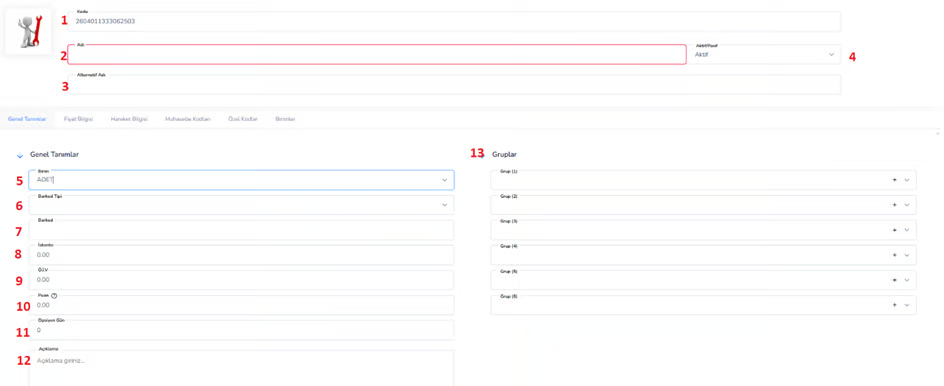
Expense Card Definition screen is the area where expenses incurred within the business are systematically defined and tracked. Thanks to this screen, expenses are categorized, associated with accounting and reporting processes are facilitated.
  ​ Top Field Information1. Code: It is the unique code of the expense card. It can be created automatically by the system or entered manually. ​ 2. Name: This is the field where the name of the expense item is entered. (Example: Electricity Expense, Rent, Transportation, etc.) ​ 3. Alternative Name: Allows the expense to be described with different names. It provides convenience in reporting and search processes. ​ 4. Active/Passive:Determines the usage status of the expense card.   5. Unit:The unit of measurement in which the expense will be processed (Piece, Day, Hour, etc.). It is especially used in service-based expenses.   6. Barcode Type:Specifies the barcode type to be used if a barcode will be defined on the expense card.   7. Barcode:Enables defining a barcode for the expense card. (Generally rarely used, optional) ​ 8. Discount: It is the discount rate that can be applied to the expense item.   9. SCT (Special Communication Tax, etc.): It refers to the special tax rate to be applied to the expense.   10. Score: Allows scoring of expense items. (Generally for private use / loyalty / analysis purposes)   11. Option Day:This is an additional parameter that can be used for situations such as the validity or maturity period of the expense.   12. Description: Allows you to enter detailed information about the expense.   ​ Groups Area:   13. Group (1-6): Allows the categorization of expense items. ​   Example usage:
  • Fixed Expenses
  • Variable Expenses
  • Operational Expenses
  • Financial Expenses
Thanks to these fields, reporting and analysis become much more powerful.  

General Description

Expense Card Definition screen is one of the basic components that systematizes the expense management of the business. Expense cards defined on this screen; It ensures accurate tracking of expenses by using it in purchasing, accounting and finance processes. Correctly configured expense cards provide great advantages in terms of cost analysis and budget control.

COST PRICE INFORMATION TAB

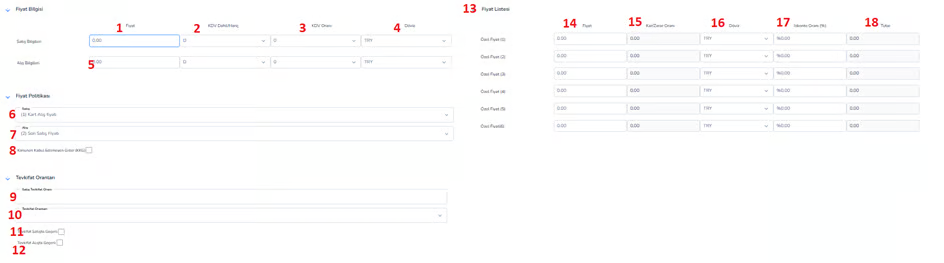
Expense Price Information screen is the area where cost, sales and pricing details of the defined expense card are determined. Thanks to this screen, the financial effects of expense items are taken under control and pricing can be made according to different scenarios.  

Sales and Purchasing Information:

1. Sales Price:This is the sales price to be used in cases where expenses will be reflected (for example, expenses reflected to the customer).   2. VAT Included/Excluded:Determines whether the entered price includes or excludes VAT.
    • Included: VAT is included in the price
    • Except:VAT is calculated separately
3. VAT Rate: It is the Value Added Tax rate to be applied to the expense item.   4. Currency:Indicates the currency in which the expense is defined. (TRY, USD etc.) ​

5. Purchase Price:It refers to the cost of the expense to the business. It forms the basis of expense calculations.  

Price Policy:

6. Sales Price Policy:Determines the price at which the expense will be used in sales transactions. ​

7. Purchase Price Policy:Determines which price will be taken as basis in purchase/expense calculations of the expense. ​

8. Legally Disallowed Expense (PPEG):When checked, this expense item is not accepted as an expense according to tax legislation. It is evaluated separately in accounting and tax calculations.  

Withholding Rates:

9. Sales Withholding Rate: It is the withholding rate that will be applied if the expense is reflected in the sale. ​

10. Withholding Rates: Allows selection from defined withholding options. ​

11. Withholding Valid on Sales:When checked, withholding is applied to sales transactions. ​

12. Withholding Valid on Purchase: When checked, withholding is applied to purchase transactions.  

Price List:

13. Special Price (1-6): Allows defining alternative prices for the expense according to different scenarios. ​

14. Price:The amount determined for the relevant special price line. ​

15. Profit/Loss Ratio:Indicates the profit or loss ratio that will occur if the expense is reflected. ​

16. Currency:Indicates the currency in which the price is valid. ​

17. Discount Rate (%): It is the discount rate to be applied to the expense. ​

18. Amount:It refers to the net amount based on discount and price information.  

General Description

Expense Price Information screen ensures correct financial management of expense items. Thanks to the definitions made on this screen, expenses are used correctly in both cost and sales processes. In particular, expenses reflected to the customer play a critical role in tax calculations and profitability analysis.

COST TRANSACTIONS SCREEN

Expense Transactions screen is the area where all transaction records of the defined expense card are displayed and analyzed in detail. Thanks to this screen, you can track the dates on which expenses were incurred, with which current accounts and with which transactions.  

Filtering Areas:

1. Start Date:Determines the start date of the expense transactions to be displayed. ​

2. End Date:Determines the date by which expense transactions will be listed. ​

3. Current:Used to filter the expense transactions of a specific customer or supplier. ​

4. Warehouse: Allows filtering based on the warehouse to which the expense is associated.  

Action Buttons:

5. Find Transactions:Lists expense transactions based on selected criteria.  

List Area (Movement Table):

6. Date:Indicates the date on which the expense transaction took place.

7. Document Name:Indicates the document type to which the transaction belongs (Invoice, Expense Receipt, etc.). ​

8. Current Code:The code of the current account on which the transaction is made. ​

9. Client Name: Shows the name of the customer or supplier to whom the expense is associated. ​

10. Document Number:The document number of the relevant transaction registered in the system. ​

11. Output Amount:It refers to the quantity-based value of the expense (piece, day, etc.). ​

12. Net Unit Price:It is the unit price of the expense used during the transaction. ​

13. Currency Exchange Rate: Shows the exchange rate used in the transaction. ​

14. Description:This is the field where additional information or notes regarding the transaction are entered.  

General Description

The Expense Transactions screen allows the business to analyze its expenses in detail. On this screen, the distribution of expenses over time, current-based density and transaction details can be examined. When used correctly, it makes a significant contribution to cost control, budget tracking and financial analysis processes.

EXPENSE ACCOUNTING CODES SCREEN

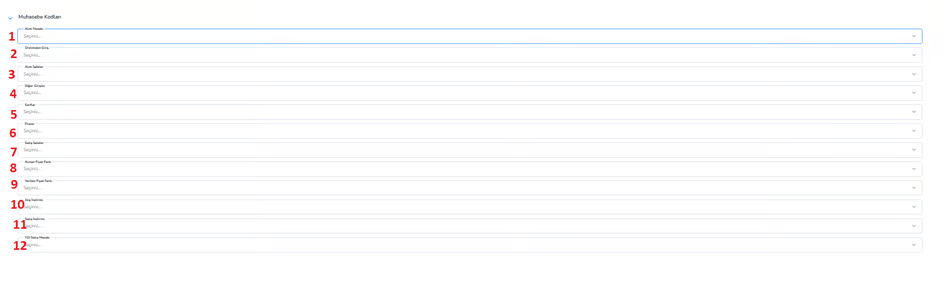
Expense Accounting Codes screen is the area that determines which accounting accounts the defined expense card will be associated with in financial transactions. Thanks to this screen, expenses are reflected in the accounting system accurately and automatically.   Accounting Account Definitions:

1. Purchase Account:This is the main expense account to be used when an expense is incurred. Expense invoices are accounted through this account. ​

2. Production Entry:This is the accounting account to be used if the expense is included in the production processes. It is reflected in production costs. ​

3. Purchase Returns:This is the accounting account to be used in case the expense is canceled or refunded. ​

4. Other Entries:This is the account where entries other than standard expense transactions are recorded. ​

5. Consumables:This is the accounting account used when the expense is consumed directly as an expense. ​

6. Wastes:This is the account in which losses or wastage expenses are recorded. ​

7. Sales Refunds:This is the account to be used in case the expenses charged to the customer are refunded.     Difference and Discount Calculations:

8. Price Difference Received:This is the accounting account where the price differences related to the expense are recorded. ​

9. Price Difference Given:This is the account where the price differences that occur when the expense is reflected to the customer are recorded. ​

10. Purchase Discount:This is the account where the discounts on the expense are accounted. ​

11. Sales Discount:This is the account where the discounts applied when the expense is reflected to the customer are recorded.     Sales Accounts:

12. YD Sales Account:This is the accounting account to be used when expenses are reflected in foreign transactions. It provides separate tracking in export processes.  

General Description

Expense Accounting Codes screen provides direct integration between expense management and accounting system. Thanks to the correct definitions made in this area, expense movements are automatically reflected in the relevant accounts, the need for manual transactions is reduced and the accuracy of financial records is increased. It is of great importance especially in cost analysis and tax processes.

COST SPECIAL CODES SCREEN

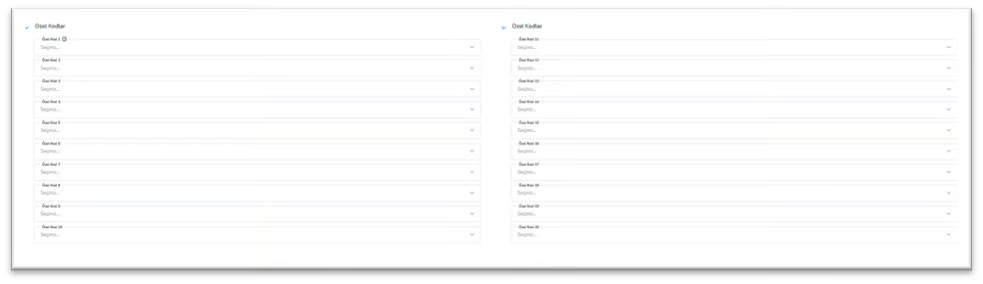
Expense Special Codes screen is a flexible definition area that allows expense cards to be classified according to business-specific criteria. They go through these fields; It can be categorized in detail according to department, project, location or specific business processes.   ​

Special Code Fields:

1. Special Code (1-20): These are free definition fields that can be assigned to the expense card. Each specific code field can be used for different purposes depending on the needs of the business. ​

These fields can be used for the following purposes:
  • Classification by expense type (Fixed / Variable expenses)
  • Department-based separation (Accounting, Operations, IT, etc.)
  • Project or job based tracking
  • Branch or location based discrimination
  • Classification by budget items
  • Special reference codes used in internal processes

Each field is selected from lists defined in the system, creating a standard and regular structure.     Intended Use and Advantages
  • Allows detailed categorization of expenses
  • Provides advanced filtering and reporting
  • Makes budget and cost analysis easier
  • Supports department and project based expense tracking
 

General Description

Expense Special Codes screen makes expense management in the ERP system more flexible and controllable. It ensures that business-specific data needs are met outside of standard fields. When configured correctly, it increases the accuracy of financial analysis and makes a significant contribution to decision-making processes.

COST UNITS SCREEN

Expense Units screen is the area where the measurement units of the expense card are defined and the transaction structure based on these units is created. Thanks to this screen, expenses can be tracked in different units (number, day, hour, etc.) and calculation processes are made more flexible.   Unit Definitions:

1. Unit:Indicates the unit of measurement in which the expense will be processed. Example: ​

    • Day (rent, service fee)
    • Hours (consultancy, labor)
    • Quantity (one-time expenses)

2. Multiplier:It expresses the ratio of the defined unit to the main unit. In this way, conversion between units can be made. ​

Example: ​

    • 1 Day = 8 Hours
    • 1 Pack = 10 Pieces
Action Buttons:

3. Add Unit:Allows a new unit of measurement to be added to the expense card. Multiple units can be defined for different usage scenarios. ​

4. Delete (Trash Icon): Used to remove the defined volume from the system.   ​

Barcode Management:

5. Barcode List: Allows the barcodes of the cost unit to be displayed. ​

6. Barcode Identification:The use of barcodes on expense cards is generally limited, but unit-based barcodes can be defined if necessary. This feature can be used especially in automatic tracking of service or operational processes.  

General Description

The Expense Units screen creates flexibility in the system by allowing expenses to be tracked with different units of measurement. It helps to make accurate calculations, especially in time-based or quantity-based expenses. This structure allows cost analysis to be made more accurately and in detail.