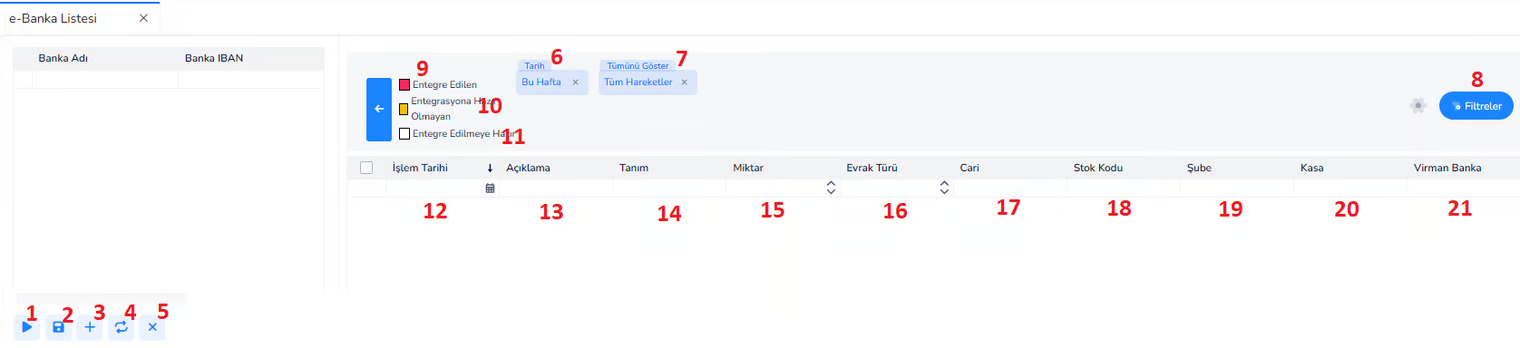
This screen allows account movements to be transferred to the system and displayed through e-Bank integration with banks.
BYM AkademiGüncellendi:5 dk okuma
E-BANK SCREEN
This screen allows account movements to be transferred to the system and displayed through e-Bank integration with banks.
When the integration is started, bank account transactions are automatically drawn into the ERP system and the user can review, filter and include these transactions in the accounting process.
Fields:1. Start Integration (Button): Starts the data extraction process from the bank. Thanks to the integration with the bank, account movements are transferred to the system.
2. Save (Button):Used to save the transactions or matches made.
3. Add new rule(Button):4. Refresh (Button): Updates the data on the screen. Reloads the last withdrawn bank transactions.
5. Clear / Close (Button): Used to clear the screen or cancel the current operation.
Filter Area:6. Date:Determines which date range of bank transactions will be displayed. Example: This week, this month
7. Show All:Used to list all bank transactions.
8. Filters (Button): Opens detailed filtering options. The user can filter data based on certain criteria.
Status Indicators:9. Integrated: Shows bank transactions transferred to the system and processed.
10. Not Ready for Integration:Indicates transactions that have not yet been processed or cannot be integrated due to missing information.
11. Ready to be Integrated: It refers to bank transactions that are ready to be transferred to the system.
List Field (Table):
12. Transaction Date:The date the bank transaction took place.
13. Description:This is the transaction description from the bank. Example: Wire Transfer, EFT statement
14. Description:The description or brief description of the transaction in the system.
15. Amount:Shows the transaction amount.
16. Document Type:Indicates the document type of the transaction in ERP. Example: Transfer, Collection, Payment
17. Current:The current account information to which the transaction is linked.
18. Stock Code:If the transaction is related to stock, it shows the relevant stock code.
19. Branch:Indicates the branch to which the transaction belongs.
20. Cash:The cash register information to which the transaction is associated.
21. Transfer Bank: Shows the counterpart bank account in intra-bank transfer transactions.
This screen is the area where account transactions resulting from integration with banks are displayed and transferred to the system. Users can review these transactions, filter them and include them in financial processes.
E-BANKING RULES NEW REGISTRATION SCREEN
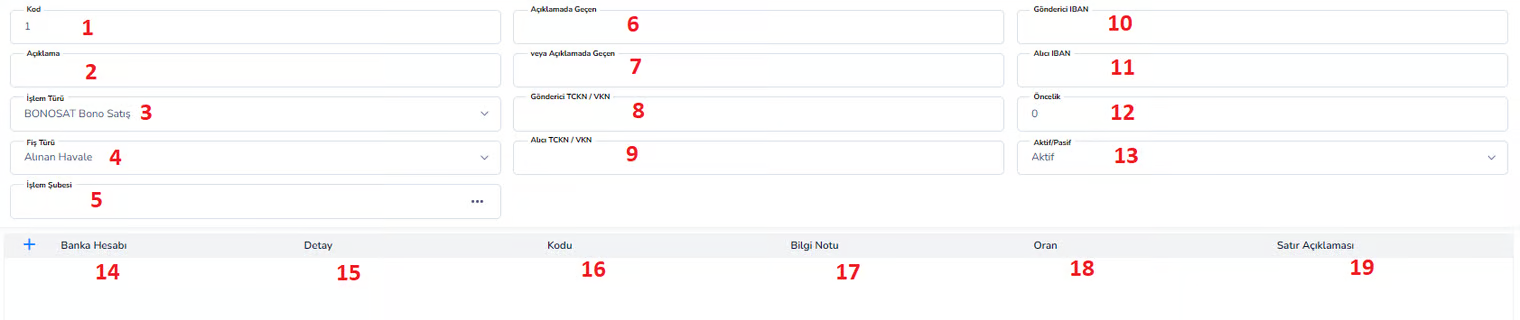
This screen is the area where the rules are defined that determine how bank transactions coming through e-Bank integration will be automatically processed in the system.
Transactions coming from the bank (wire transfer, EFT, etc.) are matched according to certain criteria and automatically linked to the relevant current account, transaction type or bank account. In this way, the manual processing load is reduced and processes are accelerated.
General Information:1. Code:The unique code of the defined rule in the system. It can be given automatically or manually.
2. Description:This is the text that explains what the rule does. Example: “Bond sales remittance matching rule”
3. Transaction Type:Indicates which transaction type the rule applies to. Example: Money Order, EFT, POS transactions
4. Voucher Type:Determines which voucher type the transaction will be recorded in accounting. Example: Received Money Order, Sent Money Order
5. Transaction Branch:Indicates the branch through which the transaction will take place. It is important for companies with multiple branches.
Matching Criteria:6. Mentioned in Description: Matches based on a specific word in the description section of the bank transaction. Example: Transactions containing “BONOSAT”
7. Alternative Description (or Mentioned in the Description): Allows to match more than one keyword.
8. Sender IBAN:Used to filter transactions from a specific IBAN.
9. Recipient IBAN:Used to match transactions to a specific IBAN.
10. Sender TR ID Number / TIN Number: Matches according to the identity/tax number of the person or company performing the transaction.
11. Recipient TR ID Number / TIN Number: Matches according to the identity/tax number of the person or company to whom the transaction is sent.
Other Settings:
12. Priority:Determines which rule will run first among the rules. Smaller number means higher priority.
13. Active / Passive:Determines whether the rule is active or not. Active → Rule works Passive → Rule remains disabled
SubTable (Detail Area)
14. Bank Account:Specifies the bank account to which the transaction will be linked.
15. Detail: Additional detail information about the transaction. Generally supports explanation.
16. Code:The specific code or reference to be assigned to the transaction.
17. Information Note:This is an additional explanation or note field about the transaction.
18. Rate:The rate information to be applied to the transaction (commission, etc.).
19. Line Description: Allows you to enter a description based on the sub-line. It is used for detailed tracking.
Correctly defined rules ensure automatic accounting of bank transactions. Incorrect definitions can lead to incorrect matches. Therefore, rules should generally be tested and used.
This screen is the area where definitions are made that ensure that bank transactions received through e-Banking integration are automatically processed according to certain rules. Transactions are matched according to criteria such as description, IBAN and identity information and recorded correctly in the system.
✓
Bu doküman yardımcı oldu mu?
Eksik veya geliştirilmesi gereken bir bölüm varsa destek ekibimizle paylaşabilirsiniz.