
Bank
2.Document Number: It is the document number that can be entered by the user or used as a reference.
BANK ACCOUNT TRANSACTIONS
These transactions in the bank module are used to record all money movements made by the business with the bank. Each represents a different financial scenario. 1. Received TransferMoney coming from another account to the business's bank account increases the bank balance
2. Transfer Sent- Money sent from the business's bank account to another account
- Bank balance decreases
- Money deposited into the bank from the safe or from an external source
- Bank increases / Cash decreases
- Money withdrawn from the bank and transferred elsewhere
- The bank decreases
- Money withdrawn from the bank and placed in the safe
- Bank decreases / Cash increases
- Depositing the money in the safe to the bank
- Cash decreases / Bank increases
- Interbank money transfer
- One bank decreases / The other increases
- Total money does not change
- The fee charged by the bank during the transaction (POS commission, etc.)
- Bank balance decreases
- Recorded as expense
- Sales made from POS device
- A receivable (pending collection) is created to the bank
- Collecting credit card sales
- There is real entry into the bank
- Payment to suppliers by credit card
- Exit via Bank/POS
RECIEVED TRANSFER (BANK ENTRY)
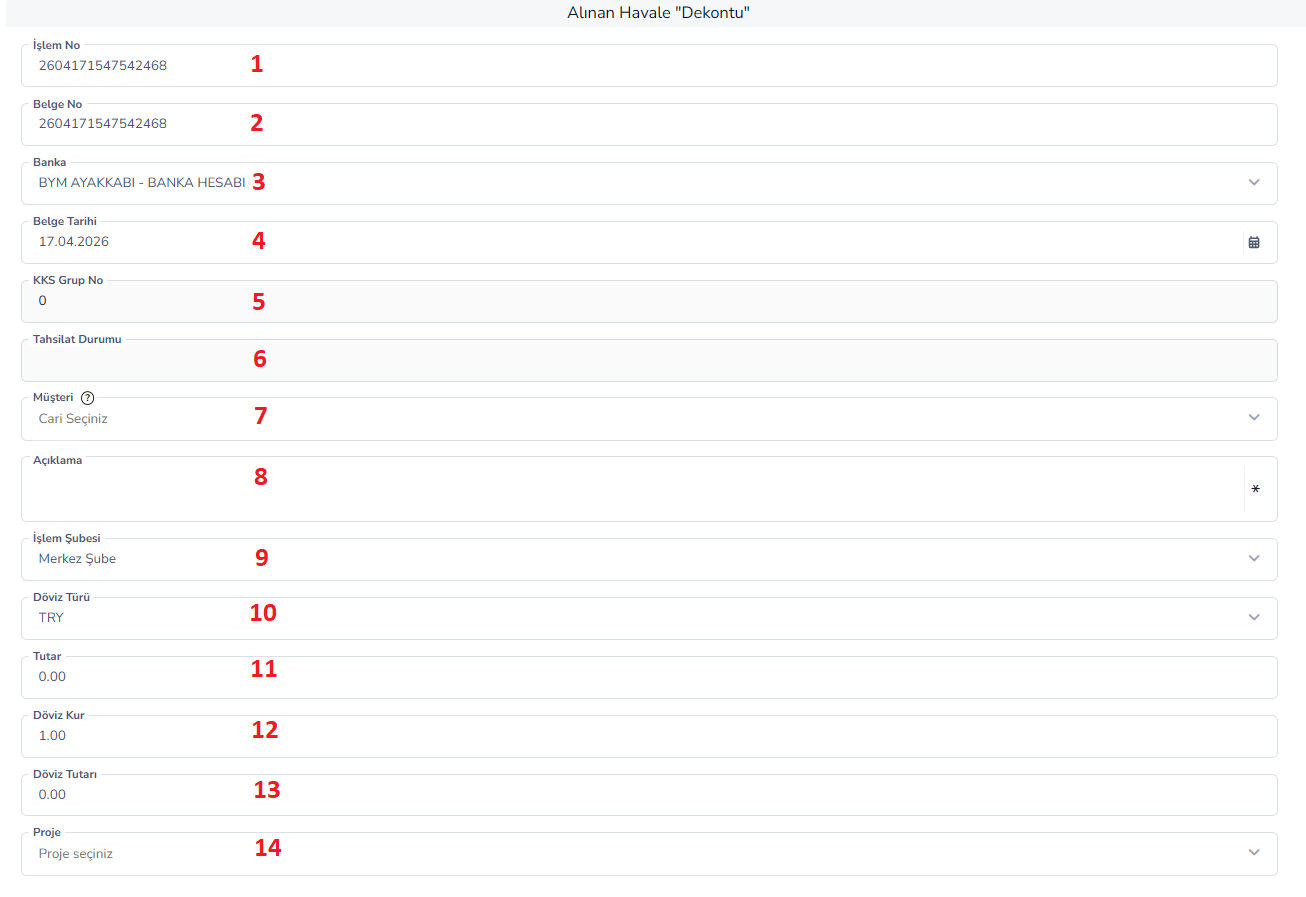
- Records incoming transfers to the bank
- Follows up current collection transactions
- Updates bank balance
- Documents financial transactions
1.Transaction Number: This is the transaction number given automatically by the system.
2.Document Number: It is the document number that can be entered by the user or used as a reference.
3.Bank: This is the bank account from which the money comes.
4.Document Date:The date the transfer took place.
5.Customer (Current): The person or company that sends the money.
6.Description: Transaction detail (eg: “Invoice collection”).
7. Transaction Branch: It is the branch to which the transaction belongs.
8.KKS Group No: This is the field used for credit card / collection grouping (optional).
9.Collection Status: Shows the current status of the collection (open, closed, etc.).
10.Currency Type:The currency in which the transaction is made (TRY, USD, etc.).
11.Amount:The amount of money received.
12. Foreign Exchange Rate: It is the exchange rate information used in foreign currency transactions.
13.Foreign Currency Amount:The transaction amount in foreign currency.
14.Project: (If any) is the project information to which the transaction is associated.
Usage Scenario- Customer made a bank transfer
- An open invoice has been paid
- Current debt closing process is in progress
BANK COMMISSION DETECTION RECEIPT
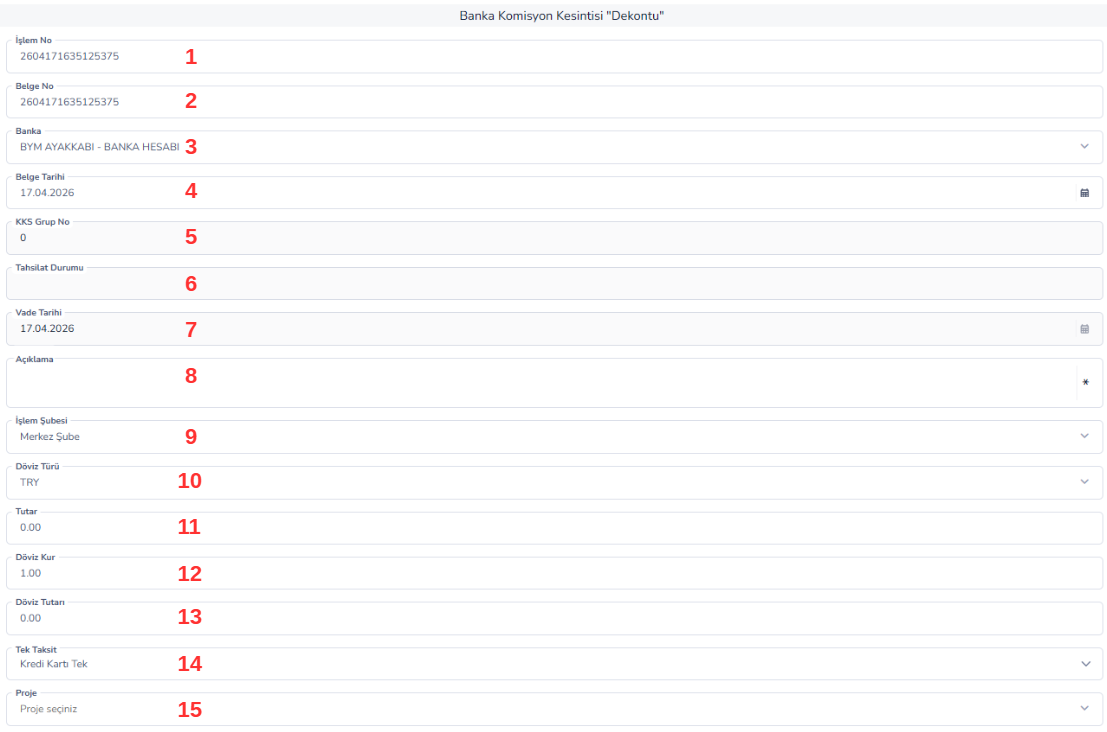
- Records the commissions deducted by the bank
- Follows up expenses such as POS deductions, EFT/money transfer costs
- Accurately updates bank balance
- Enables it to be processed as an expense in accounting
1st Transaction Number: It is the unique transaction number created by the system. It is used as a reference for all transactions.
2.Document Number: It is the user-enterable or external reference number of the transaction.
3.Bank: Indicates the bank account from which the deduction was made or the transaction took place.
4.Document Date: Refers to the date the transaction took place.
5.Maturity Date:Indicates the payment or validity period of the transaction (used if available).
6.Explanation: Used to explain the reason for the deduction or transaction (eg: “POS commission”).
7. Transaction Branch: Indicates through which branch the transaction was carried out.
8.KKS Group Number: This is the grouping number for credit card transactions (optional).
9.Collection Status: Shows the open, closed or completed status of the transaction.
10.Currency Type: Indicates the currency in which the transaction is made (TRY, USD, etc.).
11.Amount: It refers to the deducted commission or transaction amount.
12. Foreign Exchange Rate: It is the exchange rate information used in foreign currency transactions.
13.Foreign Currency Amount: Shows the transaction amount in foreign currency.
14th Installment: Installment information resulting from credit card transactions.
15.Project: It is the project information to which the transaction is associated (used if available).
Usage Scenario: Bank cuts commission from POS sales EFT / money transfer transaction fee has been cut Bank account management fee charged In these cases, a Bank Commission Deduction record is entered.BANK TRANSFER RECEIPT (REFUND)
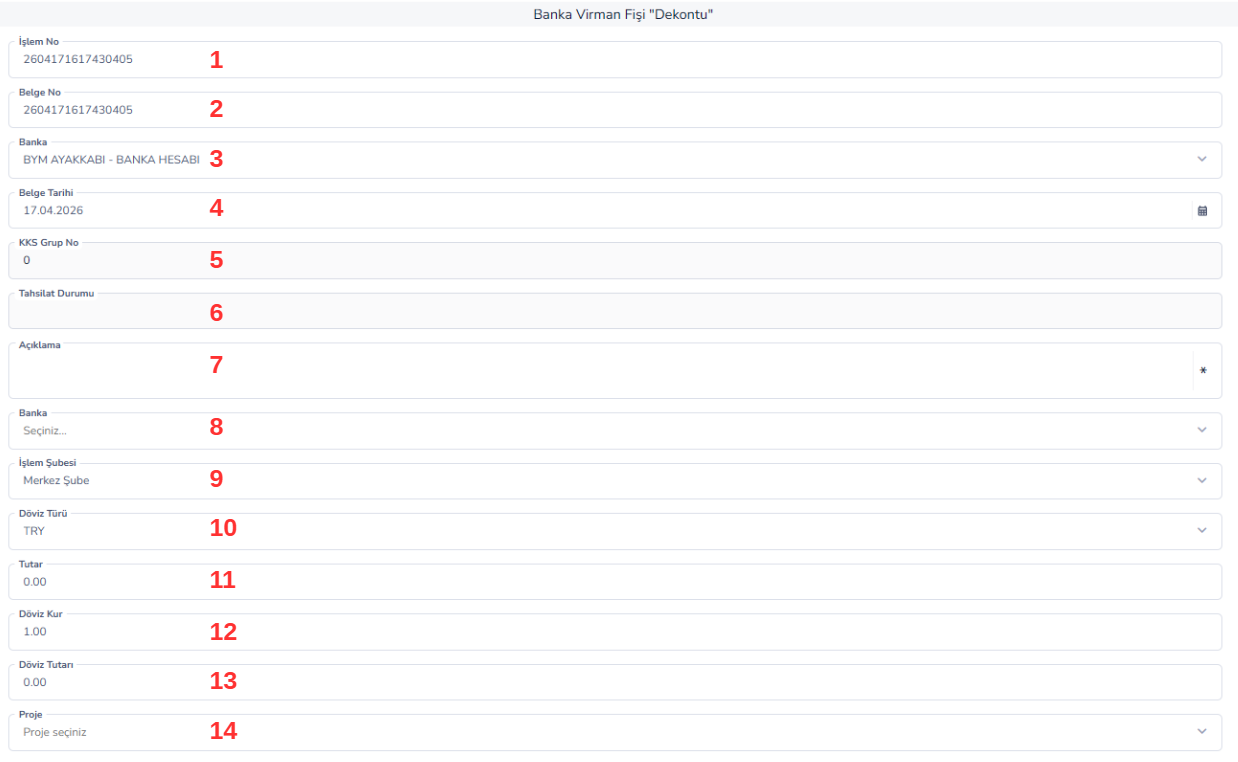
- Records money transfers between banks
- Accurately updates bank balances
- Makes it easy to track cash flow
- Creates a movement between two bank accounts in accounting
- Sending bank → decreases (-)
- Receiving bank → increases (+)
1.Transaction Number: It is the unique transaction number given by the system.
2.Document Number: It is the reference number of the transaction or the document number entered by the user.
3. Bank (Sender): It refers to the bank account from which the money originates.
4.Document Date:The date the transfer took place.
5.KKS Group No: This is the field used for credit card or collection grouping (optional).
6.Collection Status: Shows the status of the transaction (open, closed, etc.).
7.Explanation: Explains the transaction detail (eg: “Transfer from bank X to bank Y”).
8.Bank (Recipient):It refers to the bank account to which the money is sent.
9.Transaction Branch: Indicates the branch to which the transaction belongs.
10.Currency Type: Indicates the currency in which the transaction is made (TRY, USD, etc.).
11.Amount:The amount of money transferred.
12. Foreign Exchange Rate: It is the exchange rate information used in foreign currency transactions.
13.Foreign Currency Amount: Shows the transfer amount in foreign currency.
14.Project: (If any) is the project information to which the transaction is associated.
Usage Scenario: Money was transferred from İş Bank to Garanti Bank Inter-branch bank transfer was made Editing balances between different bank accounts Bank Transfer Receipt is used for these transactions.Withdrawn from the bank (receipt)
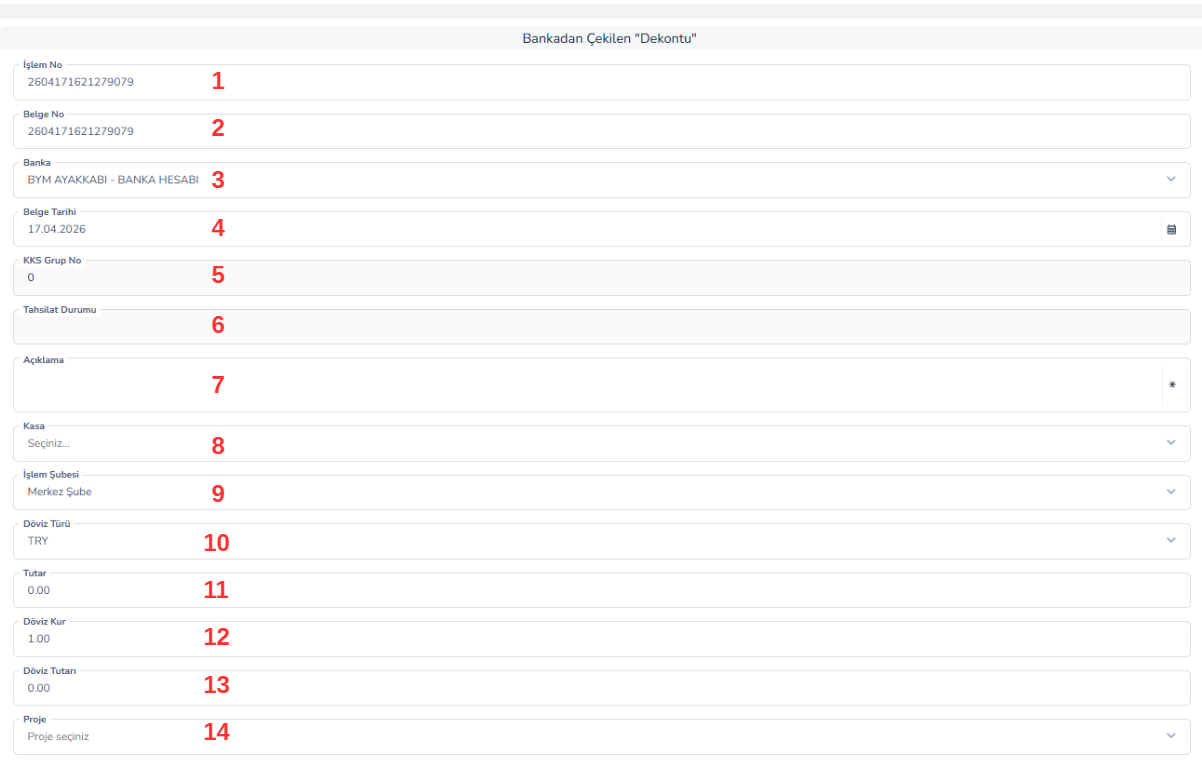
- Creates a record when cash is withdrawn from the bank
- Reduces bank balance
- Increases cash balance
- Enables accurate tracking of cash flow
- Bank → decreases (-)
- Cash → increases (+)
1st Transaction Number: This is the automatically generated transaction number.
2.Document Number: It is the reference number of the transaction or the document number that can be entered by the user.
3.Bank: It is the bank account from which the money is withdrawn.
4.Document Date:Date of shooting.
5.KKS Group No: (Optional) used if there is a credit card connection.
6.Collection Status: Shows the status of the transaction.
7.Description: Transaction description (eg: “Cash withdrawn to the cash register”).
8.Cash: It is the cash register information to which the money is transferred.
9. Transaction Branch: It is the branch where the transaction is made.
10.Currency Type: Indicates the currency of the transaction (TRY / USD etc.).
11.Amount: Refers to the withdrawn amount.
12. Foreign Exchange Rate: It is the exchange rate information used in foreign currency transactions.
13.Foreign Currency Amount: Shows the transaction amount in foreign currency.
14.Project: This is the area used for project-based tracking.
Usage Scenario 10,000 TL was withdrawn from the bank and put in the safe. Withdrew money from ATM for daily cash needs Money transferred to office safe Withdrawn from the Bank is used for these transactions.MONEY OUTPUT FROM THE BANK (REFUND)
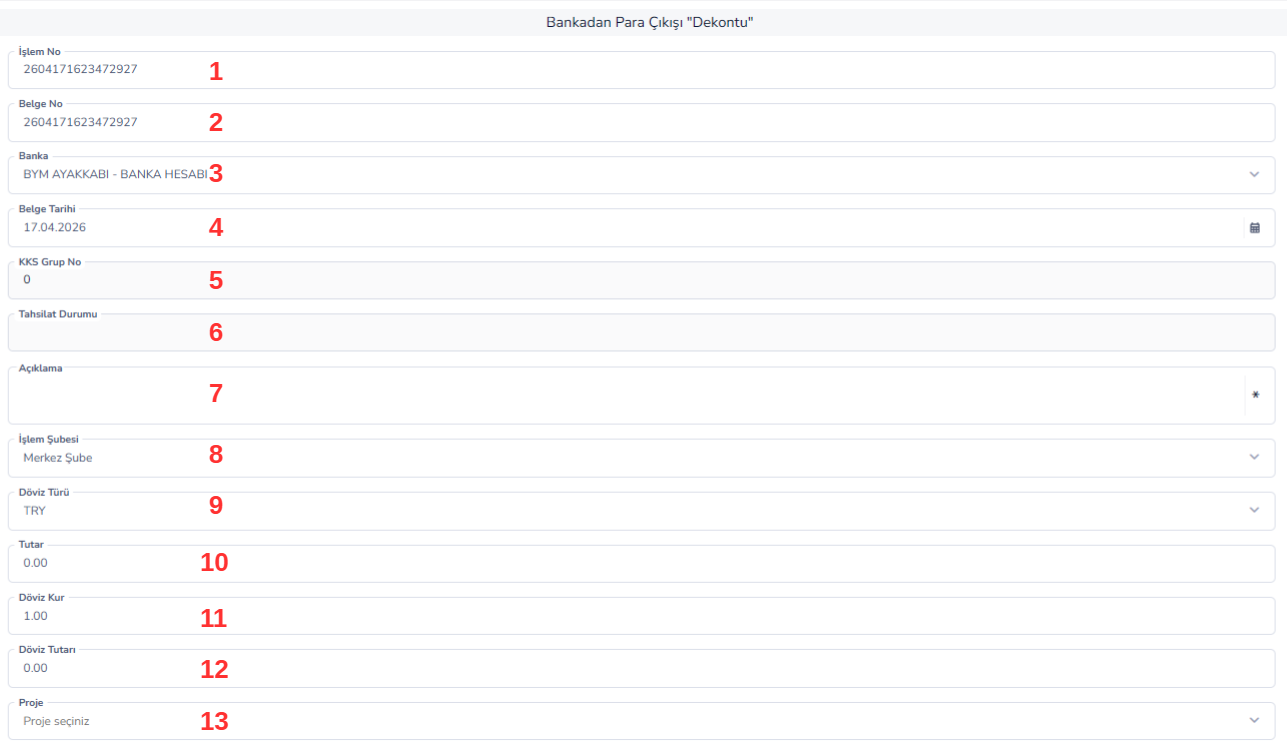
This screen is used when withdrawing money from the bank account.
What is it used for?
- Creates a record when cash is withdrawn from the bank
- Reduces bank balance
- Increases cash balance
- Enables accurate monitoring of cash flow
Logic:
Bank → decreases (-)
Depending on where you're going:
- Cash → increases
- Current → varies
- Other bank → increases
Key Areas
1.Transaction Number: This is the transaction number automatically generated by the system.
2.Document Number: It is the reference number of the transaction or the document number that can be entered by the user.
3.Bank: It refers to the bank account from which the money is withdrawn.
4.Document Date:The date the transaction was made.
5.KKS Group No: (Optional) used if connection will be made with credit card transactions.
6.Collection Status: Shows the current status of the transaction (eg: Completed / Pending).
7.Description: This is the description field about the transaction (eg: “Cash withdrawn to the safe”).
8. Transaction Branch: It is the branch where the transaction is carried out.
9.Currency Type: Indicates the currency in which the transaction is made (TRY, USD, etc.).
10.Amount: It is the amount of cash withdrawn from the bank.
11.Foreign Exchange Rate: It is the exchange rate information used in foreign currency transactions.
12.Foreign Currency Amount: Shows the transaction amount in foreign currency.
13.Project: It is the project information to which the transaction is linked (if any).
Usage Scenario
- 10,000 TL was withdrawn from the bank and put in the safe
- Withdrew money from ATM for daily cash needs
- Money transferred to office safe
For these transactions, the Money Output from the Bank (Receipt) screen is used
DEPOSITABLE TO THE BANK (DEPOSIT)
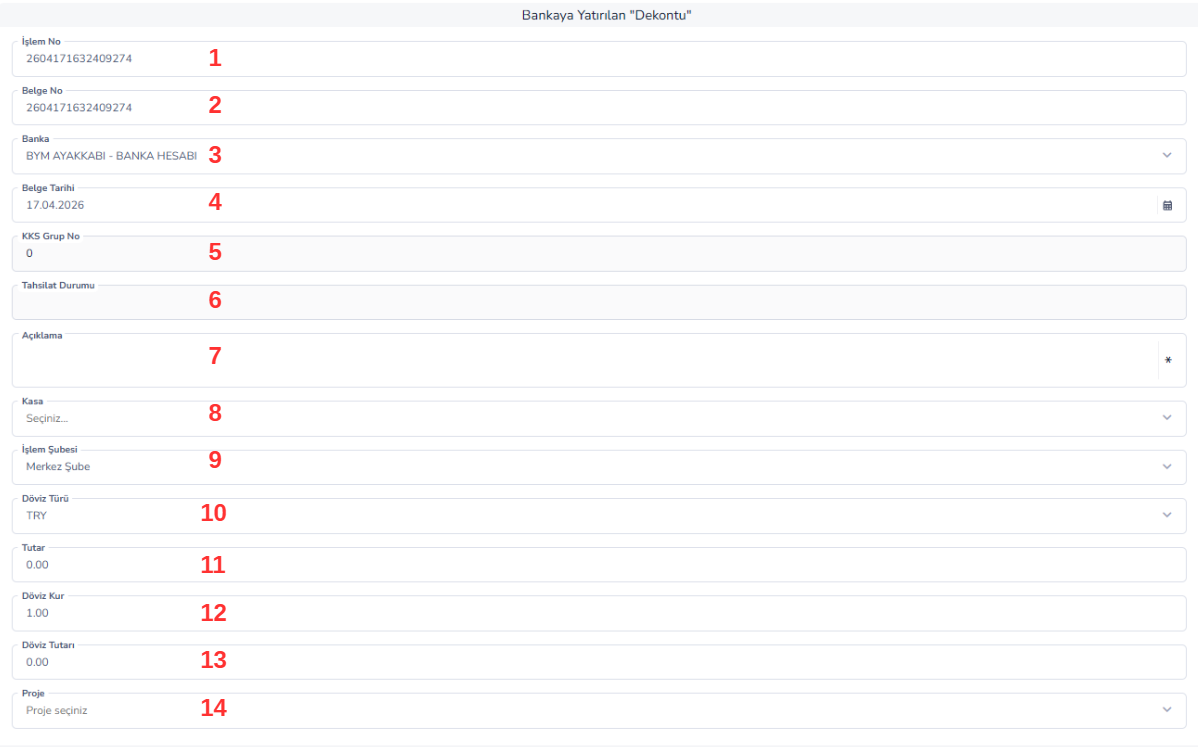
- Records the money transfer from the safe to the bank
- Reduces cash balance
- Increases bank balance
- Follows cash → bank conversion
- Cash → decreases (-)
- Bank → increases (+)
1st Transaction Number: This is the automatically generated transaction number.
2.Document Number: It is the reference number of the transaction or the document number that can be entered by the user.
3.Bank: It is the bank account to which the money is deposited.
4.Document Date: Transaction date.
5.KKS Group No: (Optional) is the grouping field used.
6.Collection Status: Shows the status of the transaction.
7.Description: Transaction description (eg: “Deposited from cash to bank”).
8.Cash: It is the safe information from which the money comes.
9.Transaction Branch: It is the branch to which the transaction belongs.
10.Currency Type: Indicates the currency of the transaction (TRY / USD etc.).
11.Amount: Refers to the deposited amount.
12. Foreign Exchange Rate: It is the exchange rate information used in foreign currency transactions.
13.Foreign Currency Amount: Shows the transaction amount in foreign currency.
14.Project: This is the area used for project-based tracking.
Usage Scenario:- At the end of the day, the cash was deposited in the bank
- Excess cash transferred to bank
- The money in the safe was moved to the bank for security purposes
SENT TRANSFER RECEIPT
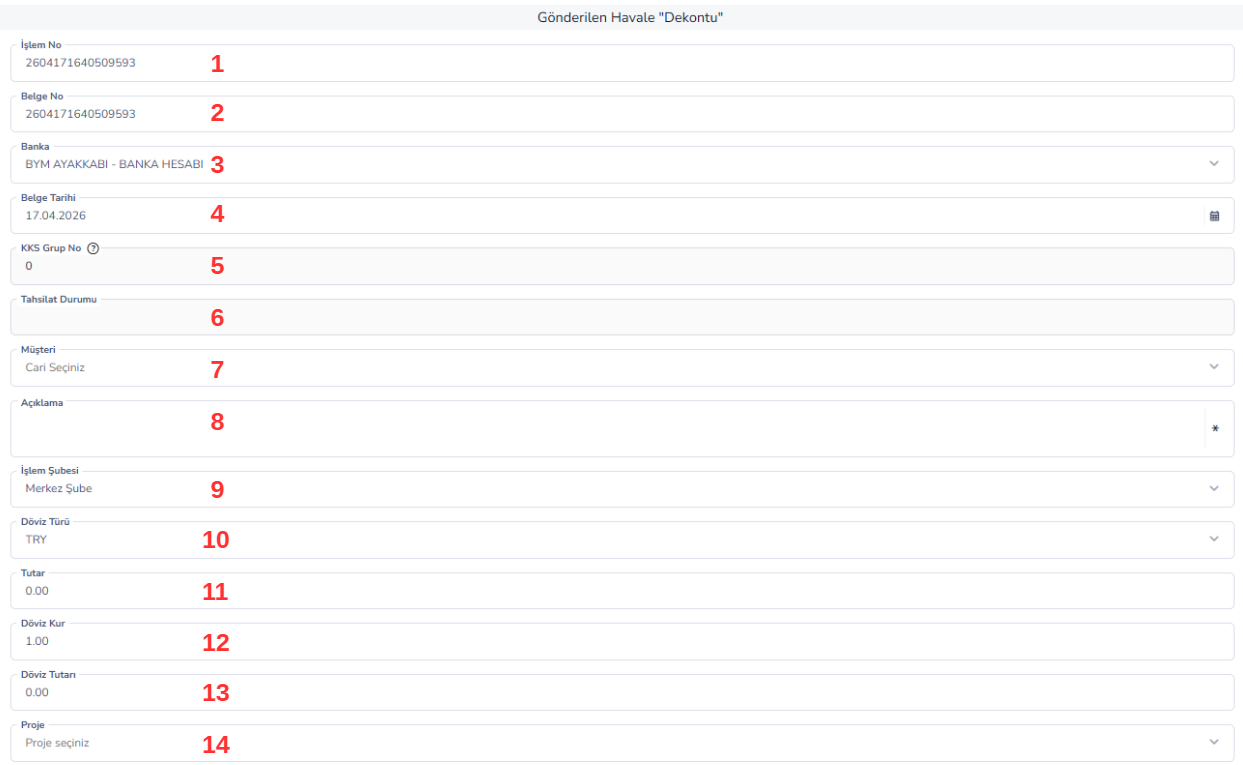
1st Transaction Number: This is the unique number given automatically by the system. All transactions related to this record are tracked with this number.
2.Document Number: It is the bank receipt number or external reference number. It can be entered manually, used to match the transaction in the bank.
3.Bank:The bank account from which the money comes is selected (eg: Garanti, İş Bankası, etc.).
4.Document Date: This is the date on which the transfer took place. It is a critical area for financial reports.
5.KKS Group Number: Generally used for special grouping or integration purposes. In most scenarios it can be left blank or 0.
6.Collection Status: Shows the transaction status (completed, waiting, etc.). It is used in cash flow tracking.
7.Customer (Current): The person or institution to which the money is sent is selected. When this field is selected, the balance of the relevant current account is affected.
8.Explanation: Indicates the purpose of the transaction (eg: “Invoice payment”, “Advance sending”).
9. Transaction Branch: It is the branch information that performed the transaction. It is used in companies with multiple branches.
10.Currency Type: Indicates the currency in which the transaction is made (TRY, USD, EUR, etc.).
11.Amount:The amount of money sent.
12. Foreign Exchange Rate: It is the exchange rate information used in foreign currency transactions.
13.Foreign Currency Amount: If the transaction is made in foreign currency, it refers to the real foreign currency amount.
14.Project: If the process is linked to a project, it is selected here (eg: “Construction Site A expenses”).
PURCHASING A CREDIT CARD (PAYMENT FROM THE BANK)
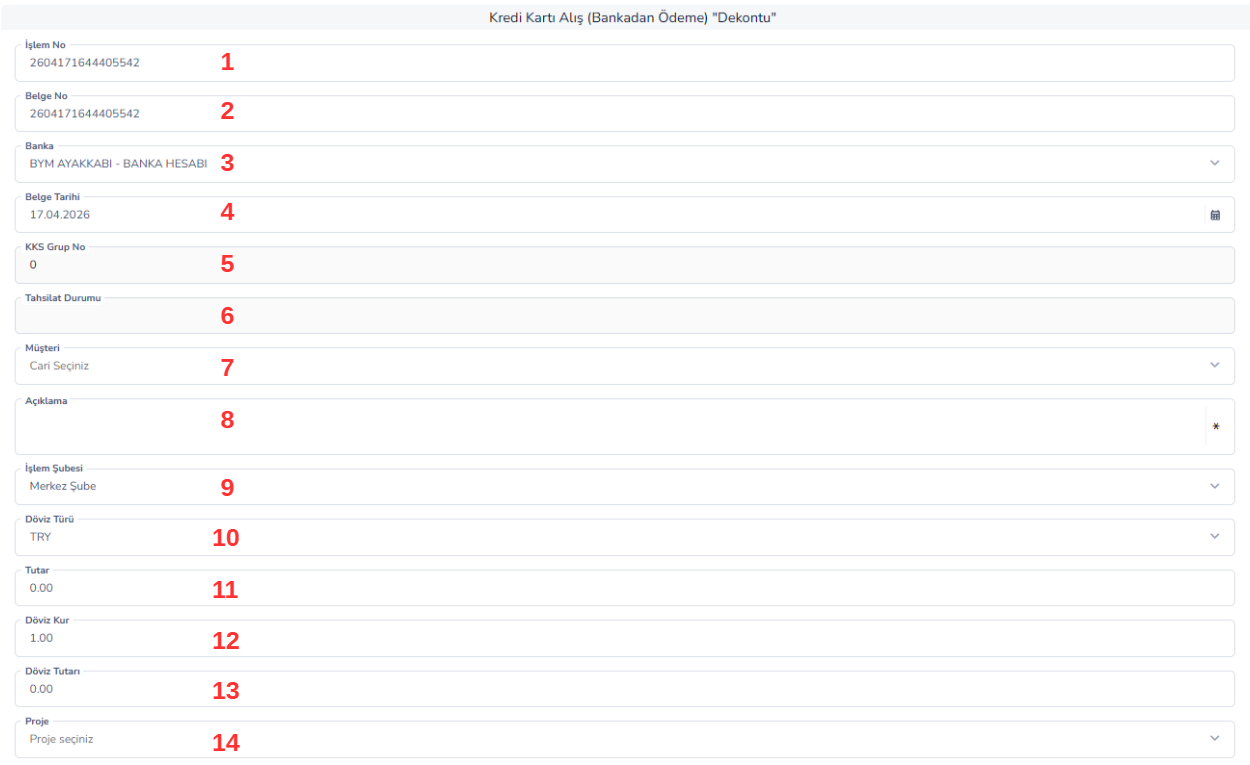
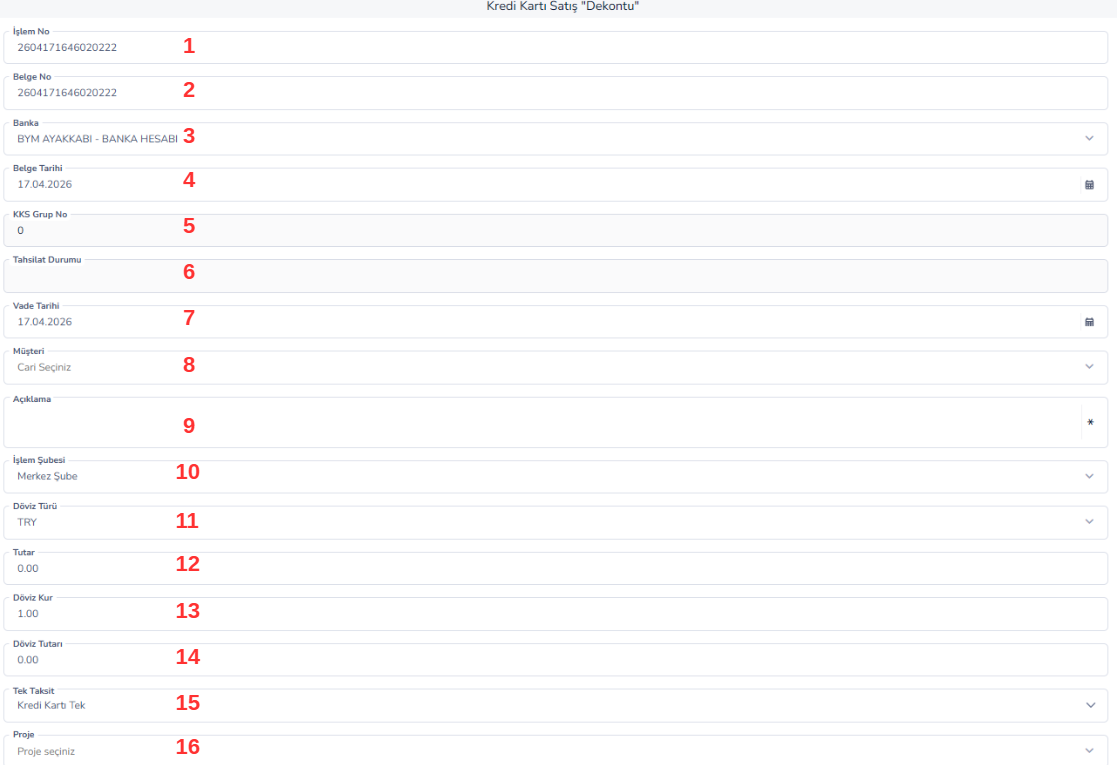
CREDIT CARD SALES
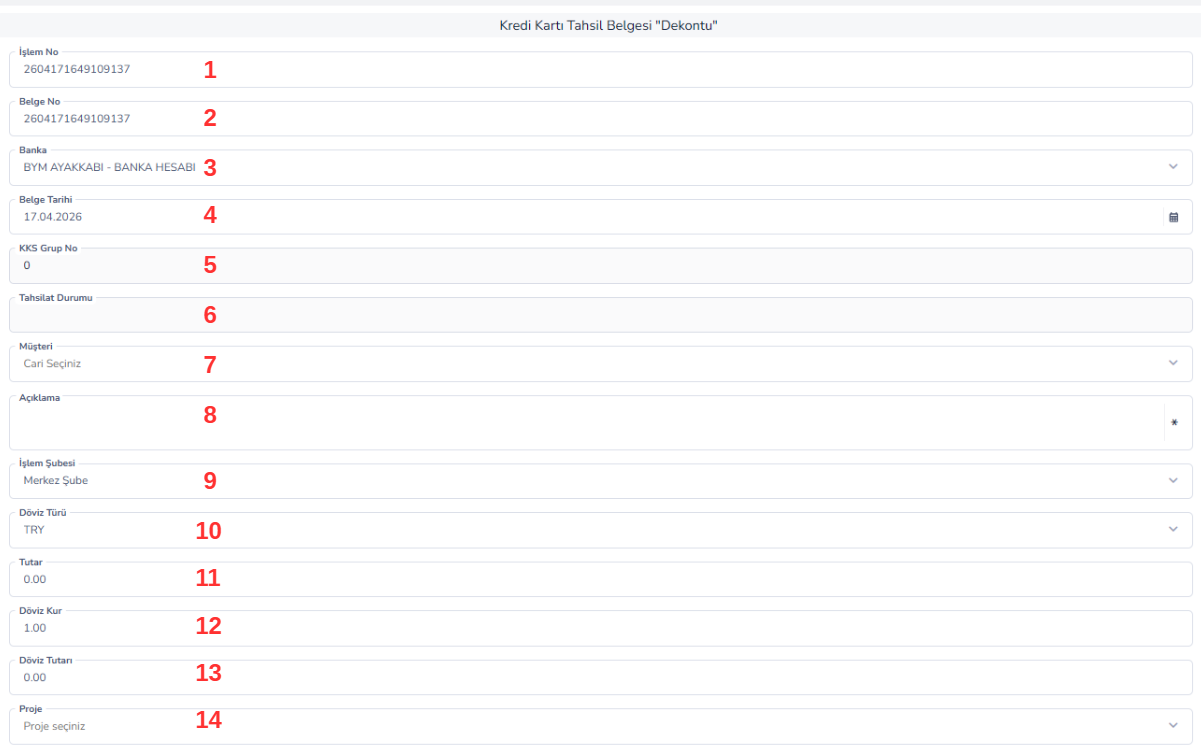
CREDIT CARD COLLECTION DOCUMENT (REFUND)
Bu doküman yardımcı oldu mu?
Eksik veya geliştirilmesi gereken bir bölüm varsa destek ekibimizle paylaşabilirsiniz.