
Bank Definitions
This screen is used to define the commission rates, deductions and payment periods applied by the bank for collections made by the business's credit card.
BANK IDENTIFICATION SCREEN
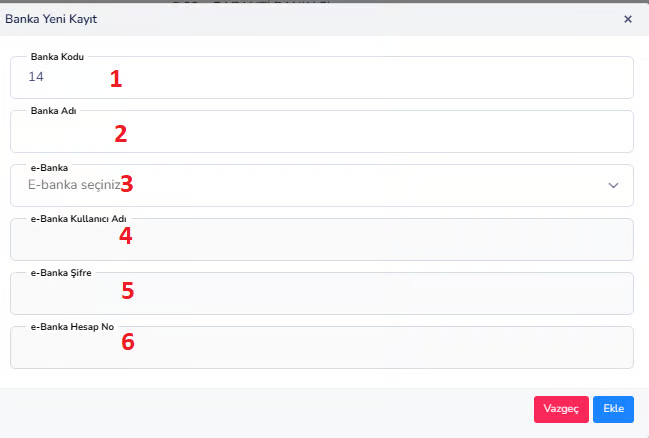
- You cannot make a money transfer
- Credit card transactions are not linked
- Bank reports do not work
BANK ACCOUNT CARD IDENTIFICATION SCREEN
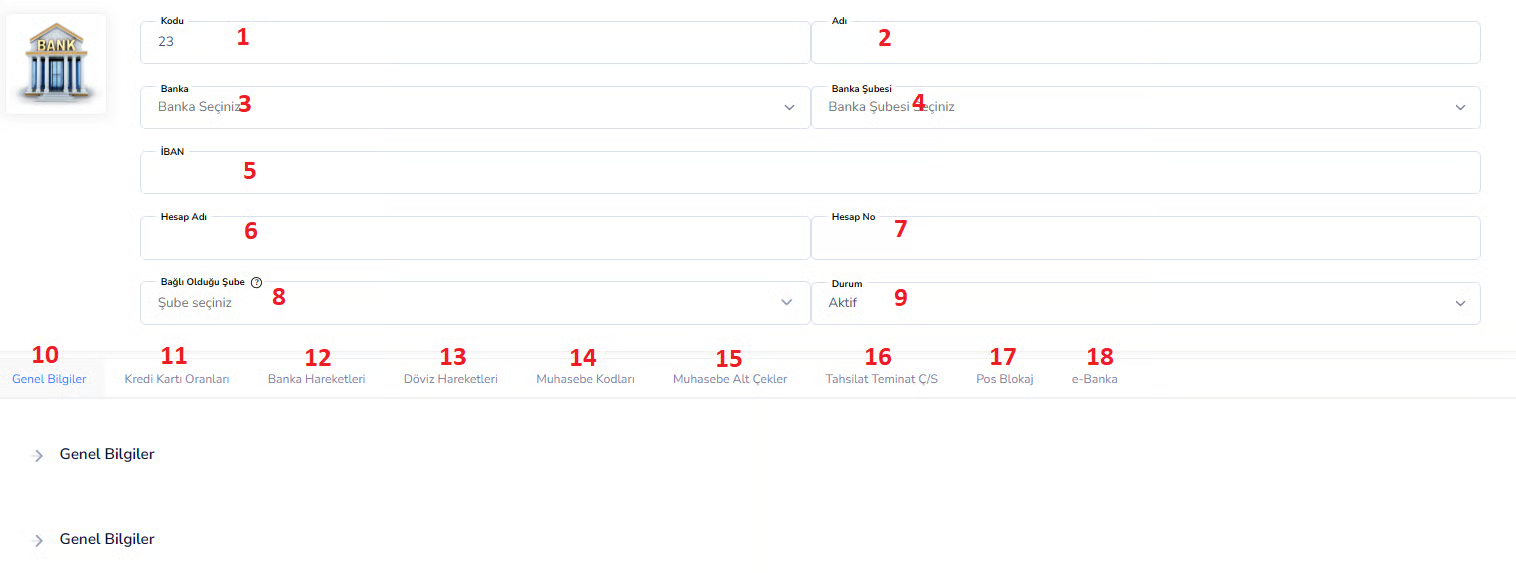
- General Information: This is the tab that contains basic information about the account.
- Credit Card Rates:> This is the field where the commission rates to be applied in POS transactions are defined. Example: 2.5% deduction
- Bank Transactions: This is the section where all money inflows and outflows for this account are listed.
- Foreign Exchange Movements: This is the area where foreign exchange-based transactions are followed.
- Accounting Codes: This is the section where the account is associated with accounting accounts. It is critical for finance and accounting integration.
- POS Blocking: This is the area where the transfer time of credit card collections to the account is defined. Example: It will be transferred to your account after 1 day
- e-Bank: This is the tab where bank integration settings are made.
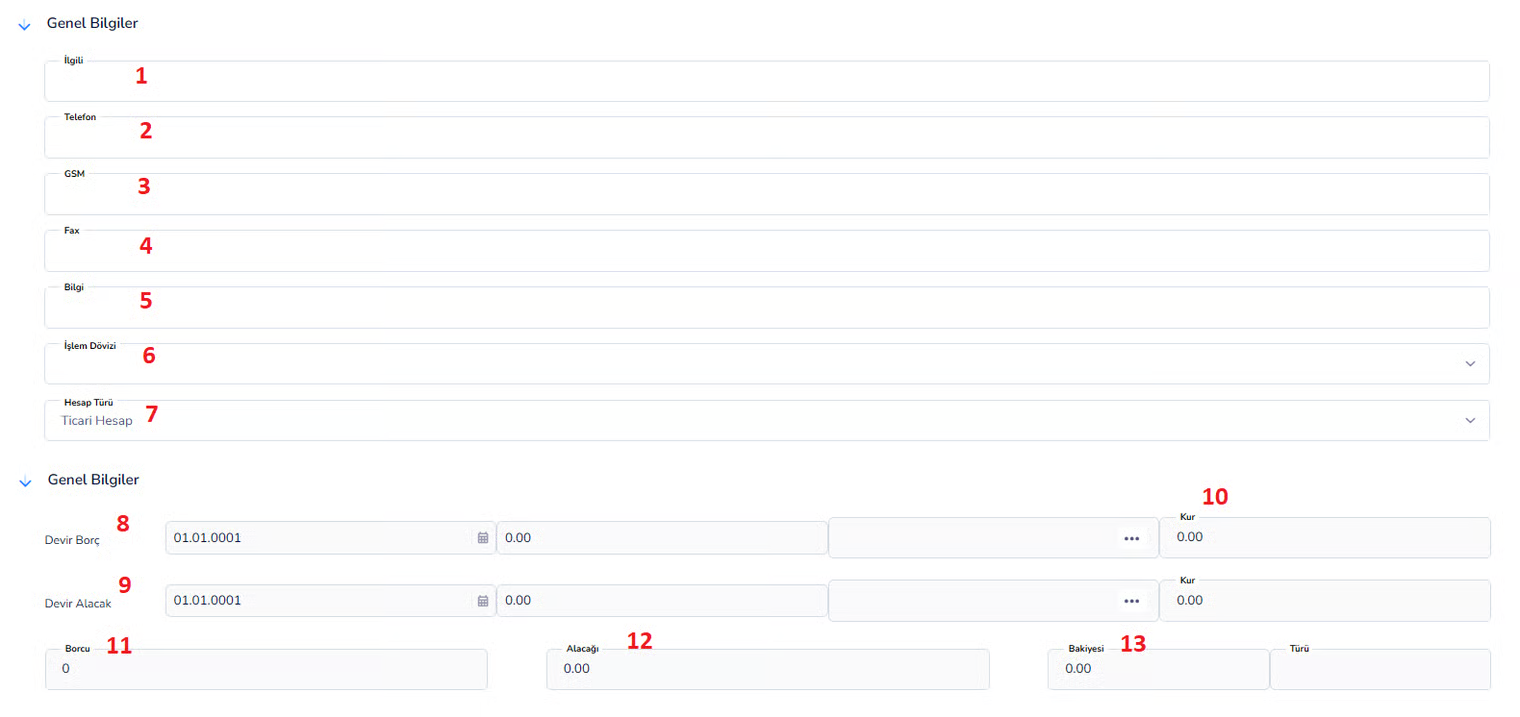
GENERAL INFORMATION SCREEN
CREDIT CARD RATES SCREEN
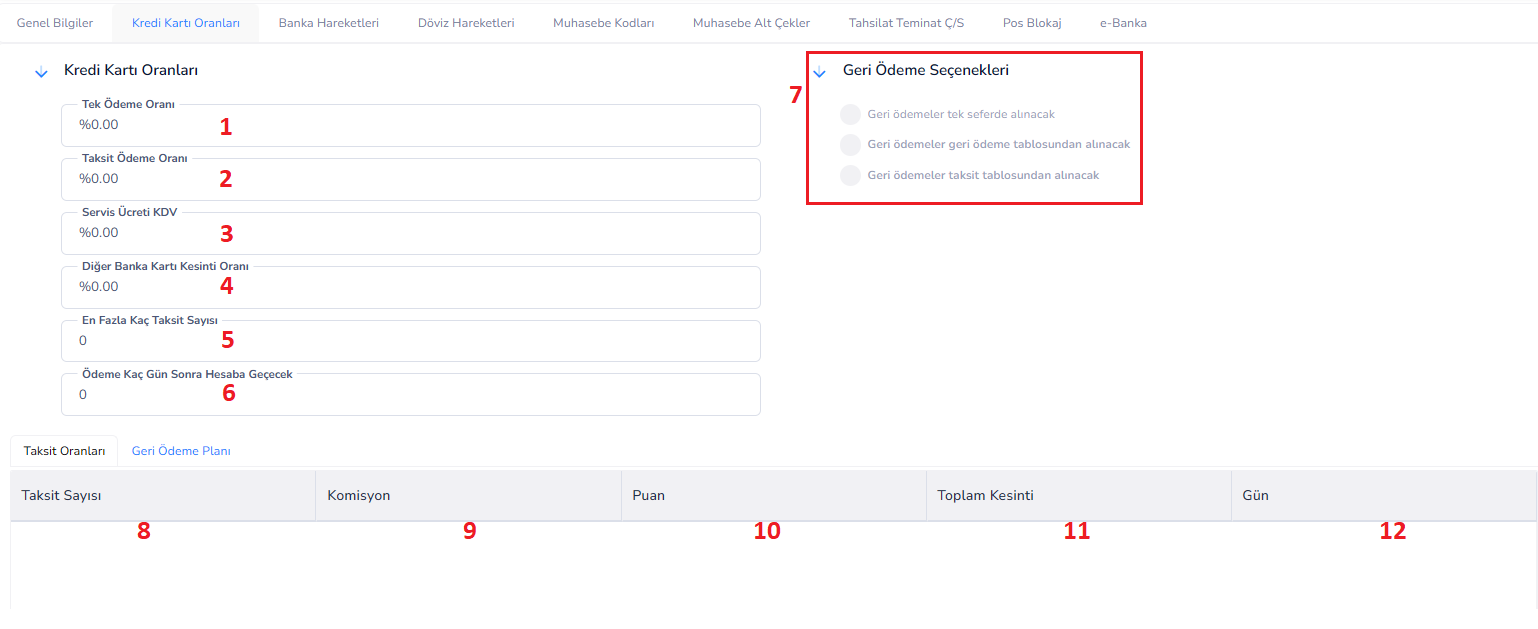
This screen is used to define the commission rates, deductions and payment periods applied by the bank for collections made by the business's credit card.
Separate rates can be determined for single withdrawal and installment transactions. In addition, the number of days after which the bank will transfer the payment to the account and the repayment plans are checked on this screen.
Field Descriptions:
1.Single Payment Rate (%): It is the commission rate applied by the bank in single withdrawal (without installments) transactions.
For example, when 2% is entered, there will be a 20 TL deduction for 1000 TL sales, it is generally a low rate.
2nd Installment Payment Rate (%): This is the commission rate applied to sales in installments. It is generally higher than single shot. It may vary depending on the bank.
3.Service Fee VAT (%): It is the VAT rate calculated on the commission received by the bank.
In Turkey, it is generally applied as 20%. It increases the total cost.
4.Other Bank Card Deduction Rate (%): This is the additional deduction rate applied to transactions made with cards of different banks. It may be valid for cards other than the bank to which the POS belongs. It is an optional field.
5. Maximum Number of Installments: Determines the maximum number of installments that can be offered to the customer.
For example, if 12 is entered, a maximum of 12 installments can be made.
6. How many days will it take for the payment to be credited to the account:Indicates how many days it will take for the bank to transfer the collected amount to the business's account.
Example:
1 → the next day
7 → 1 week later
Refund Options:
7.Repayment Method:Determines how the payment to be received from the bank will be transferred to the account:
-
- To be taken at once → The entire payment is transferred to the account in one piece
• To be taken from the repayment table → Transferred according to the predefined plan
• To be taken from the installment table → Each installment is transferred to the account separately
- To be taken at once → The entire payment is transferred to the account in one piece
Sub Table (Installment Rates / Repayment Plan):
8. Number of Installments: Indicates how many installments will be made. Example: 3, 6, 9, 12
9.Commission:This is the special commission rate to be applied for the relevant installment, it may differ from the general rate.
10th Point: It is the point or bonus rate given according to bank campaigns, usually optional.
11.Total Deduction:It is the sum of commission and other deductions, it can be calculated automatically by the system.
Day 12: Indicates how many days it will take for each installment to be credited to the account.
Example: Payment will be received after 30 → 30 days.
This screen is the area where the commission rates, installment options and payment terms applied by the bank for sales made by credit card are defined. Single withdrawal and installment transactions can be determined separately, and the process of transferring the collected amounts to the account is controlled on this screen.
BANK TRANSACTIONS SCREEN

This screen is the area where all money inflow and outflow transactions of bank accounts can be displayed and filtered.
All financial transactions such as money transfer, EFT, collection and payment are tracked in detail on this screen. Users can quickly access the movements they want by searching with certain filters. Top Filter Fields: 1. Date: Range Determines the date range of bank transactions to be displayed. Filtering is done by entering the start and end date. Example: Used to get monthly reports. 2. Transaction Type:Used to select the type of transactions to be listed. Example: Money Order, EFT, Collection, Payment etc. When “All” is selected, all transactions are listed. 3. Find (Button):Used to list data according to the entered filters. It must be clicked after filtering. 4. Show Details (Button): Used to display detailed information of the selected transaction. It usually leads to the relevant transaction slip. List Field (Table): 5. Transaction Location:Indicates which bank or account the transaction was made through. Example: Ziraat Bank, Garanti Bank 6. Transaction Type:Indicates the type of transaction performed. Example: Money Order, EFT, Transfer, Collection 7. Date:The date the transaction took place. 8. Amount:The total monetary value of the transaction. 9. Description:This is the explanation information entered regarding the transaction. Example: “Customer payment”, “Supplier payment” 10. Debt:Shows the amount of money coming out of the account. It represents the outflow of money. 11. Credit:Shows the amount of money entering the account. It represents the inflow of money. 12. Balance: Shows the amount remaining in the account after the transaction. It is important for current balance tracking. 13. Type:Indicates the financial category of the transaction within the system. It is used for reporting and classification. 14. Document ID: It is the document number created in the system for the transaction. It is used for tracking and control. 15. Collection Status:Indicates whether the transaction has been collected or not. Example: Collected, pending 16. Due Date:Indicates the due date of payment or collection. It is critical for futures trading. This screen is a structure where all financial transactions of bank accounts are listed and filtered. Users can search by date and transaction type, view transaction details, and track account balance in real time.CURRENCY TRANSACTIONS SCREEN

This screen is the area where all financial transactions made in foreign currency (foreign currency) pertaining to bank accounts are displayed.
Currency-based debit, receivable and balance tracking is done on this screen. Users can examine the relevant currency movements in detail by filtering according to the selected currency. Top Area: 1. Currency:Determines the currency in which the transactions to be displayed will be. Example: USD, EUR, GBP The list is updated according to the selected currency. 2. Find (Button): Used to list foreign exchange movements according to the selected currency. After applying the filter, it should be clicked. List Field (Table): 3. Transaction Location: Shows the bank or account information where the transaction was made. Example: Garanti Bank USD Account 4. Transaction Type:Indicates the type of transaction performed. Example: Money Transfer, EFT, Collection, Payment 5. Date:The date the transaction took place. 6. Amount:The amount of the transaction in TL or the main currency defined in the system. 7. Description: This is the explanation entered regarding the transaction. Example: “Overseas payment”, “Foreign currency collection” 8. Foreign Currency Debt: Shows the amount debited from the account in foreign currency. It represents the outflow of money. 9. Foreign Currency Receivable: Shows the amount entered into the account in foreign currency. It represents the inflow of money. 10. Foreign Exchange Balance: Shows the remaining amount in the foreign currency account after the transaction. It is used for foreign currency based balance tracking. 11. Type:Indicates the financial category of the transaction within the system. It is used for reporting and classification. 12. Currency:Indicates the currency type in which the transaction was made. Example: USD, EURSubtotal Fields:
13. Debt:Shows the total foreign exchange outflow in the listed transactions. 14. Receivable:Shows the total foreign currency inflow in the listed transactions. 15. Balance:Shows the total remaining balance according to the selected currency type. This screen is an area where bank transactions made in foreign currency can be tracked and filtered. By selecting a specific currency, users can examine the debit, credit and balance movements of that currency in detail and view the total amounts.ACCOUNTING CODES SCREEN
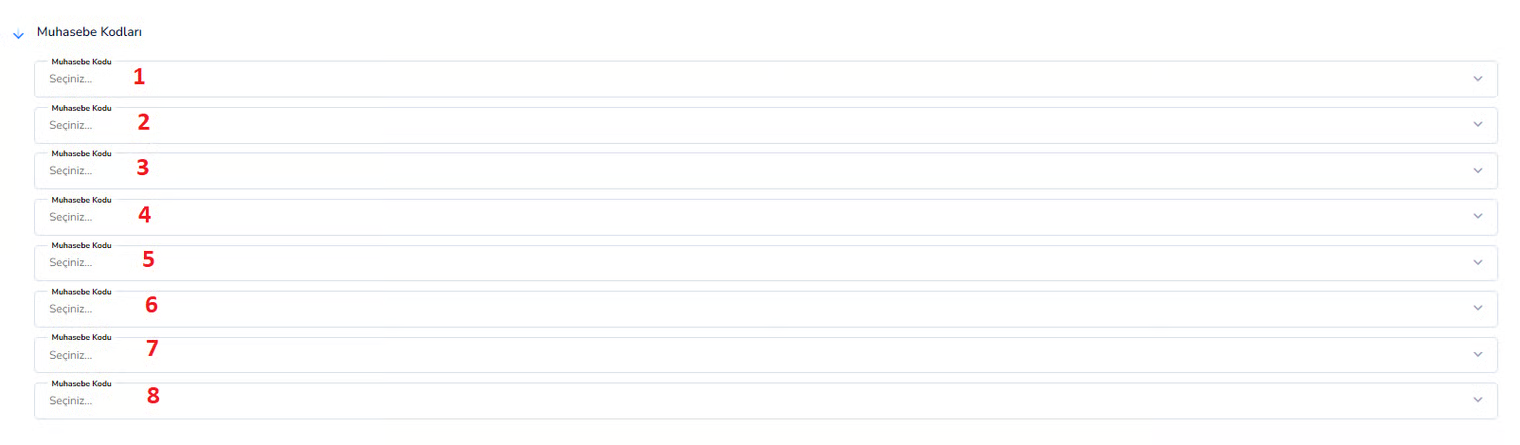
This screen is used to determine which accounts the bank account transactions will be recorded in the accounting records.
Matching of financial transactions with the correct accounting accounts is done through this field. Thus, every transaction made is automatically reflected in the relevant accounting account and reporting is created correctly.NOTE
The codes selected in these fields are generally selected from the accounting chart of accounts. If the wrong code is selected, accounting records will be created incorrectly. Therefore, these definitions are generally made by people with accounting knowledge. This screen is the area where the account codes used for the integration of bank accounts into the accounting system are defined. All financial transactions are automatically processed into the relevant accounts according to the accounting codes specified here and correct accounting records are created.ACCOUNTING SUBCHECKS SCREEN

COLLECTION / GUARANTEE CHECK-BILL SCREEN

POS BLOCKING SCREEN

E-BANKING STATUS SCREEN

- Determines whether e-Banking integration is active or not.
- The options are usually:
- Active → Integration with the bank is on, data is exchanged.
- Passive → Integration is disabled, bank transactions will not be withdrawn automatically.
- When active, the system can automatically capture bank transactions.
- In the passive state, transactions must be entered manually.
- Incorrect use may result in missing data or incorrect records.
BANK BRANCH NEW REGISTRATION SCREEN
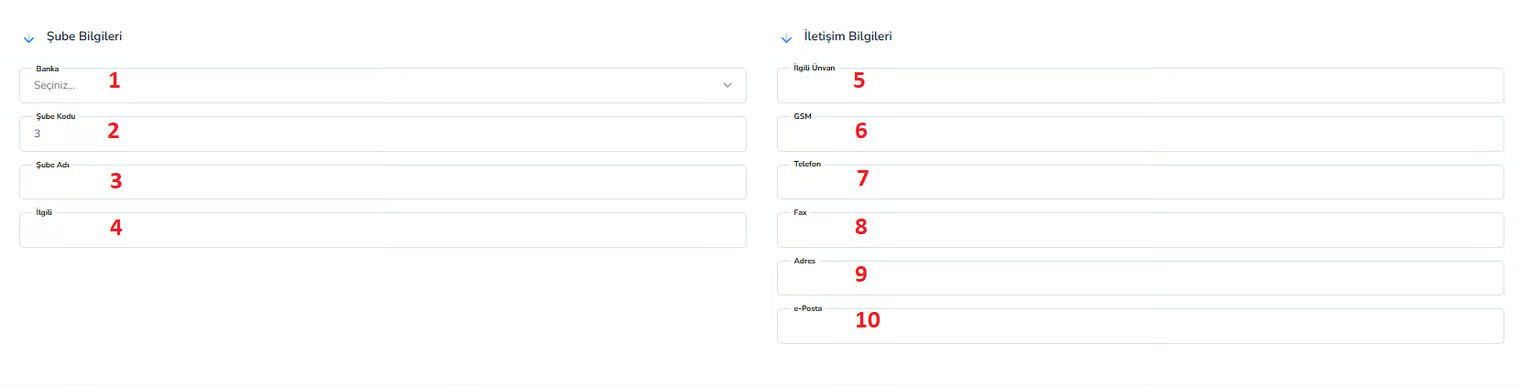
Contact Information Area:
5. Relevant Title:The duty or title information of the authorized person. Example: Customer Representative, Branch Manager 6. GSM:This is the mobile phone number of the authorized person. 7. Telephone:This is the landline telephone number of the branch. 8. Fax:The fax number of the branch. Although it is rarely used today, it is necessary for some operations. 9. Address:The full address of the bank branch. 10. e-Mail: This is the e-mail address of the branch. It is used for communication and official correspondence.When branch information is entered incompletely or incorrectly, confusion may occur in bank transactions. In particular, bank selection and branch code must be entered correctly. This information is important as it is used as a reference in financial transactions.
This screen is the area where bank branch information is defined and contact information is recorded. Thanks to the branch information entered correctly and completely, bank transactions can be followed regularly and accurately in the system.Bu doküman yardımcı oldu mu?
Eksik veya geliştirilmesi gereken bir bölüm varsa destek ekibimizle paylaşabilirsiniz.